


FeatureNew
DeepMeta mobile app for iPhone and Android
Our mobile app for iPhone and Android is in public beta, open to all. How to join, and a step-by-step guide: upload from your phone, let AI suggest your metadata, submit, and follow your Inspections, Portfolio and Daily Stats.

By Franky De Meyer
DeepMeta now runs on your phone! Upload photos and videos straight from your iPhone or Android phone into your Getty Images and iStock batches, let DeepMeta's AI draft the metadata; you verify and correct it, then submit. On the go, you can also follow your Inspections, your Portfolio and your Daily Stats. The app uses your DeepMeta account, so you see the same batches and data as on the website.
Use the iOS/Android switch above to see the steps corresponding to your phone.
Want to try the public beta?
Anyone with a DeepMeta account can join the beta: open the link for your phone, on that phone.
- iPhone: the link opens Apple's TestFlight app, which installs DeepMeta. You need iOS 17.4 or later.
- Android: first join our DeepMeta beta testers group with your Google account, then open the link and become a tester. You need Android 8.0 or later.
The app is a test version: it changes often, and some screens may look a little different from the screenshots. Your feedback helps us make it better, so please tell us what works and what doesn't. The steps are in Join the beta below.
1. Before you start
The app works with the DeepMeta account you already have. You set it up on the website:
- A DeepMeta account. The app has no sign-up. New to DeepMeta? Follow Getting Started with DeepMeta 4 first.
- An ESP account linked on the website, to upload. Without one, the app says "No ESP accounts with upload permissions".
- At least one royalty statement imported, for your Portfolio. Without one, the Portfolio says "No Portfolio data available yet".
2. Join the beta
The beta is open to all: you don't need to ask us first.
What you need: an iPhone with iOS 17.4 or later. There is no iPad version yet.
Install the app with TestFlight
Beta versions of iPhone apps come through Apple's TestFlight app:
- On your iPhone, open the DeepMeta beta link.
- No TestFlight yet? Tap View in App Store under Get TestFlight, install it, then come back to the link.
- Tap View in TestFlight under View DeepMeta Beta, then Accept and Install in TestFlight.
Updates: TestFlight shows each new version. Turn on Automatic Updates for DeepMeta in TestFlight to get them without thinking about it. The last row of More in the app shows the version you have.
What you need: an Android phone with Android 8.0 or later.
Install the app from Google Play
Use the same Google account for every step: the one you use on Google Play.
- Open the DeepMeta beta testers group, signed in with your Google account, and tap Join group. Being in the group is what lets you test the app.
- Open the DeepMeta testing page and tap Become a tester.
- Follow its link to Google Play and tap Install.
Google Play says the app isn't available? Check that you joined the group with the same account, wait a few minutes and open the testing page again.
Updates: the app checks Google Play for a new version whenever you open it, and offers to download it. Once it's downloaded, Install the update? offers to restart DeepMeta with the new version: tap Restart, or Later. It only asks while no uploads are running and nothing is left unsaved. The last row of More shows your version and where the update stands: tap it for the next step, or to look for updates in Google Play.
After the beta
Once the app leaves the beta, you'll simply find it in the App Store and on Google Play.
3. Log in
Open DeepMeta and tap Log in. Use your DeepMeta email address and password, not your Getty or iStock login. Below the button are links to our Terms of use and Privacy policy.
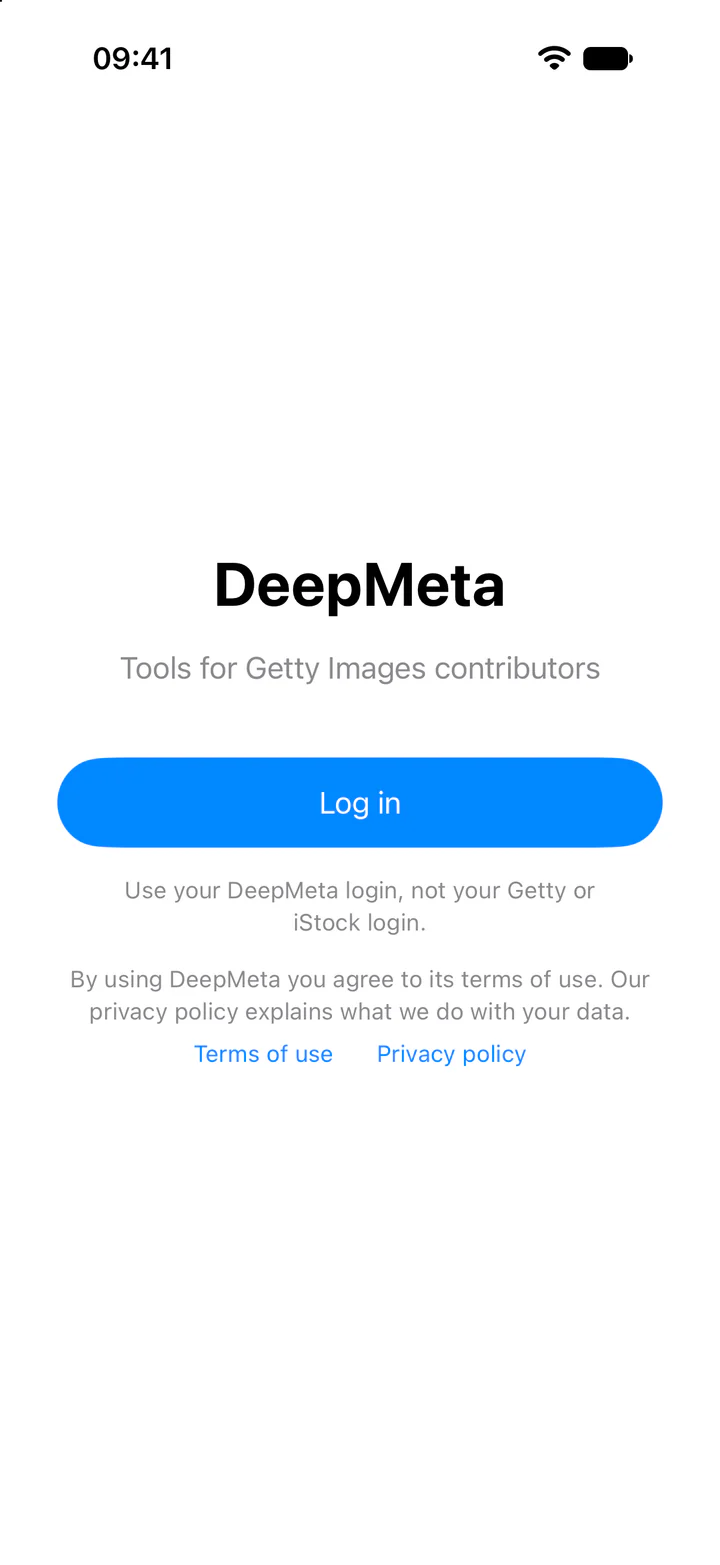
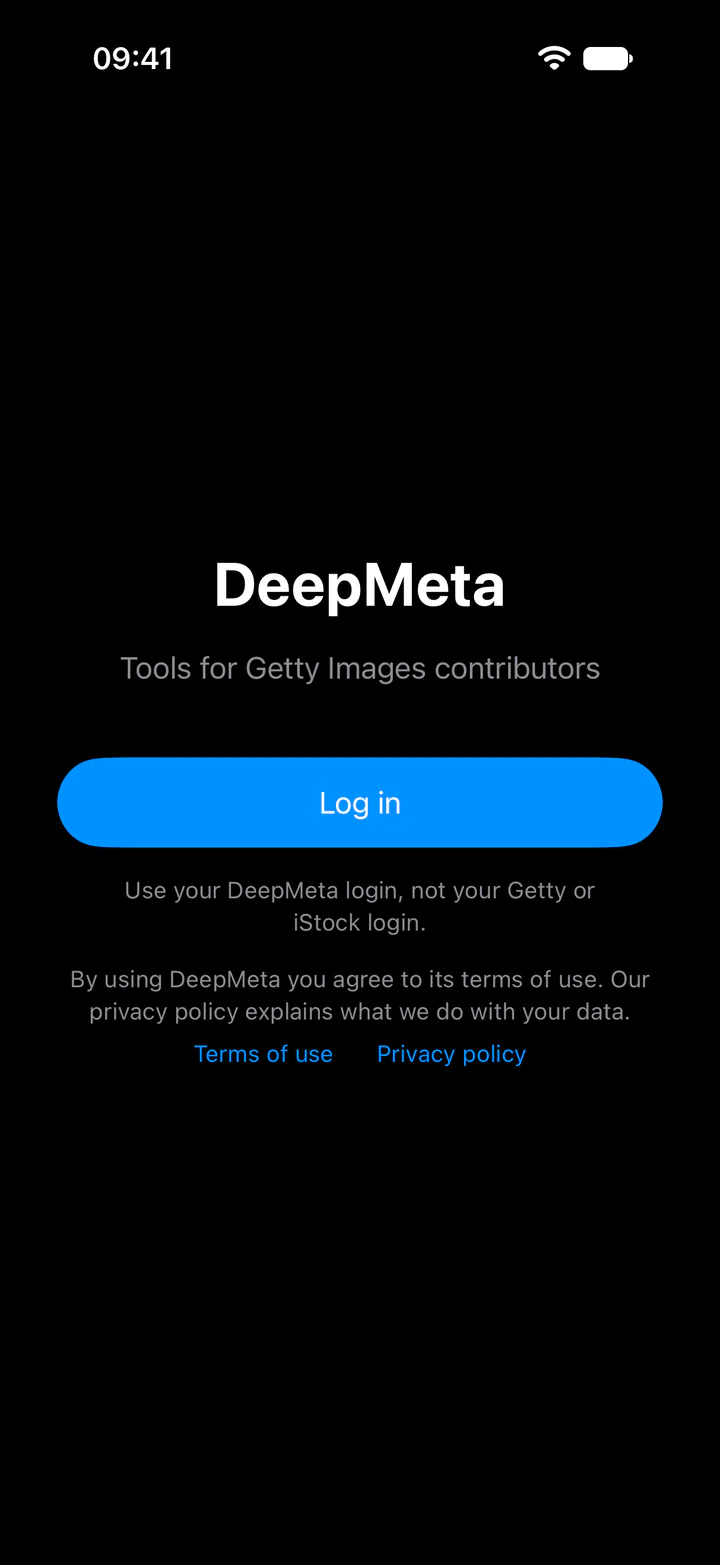
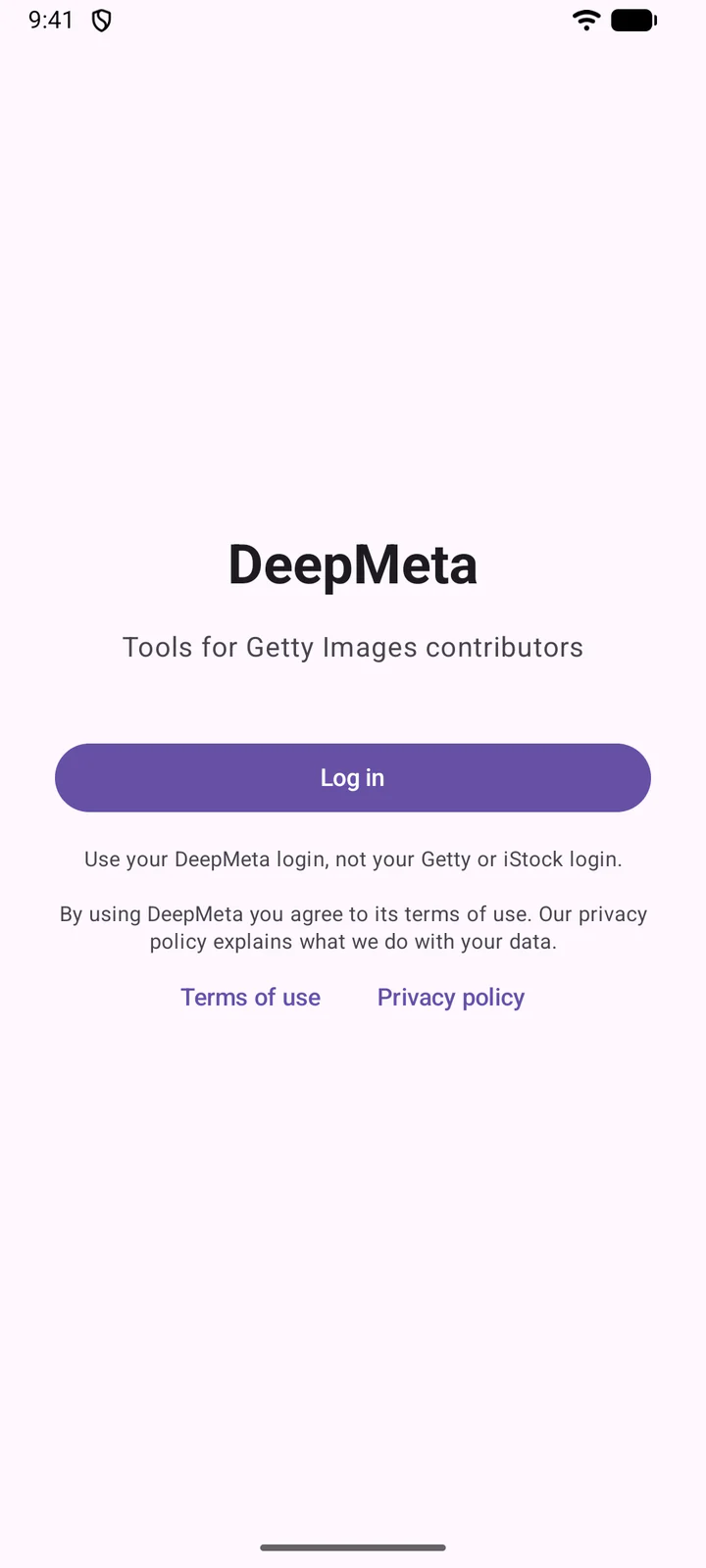
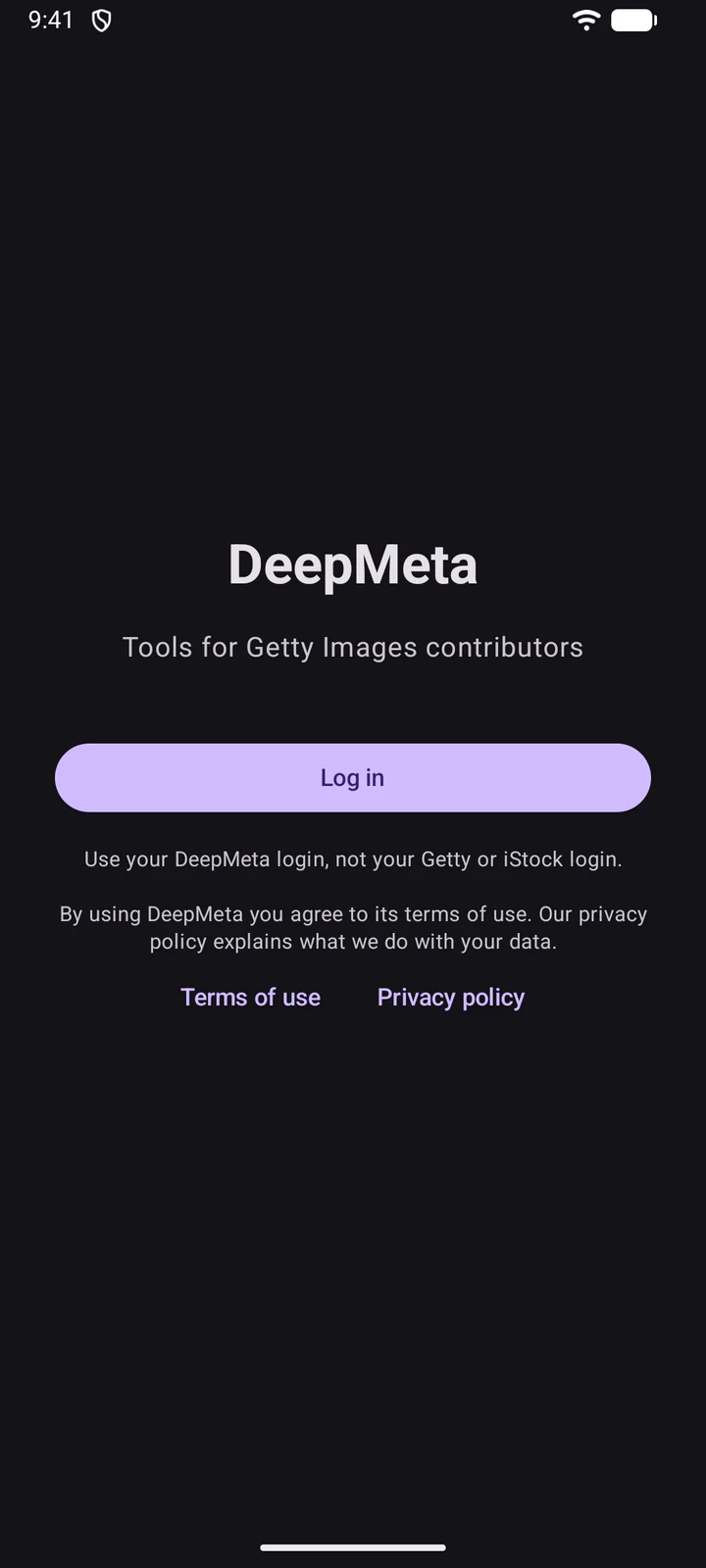
The website's login form opens in a browser sheet, with Forgot your password? and Sign up if you need them. It shows every time you log in, so you choose the account.
4. Find your way around
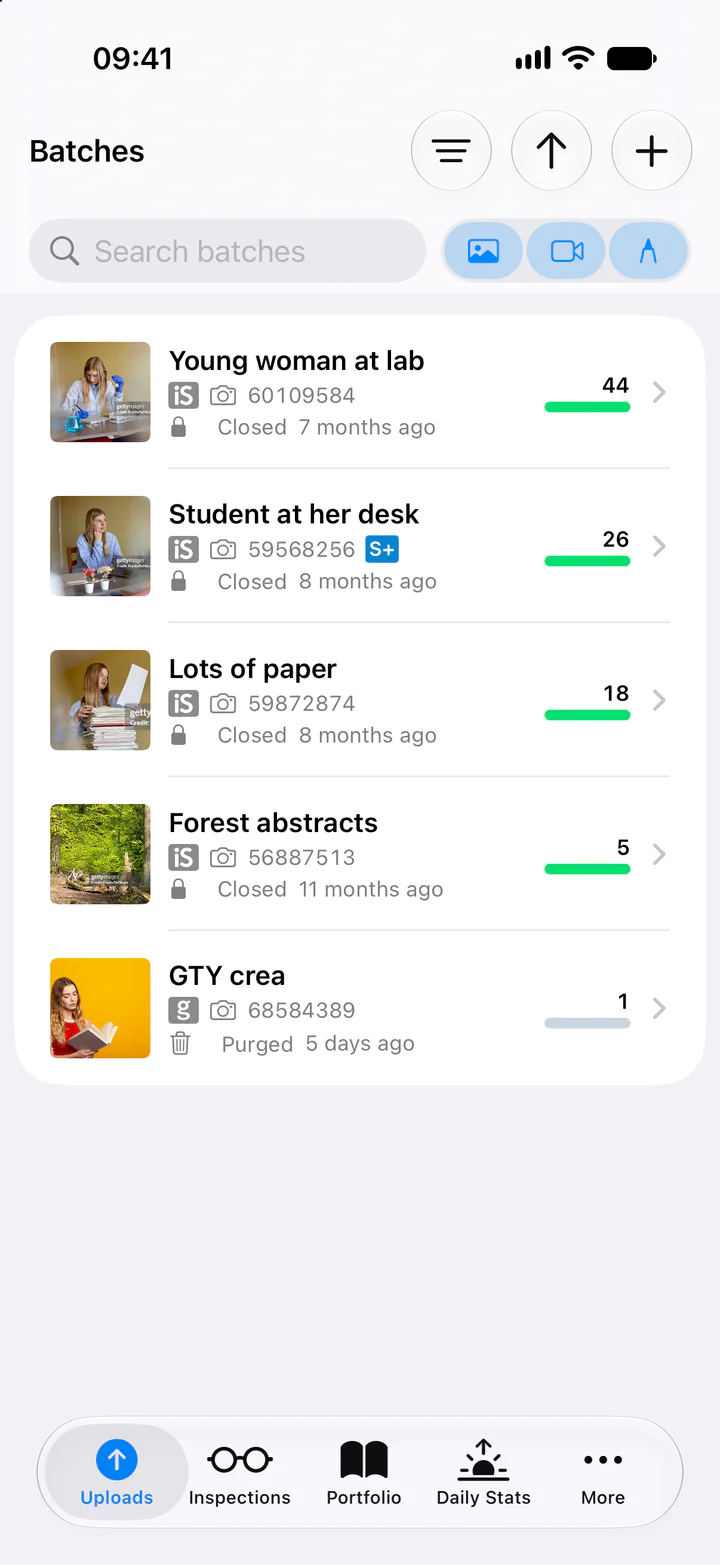
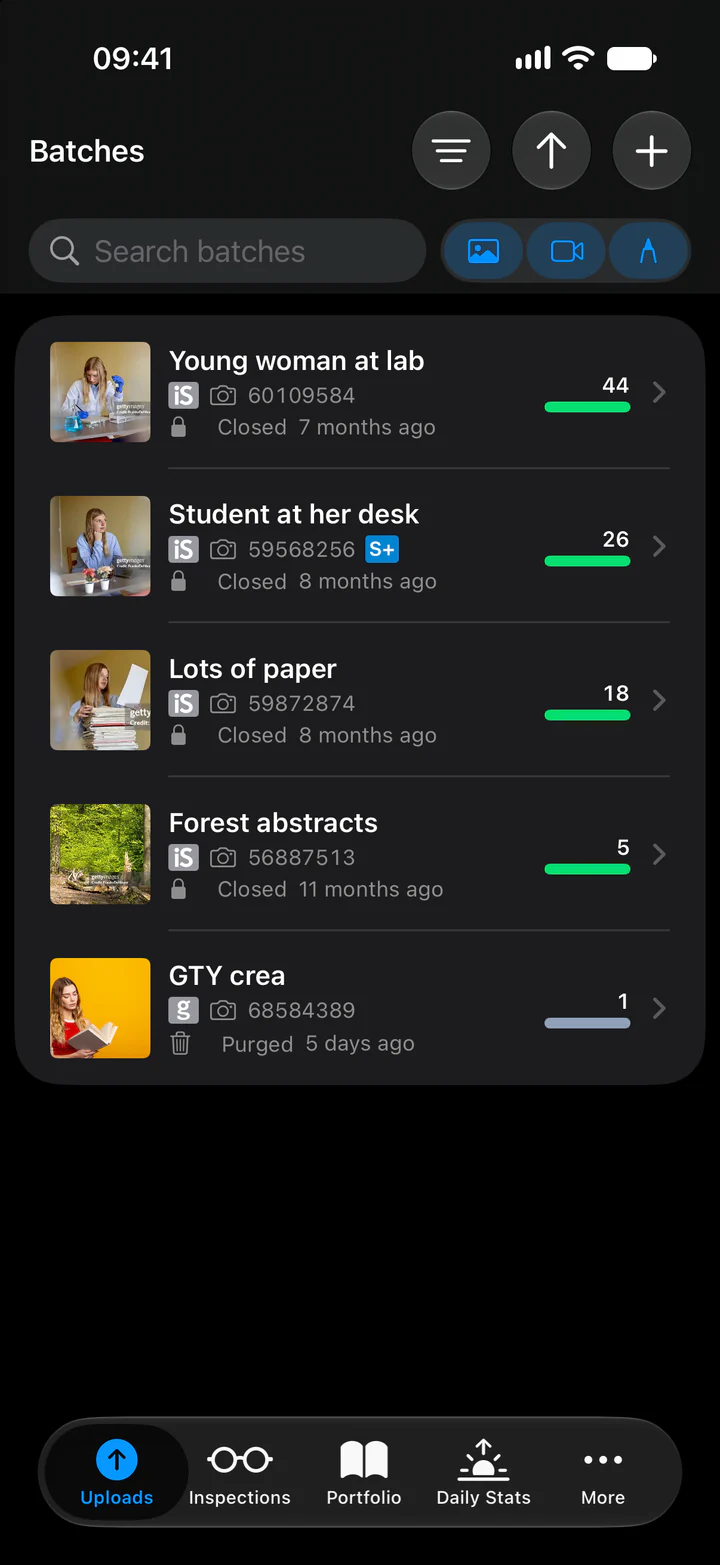
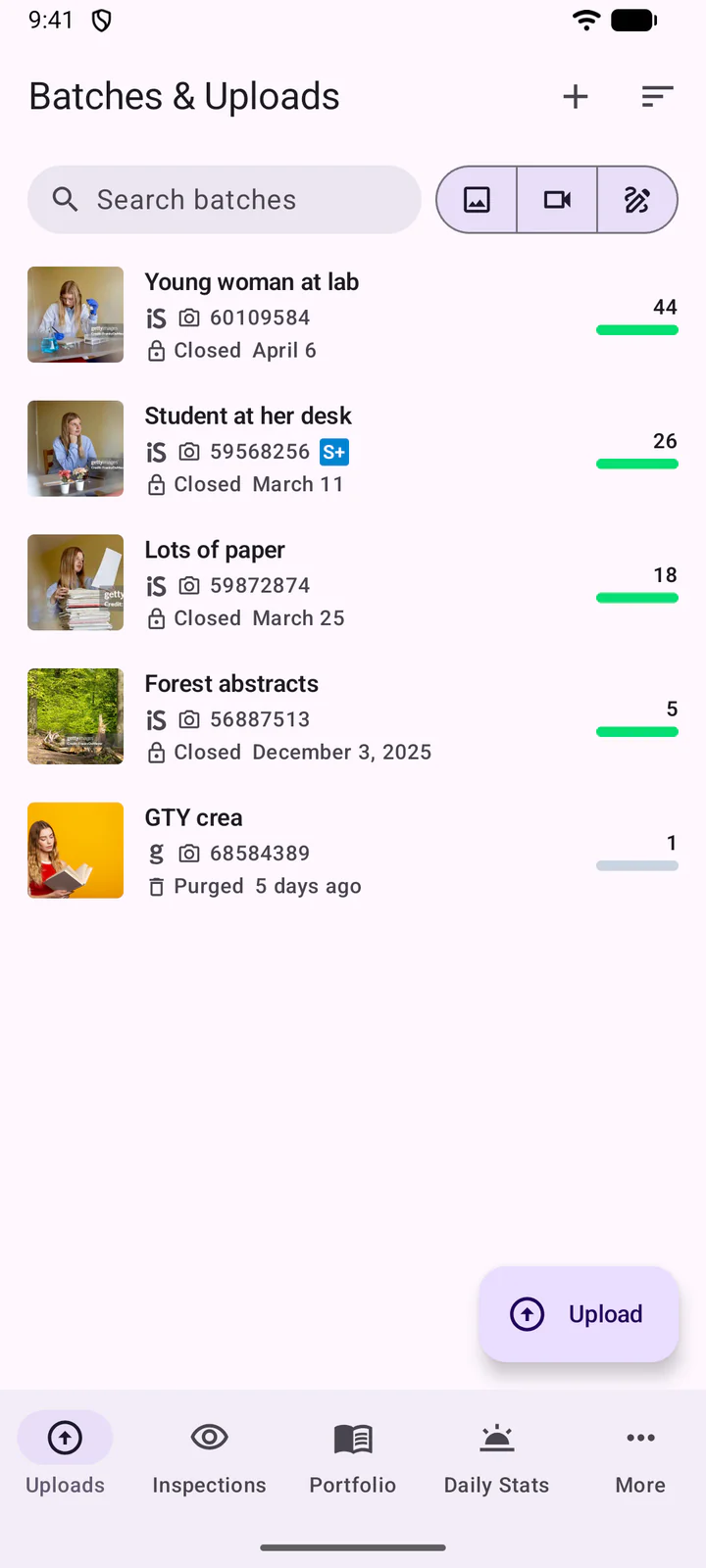
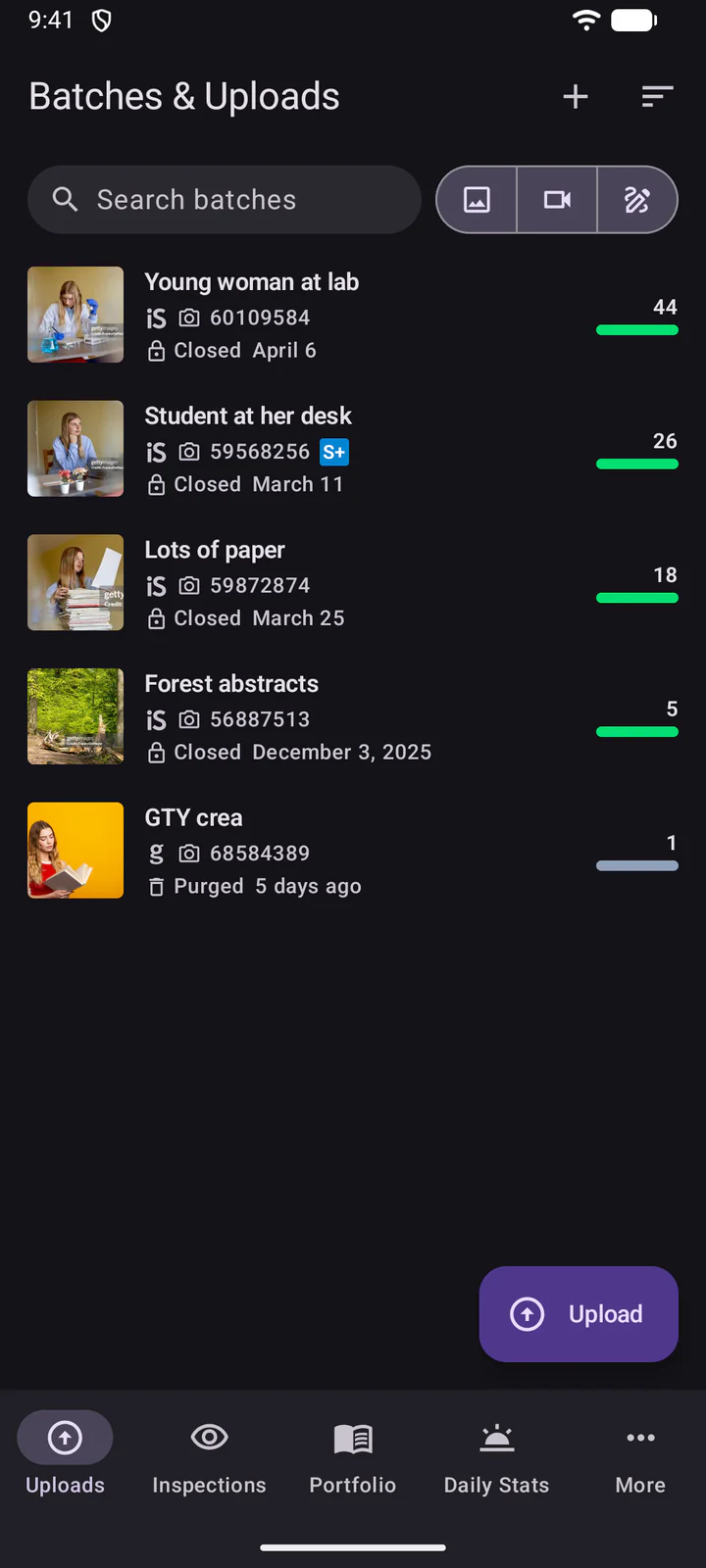
The app opens on your Daily Stats. The tabs at the bottom take you to Uploads, Inspections, Portfolio, Daily Stats and More. Uploads shows your batches, as on the website's Batches & Uploads page, with the same search, sort and filter.
Under More, Briefs lists Getty's briefs, as on the website. Tap one to read it.
Swipe a brief to the left to delete or like it.
Swipe a brief to the left to delete it: Undo brings it back. The heart likes it.
5. Create a batch
Tap at the top of the batch list.
Tap + at the top of the batch list.
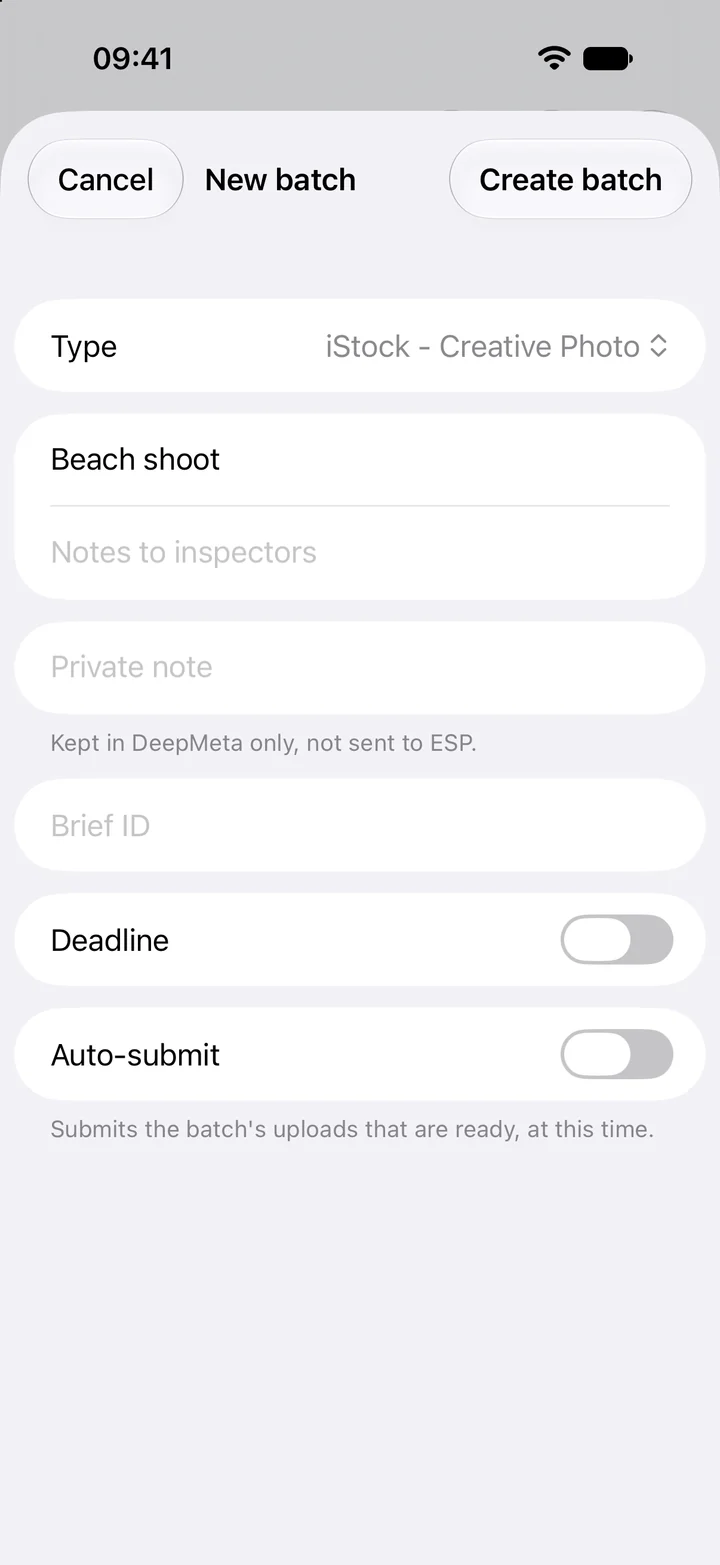
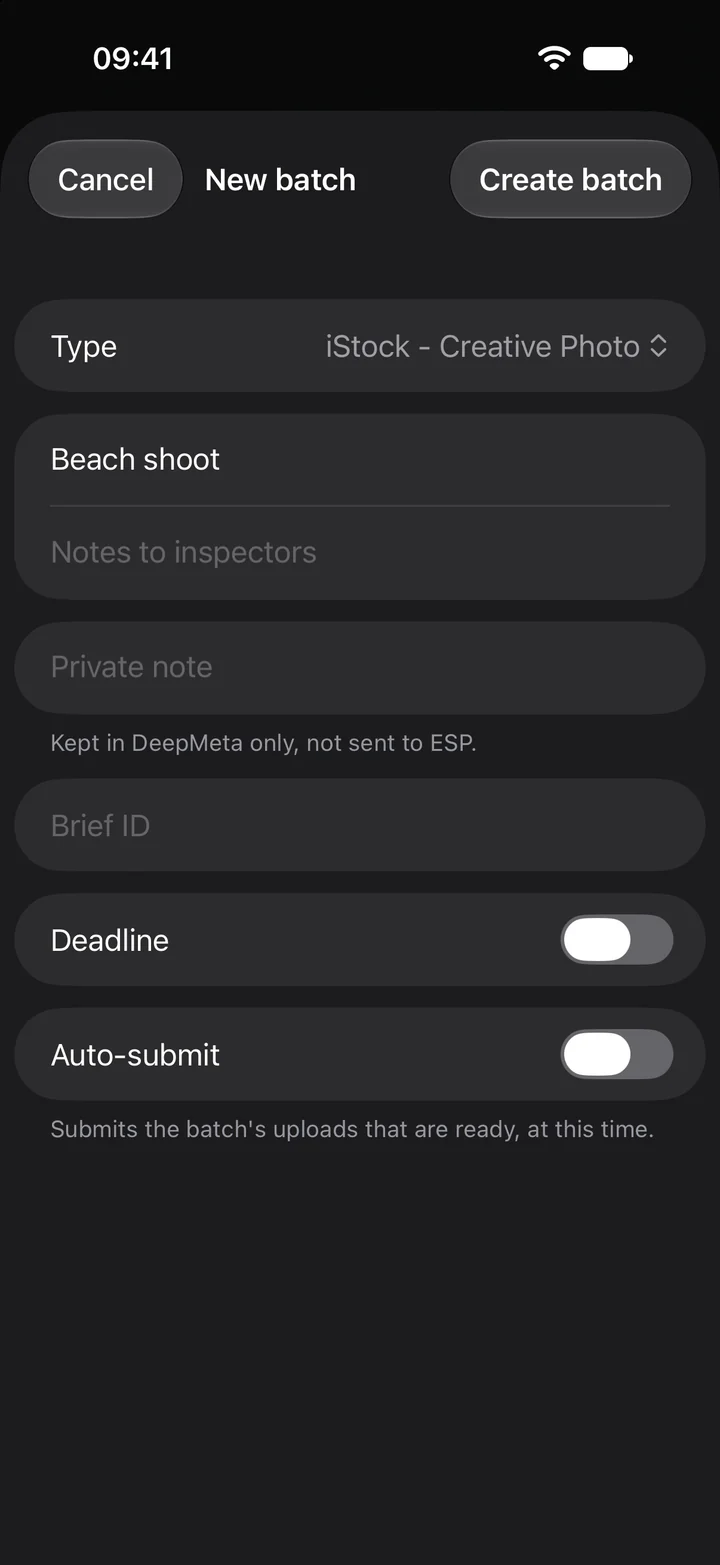
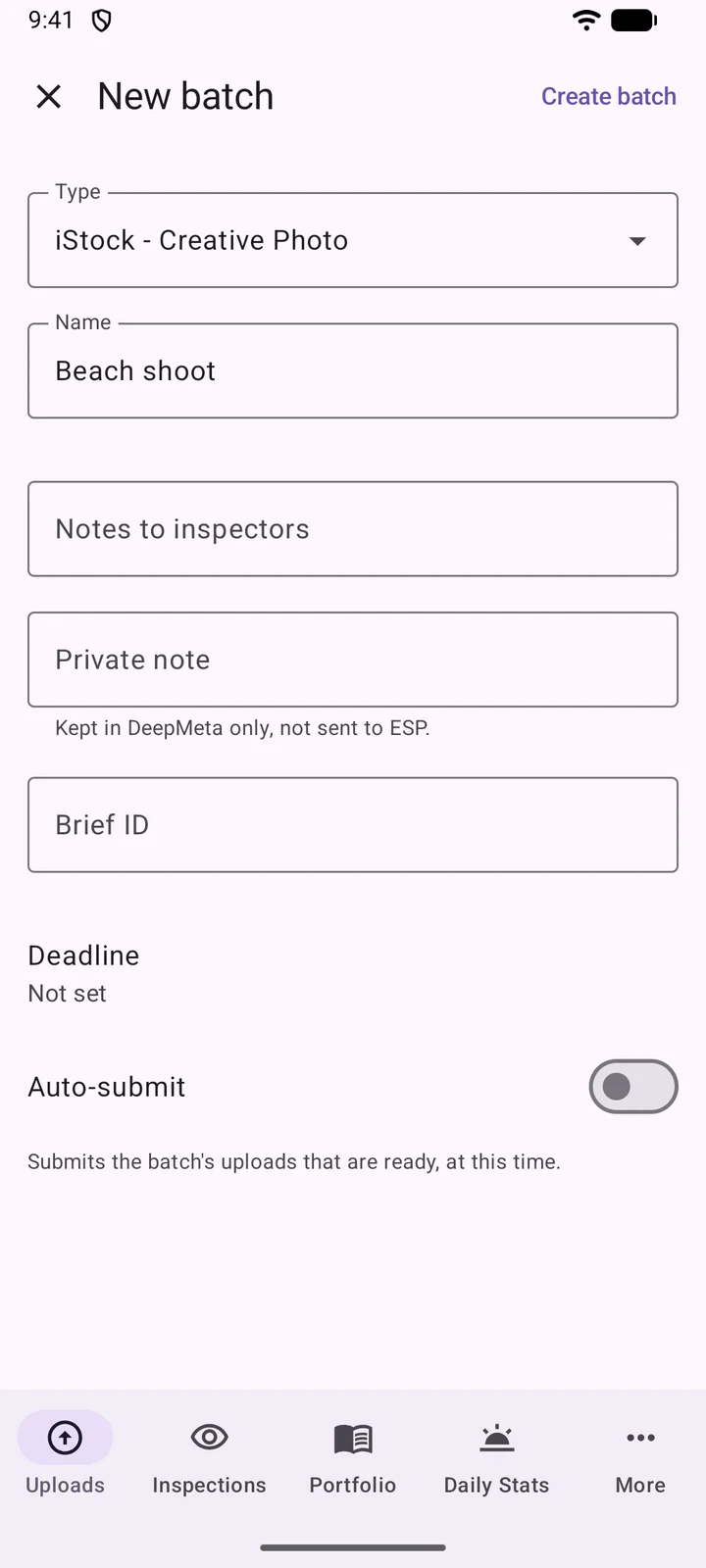
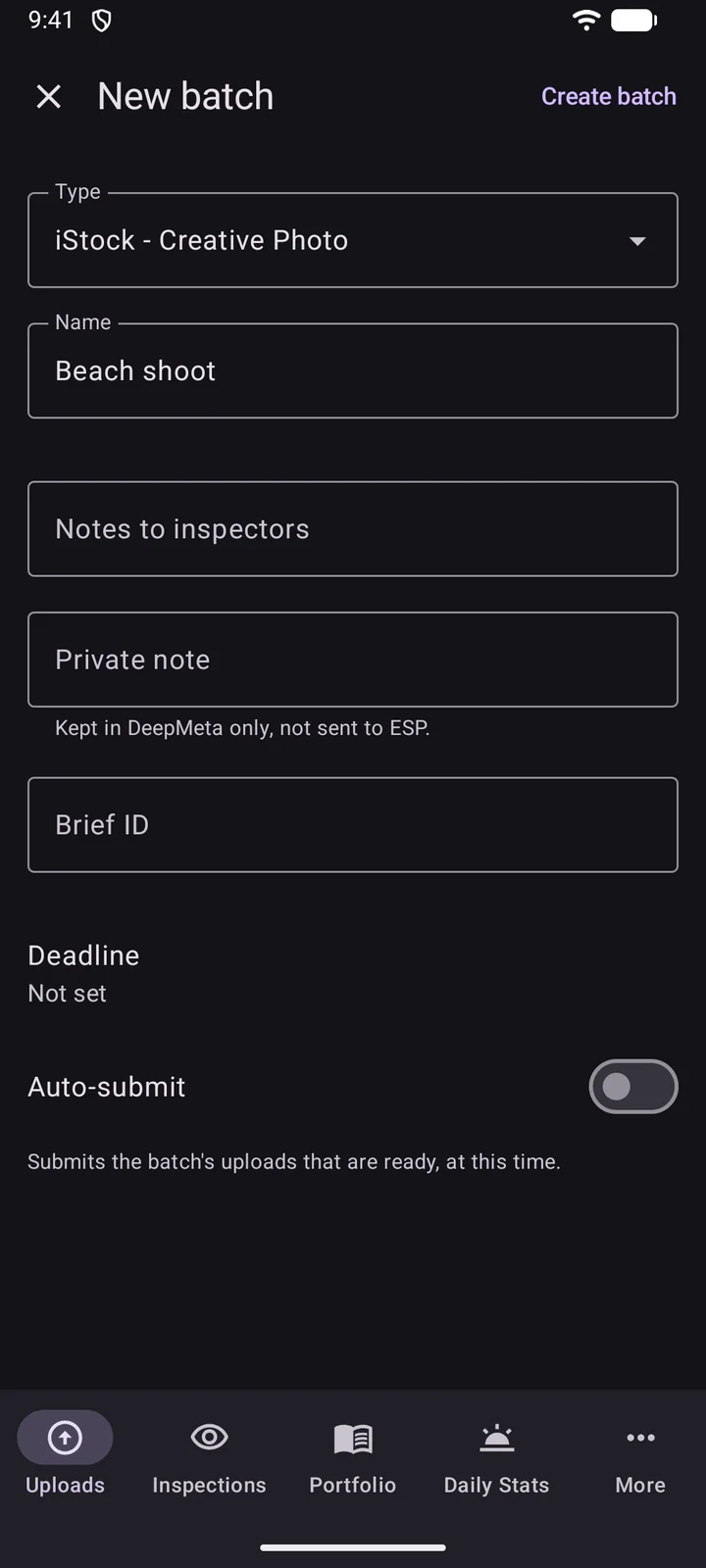
Choose the Type (Getty Images or iStock, creative or editorial, photo, video or illustration) and give the batch a Name. You can add Notes to inspectors, a Private note that stays in DeepMeta, a Brief ID, a Deadline, and an Auto-submit time. Then tap Create batch.
6. Upload photos and videos
Tap in the batch, or in the batch list.
Tap Upload in the batch, or in the batch list.
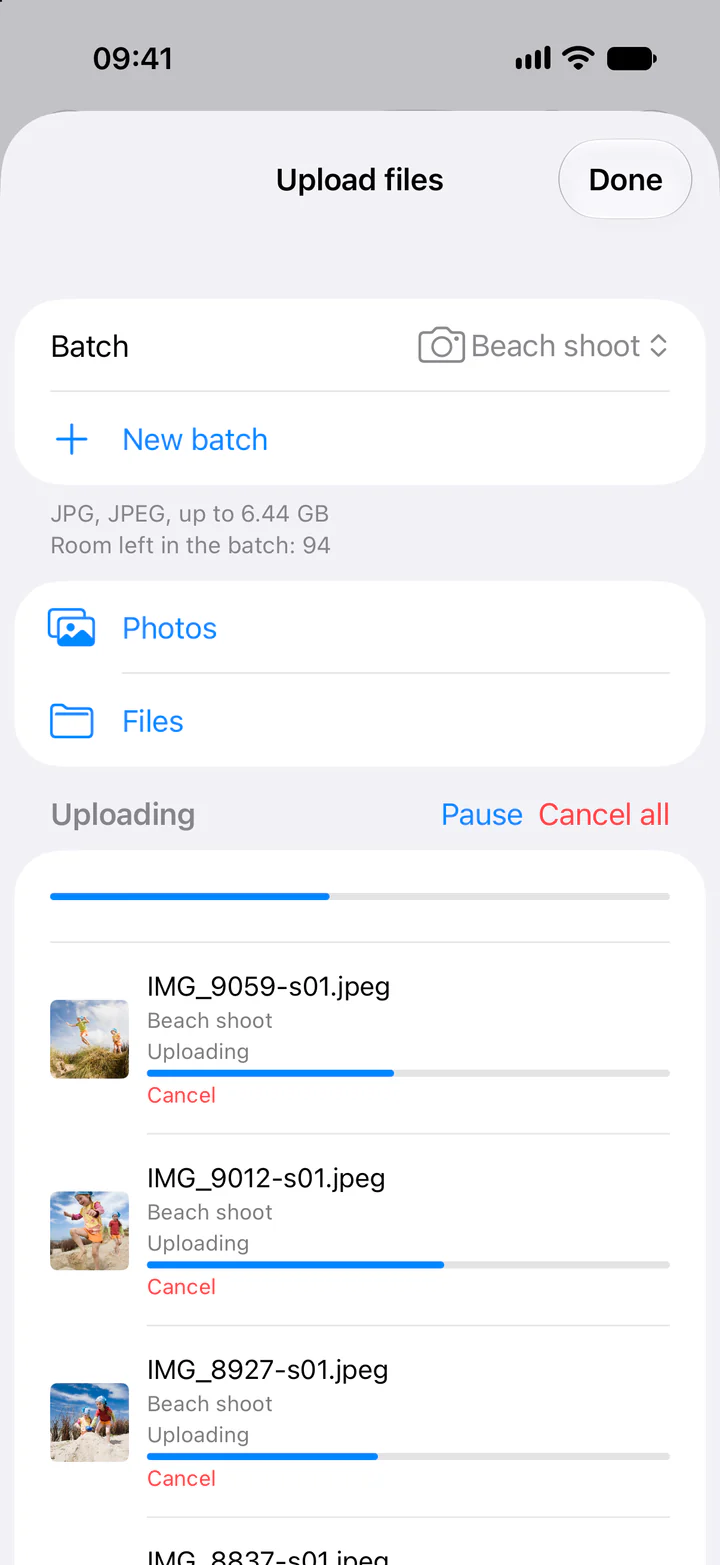
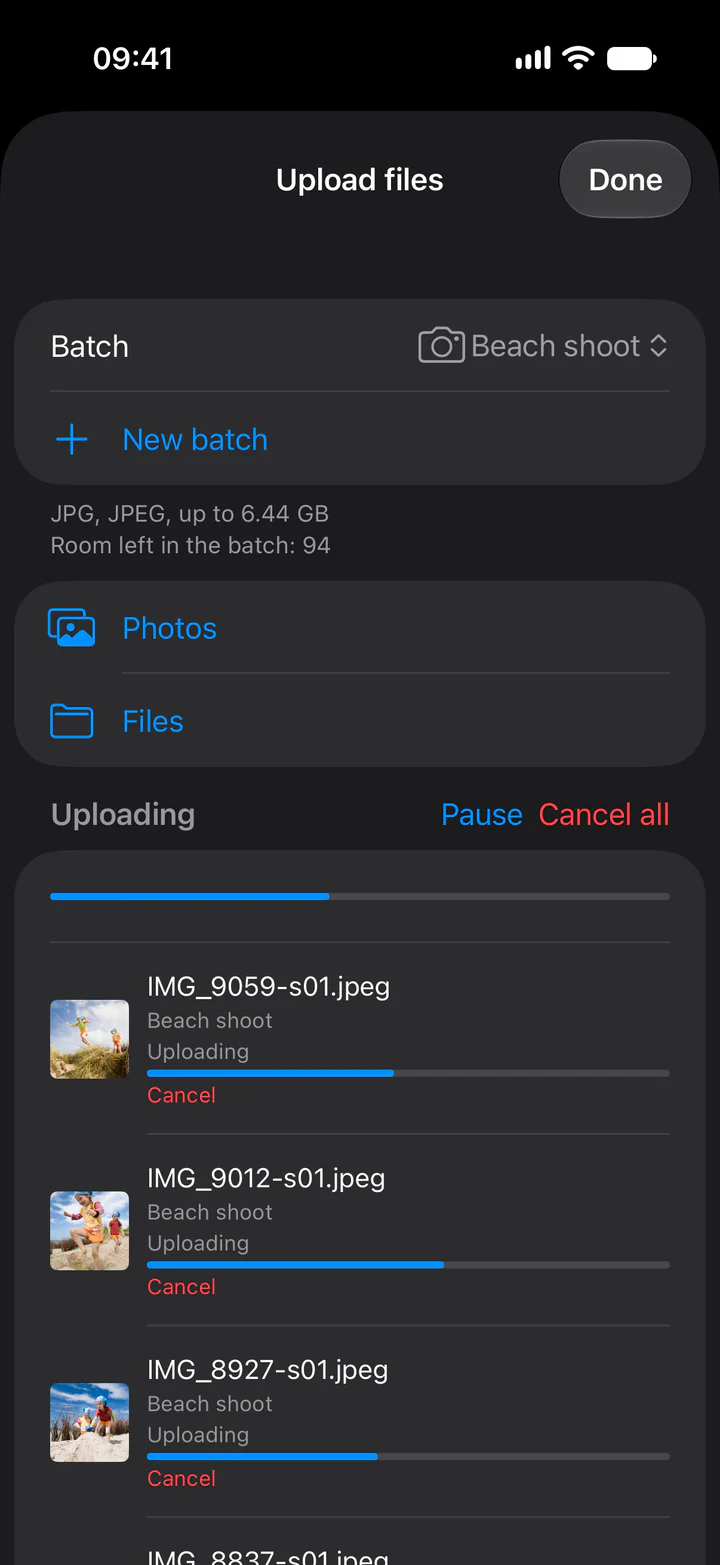
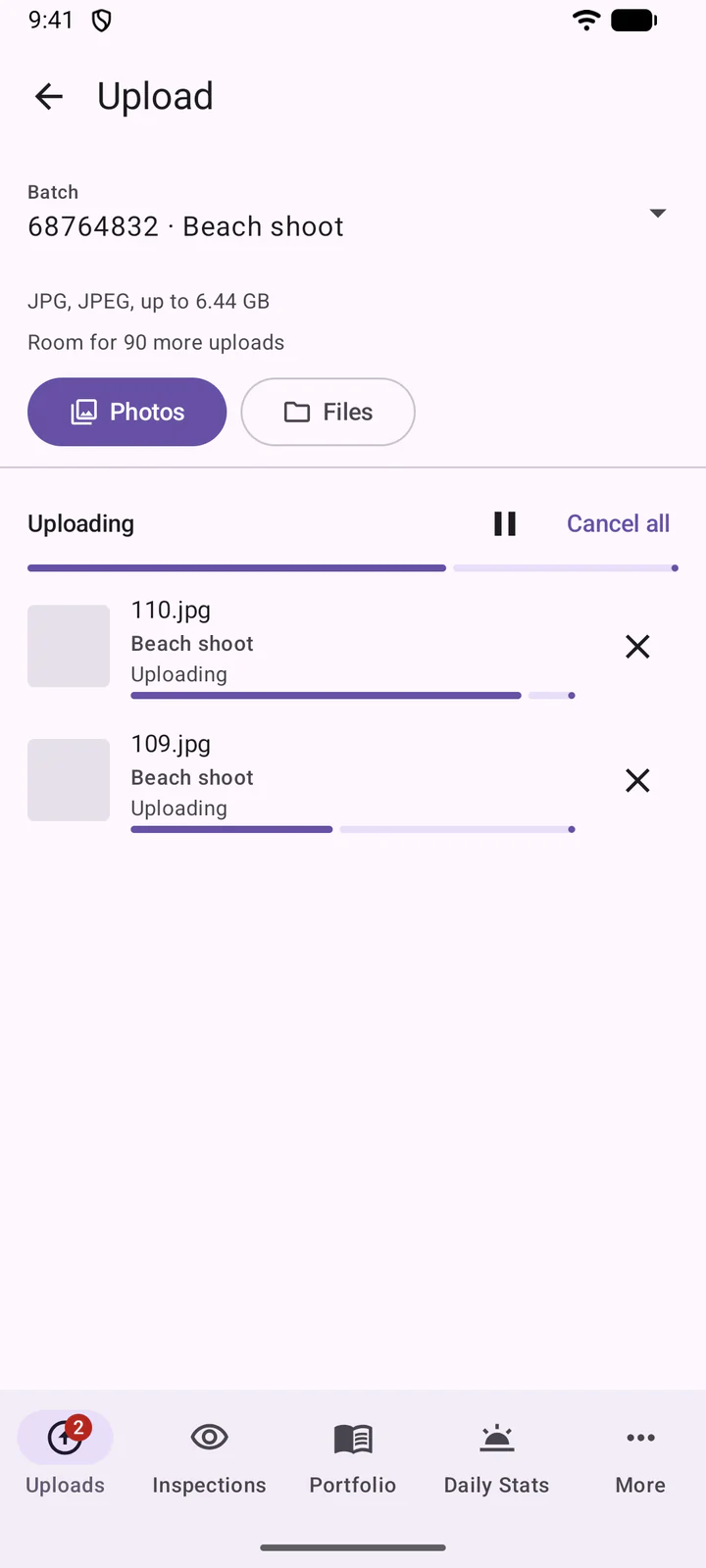
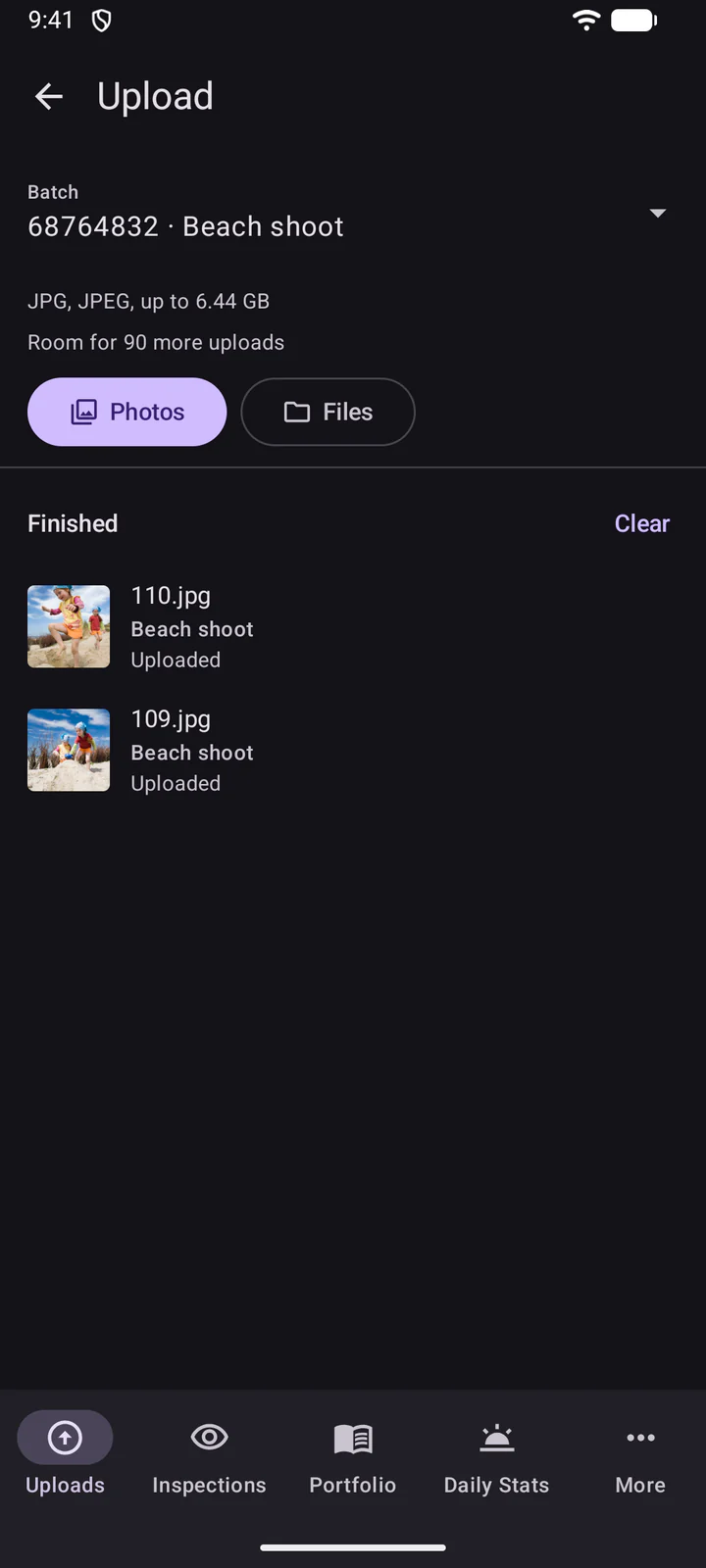
Check the Batch at the top, then pick your files with Photos or Files. The pane shows which file types the batch takes and how much room is left in it.
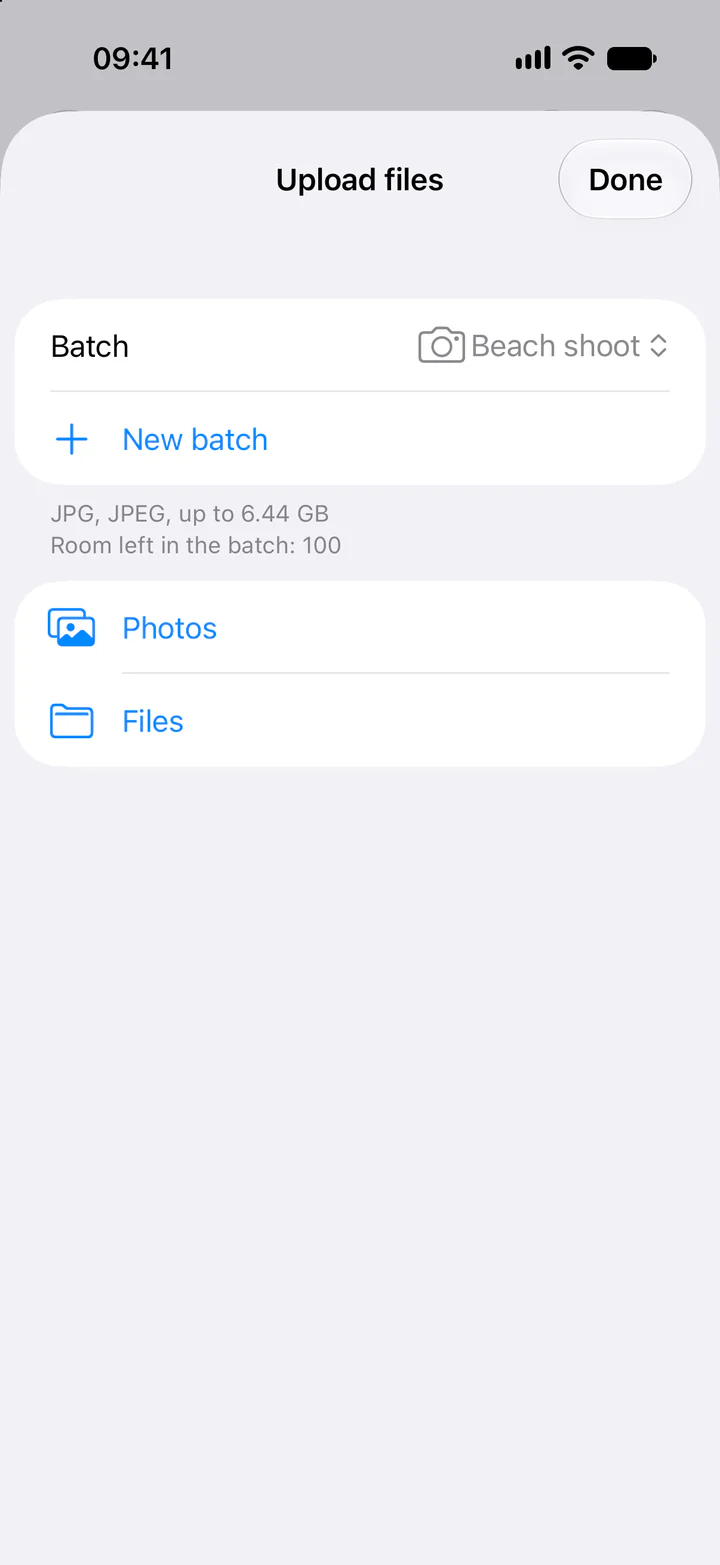
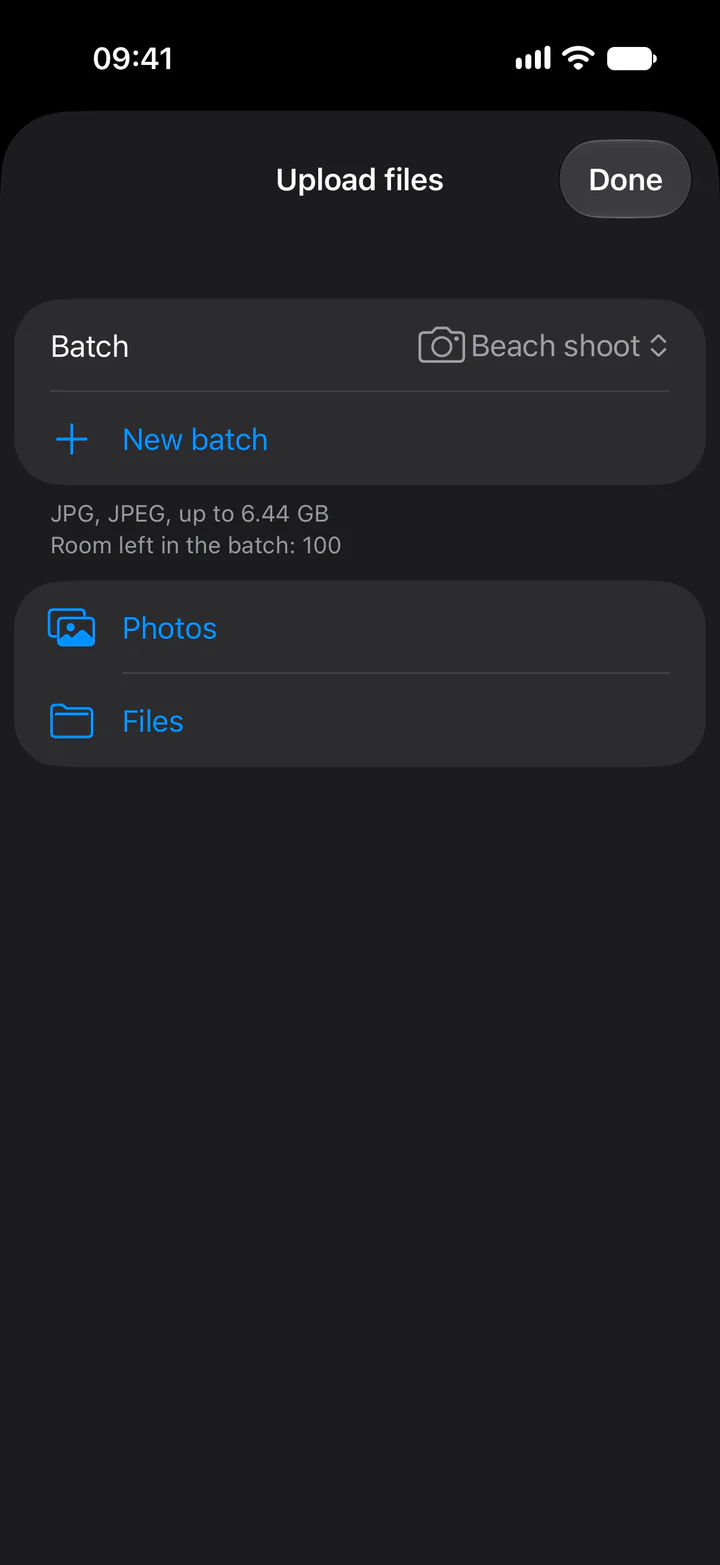
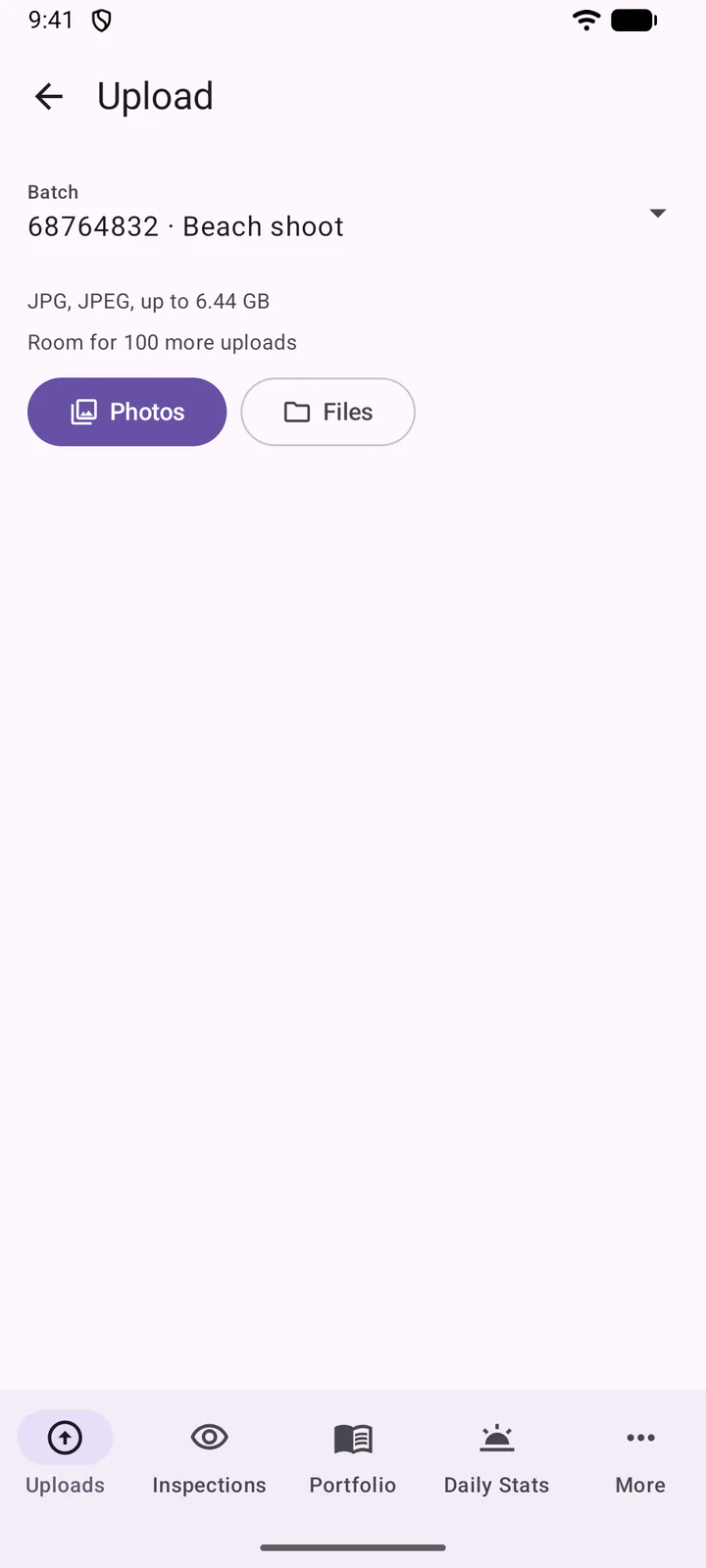
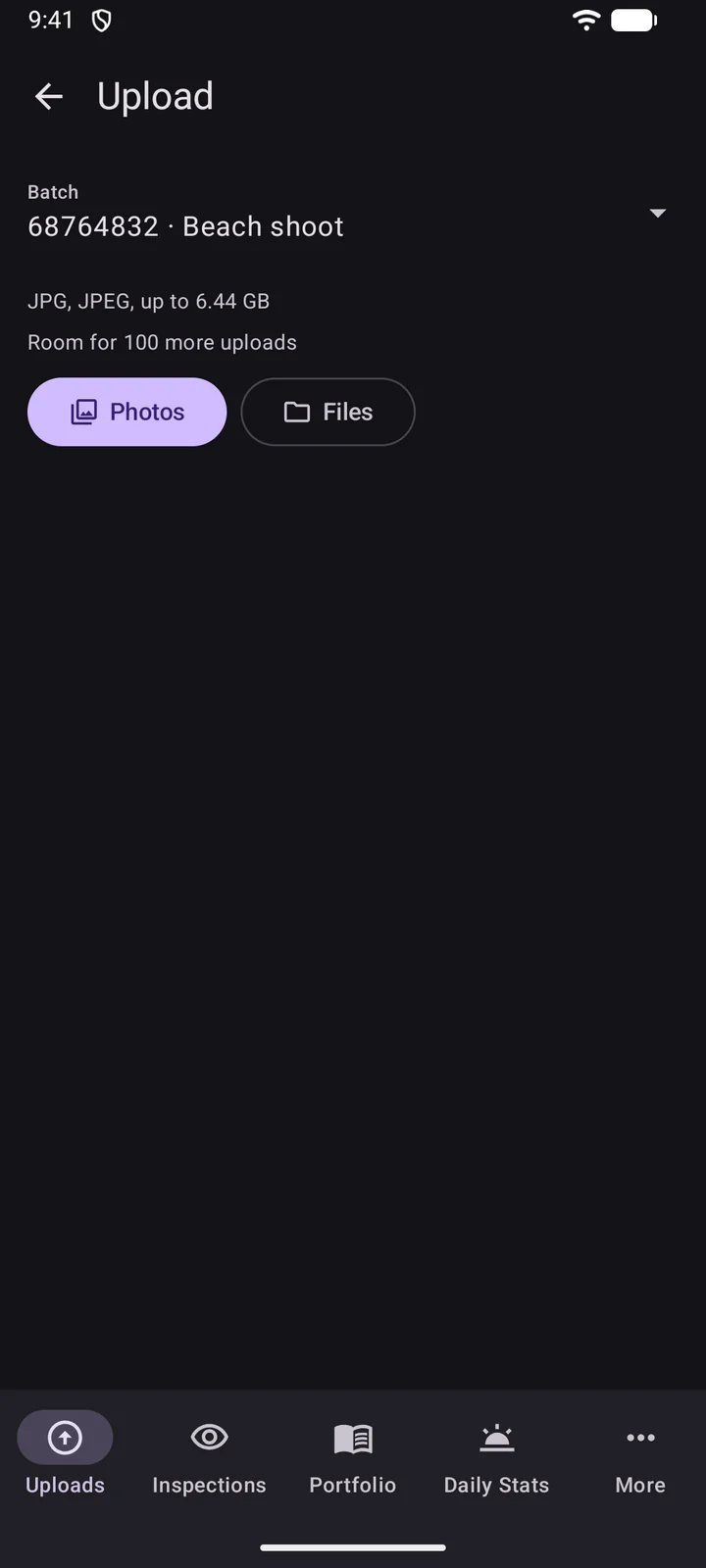
The uploads start at once. You can pause them, or cancel one or all.
- File types: HEIC, PNG and ProRAW photos are converted to JPEG for you.
- Place names: DeepMeta reads the place from the photo's location, when it has one.
- In the background: uploads continue on Wi-Fi, or while DeepMeta is open.
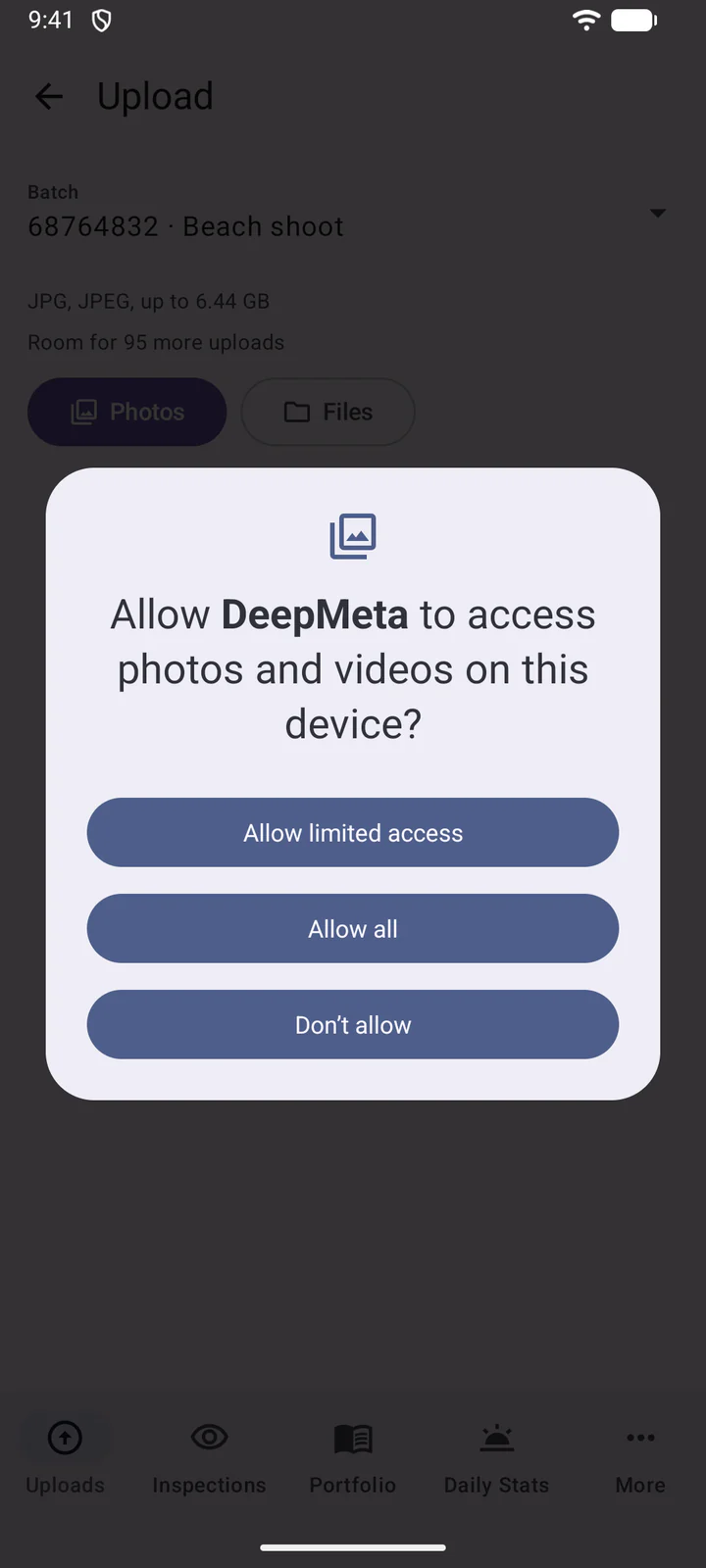
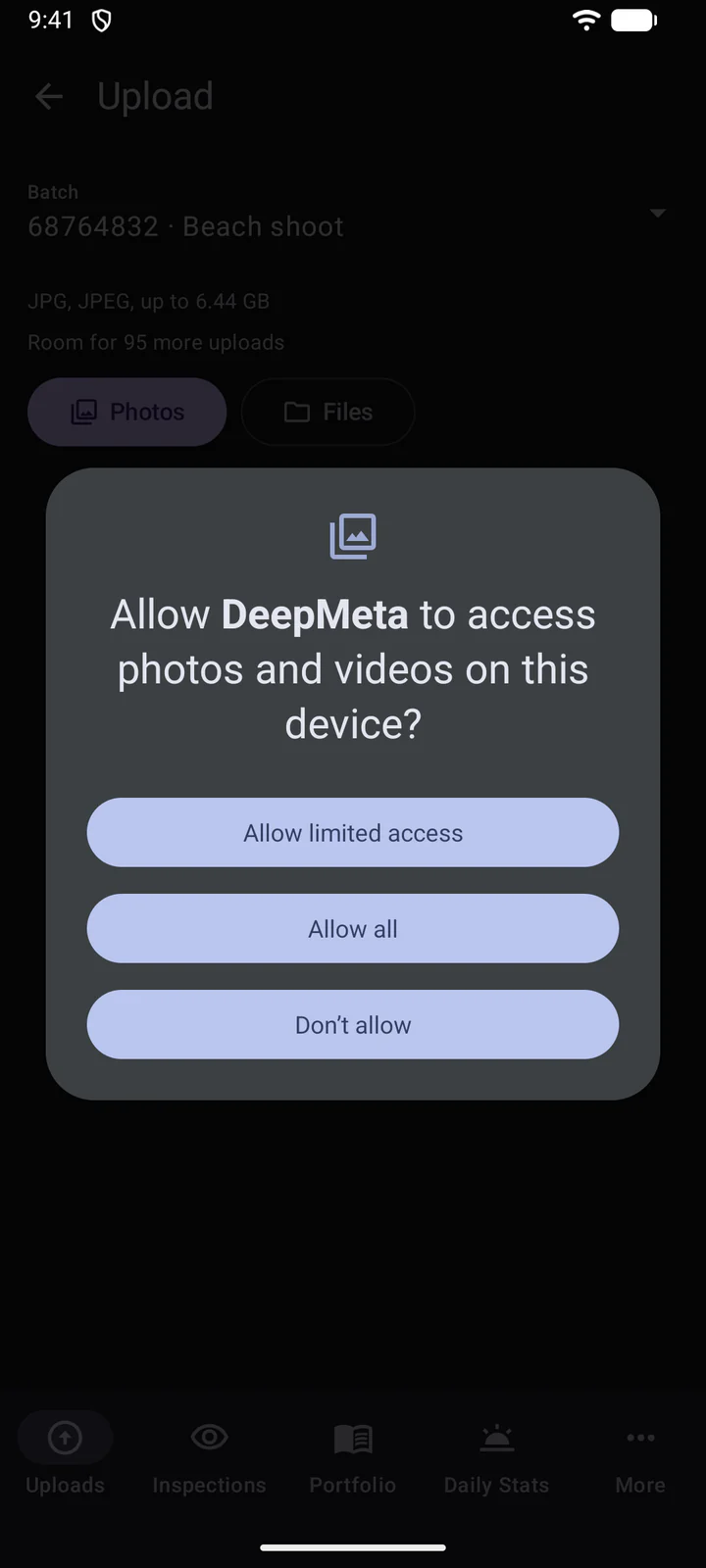
- Access to your photos: from Android 10, DeepMeta asks once, before your first pick, for access to your photos. It only uses it to read where a photo was taken, for its place name. On newer Android versions the photo picker can also ask whether to share the photos' location: allow it there too, or pick with Files, to keep the place names. If you decline, your uploads still work, without the place name.
- File types: Android uploads JPEG photos as they are, without converting them. The photo picker shows your JPEGs (and your videos in a video batch), and Files shows the types the batch takes. Convert HEIC, PNG or RAW photos to JPEG first.
- File names: the photo picker doesn't pass on the original file names, so those uploads get a number as their name (for example 106.jpg). Pick with Files to keep the original names.
- In the background: uploads continue when you leave the app, with their progress in an Uploads notification. Without a network, they wait for one.
Share from other apps
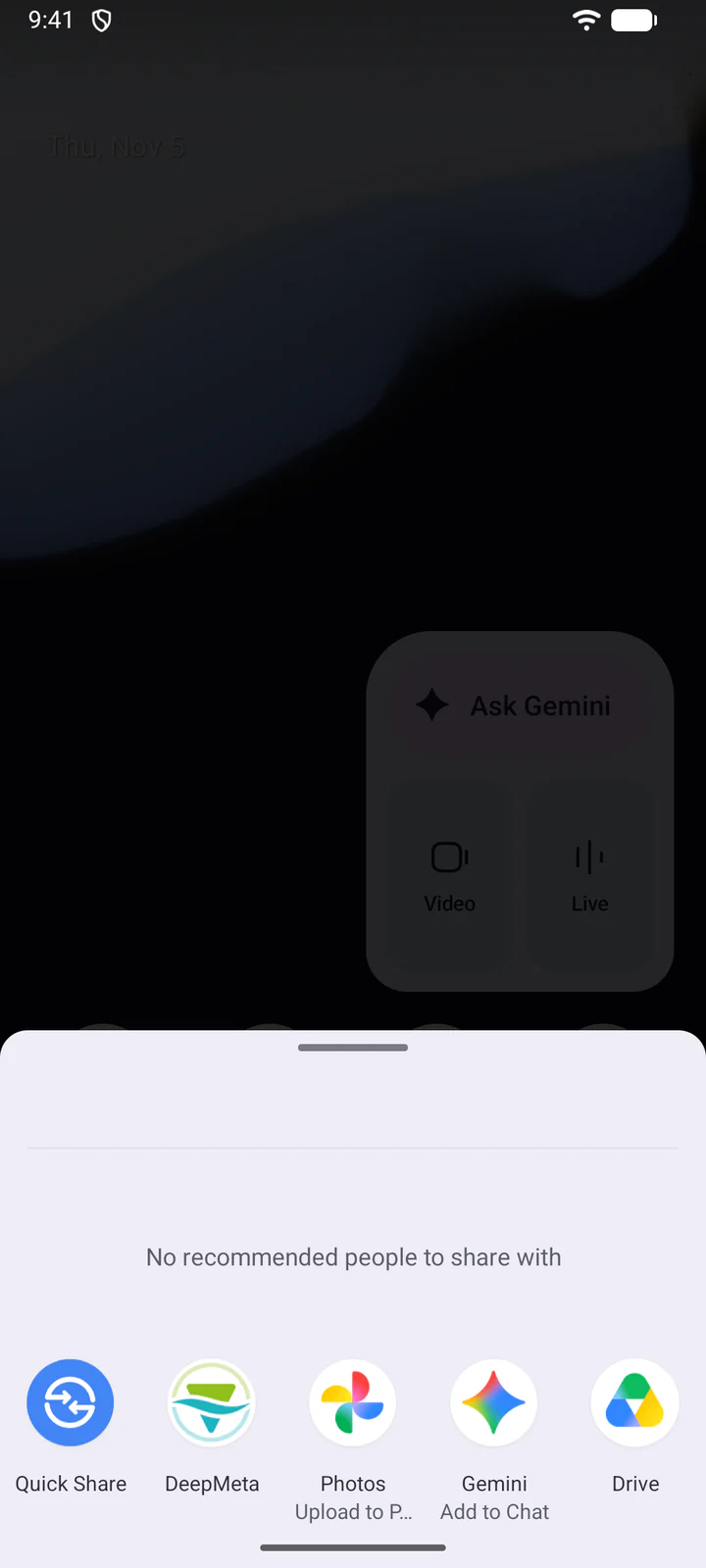
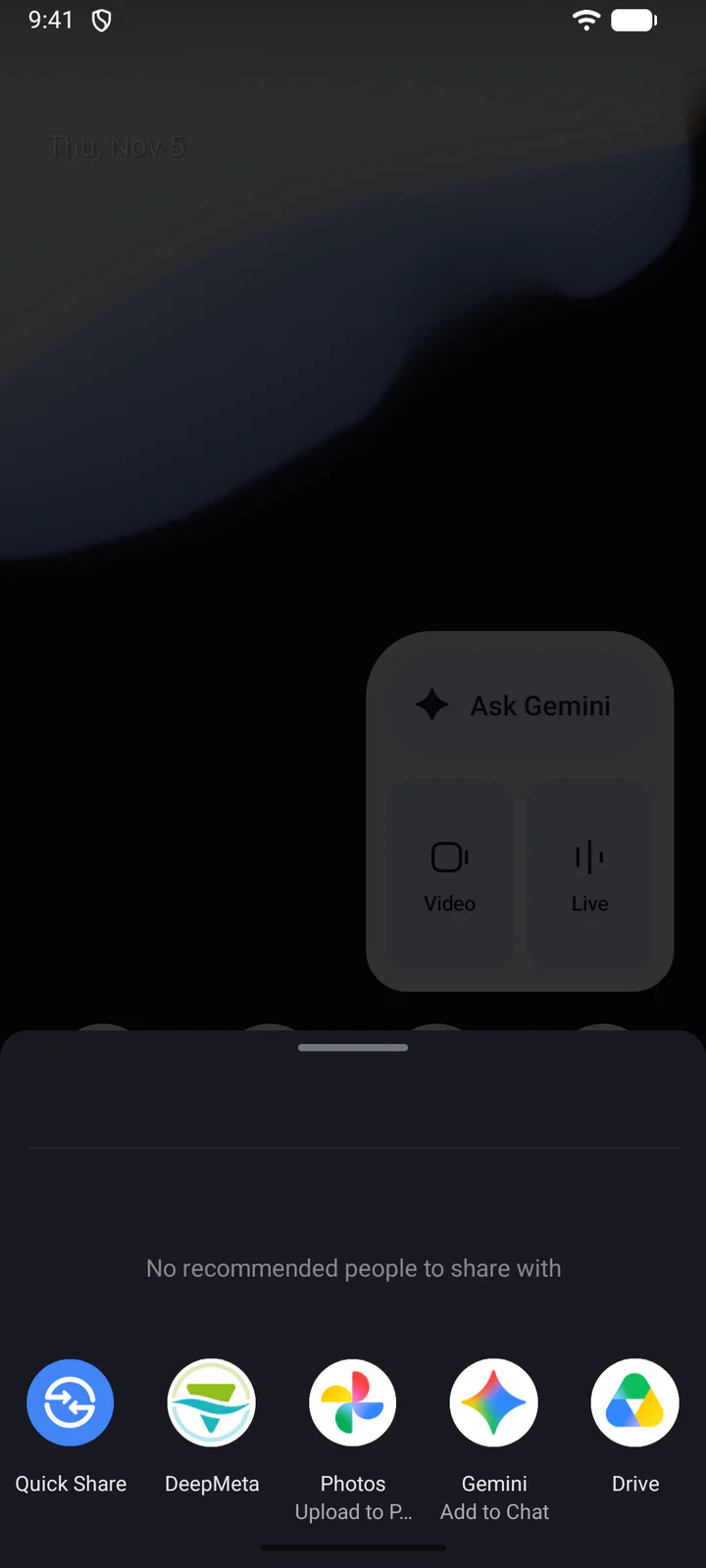
You can also send photos and videos to DeepMeta from another app, such as your photo gallery.
Select the files, tap Share and choose DeepMeta. Then tap the notification to choose a batch. With notifications off, open DeepMeta yourself: the share screen says so.
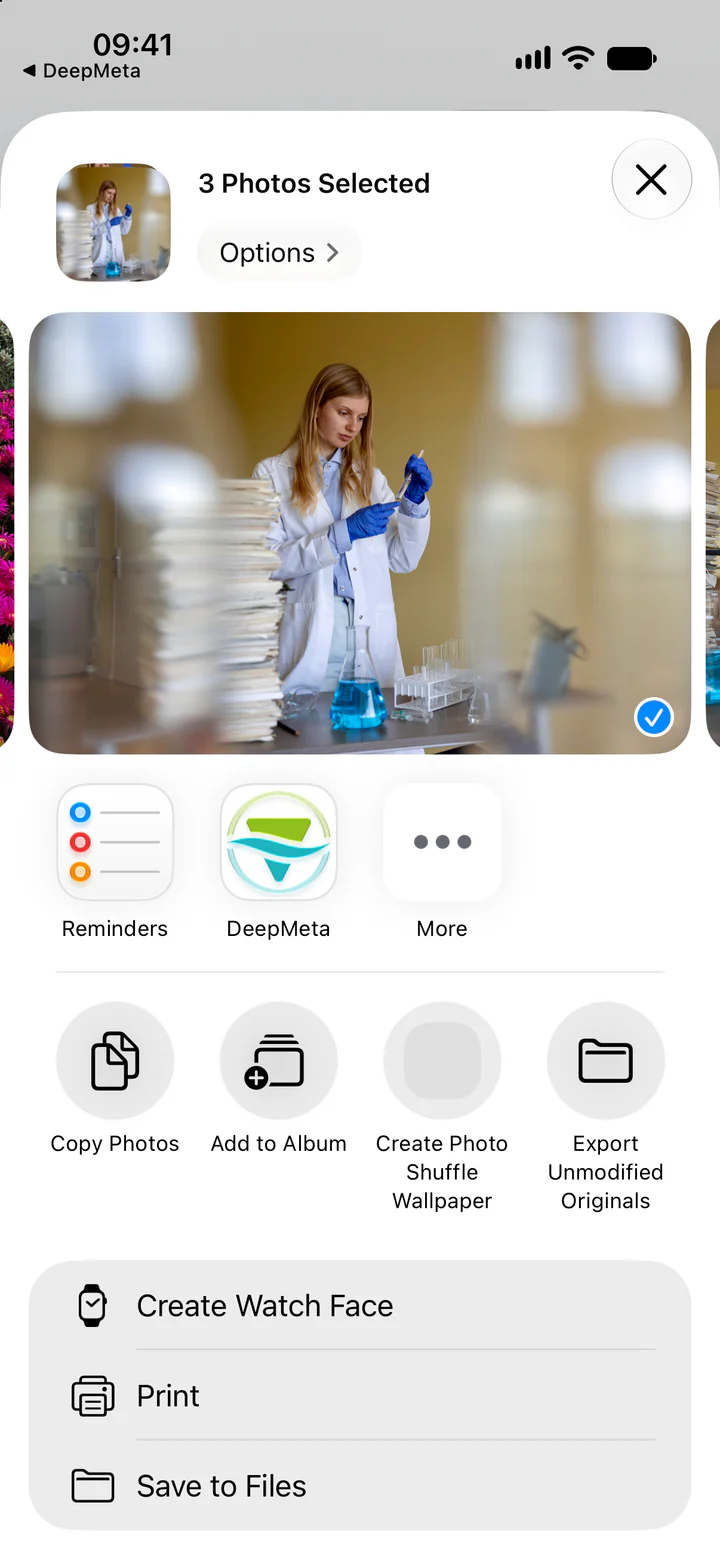
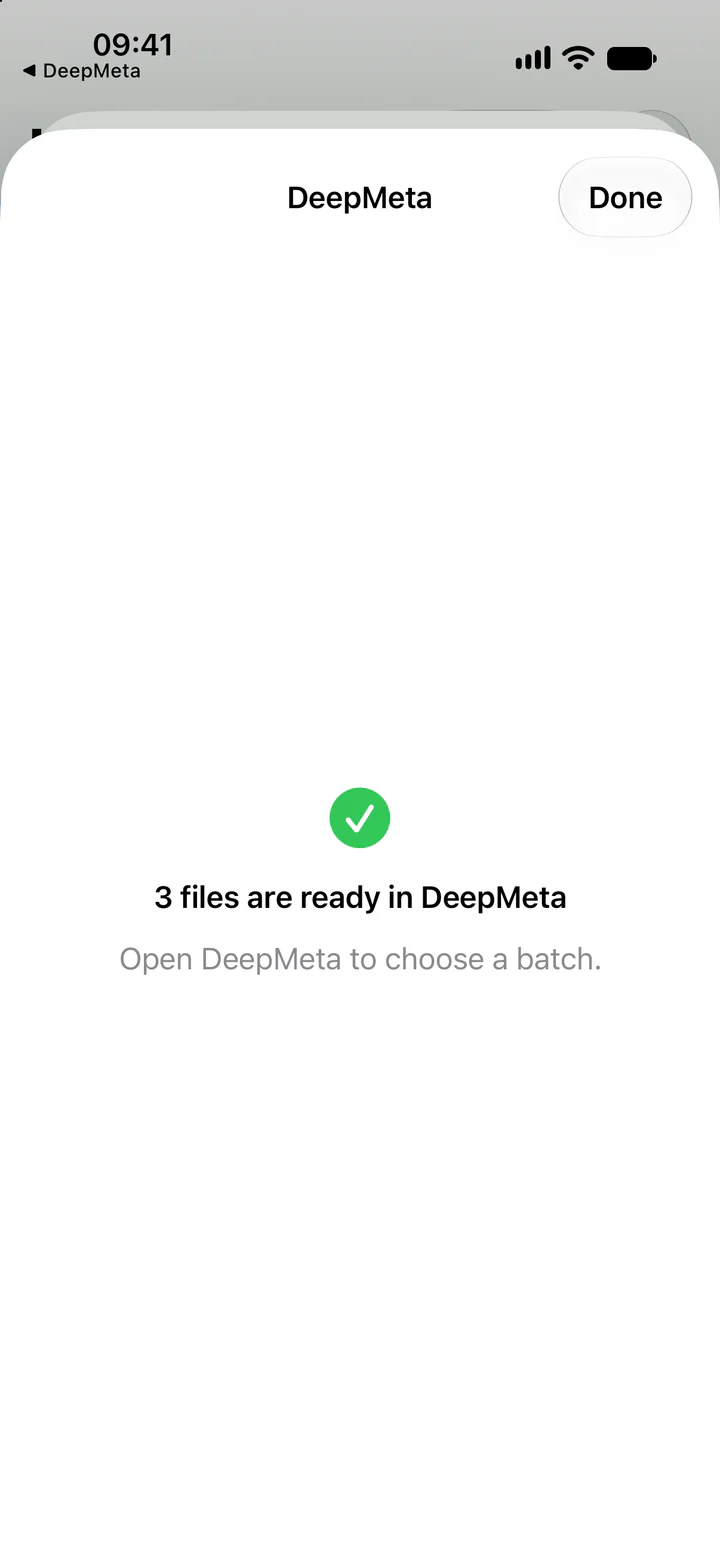
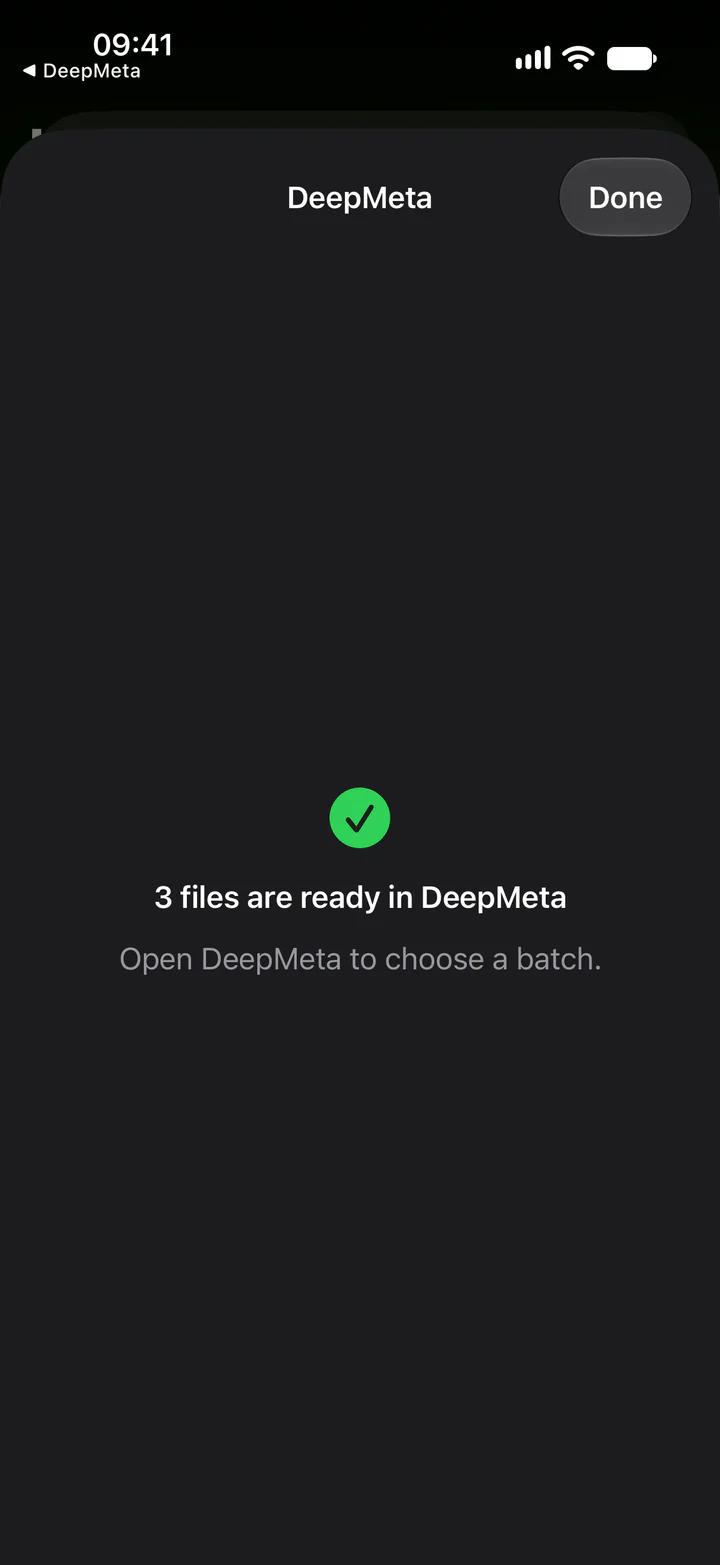
DeepMeta keeps the shared files until you choose their batch and tap Upload files.
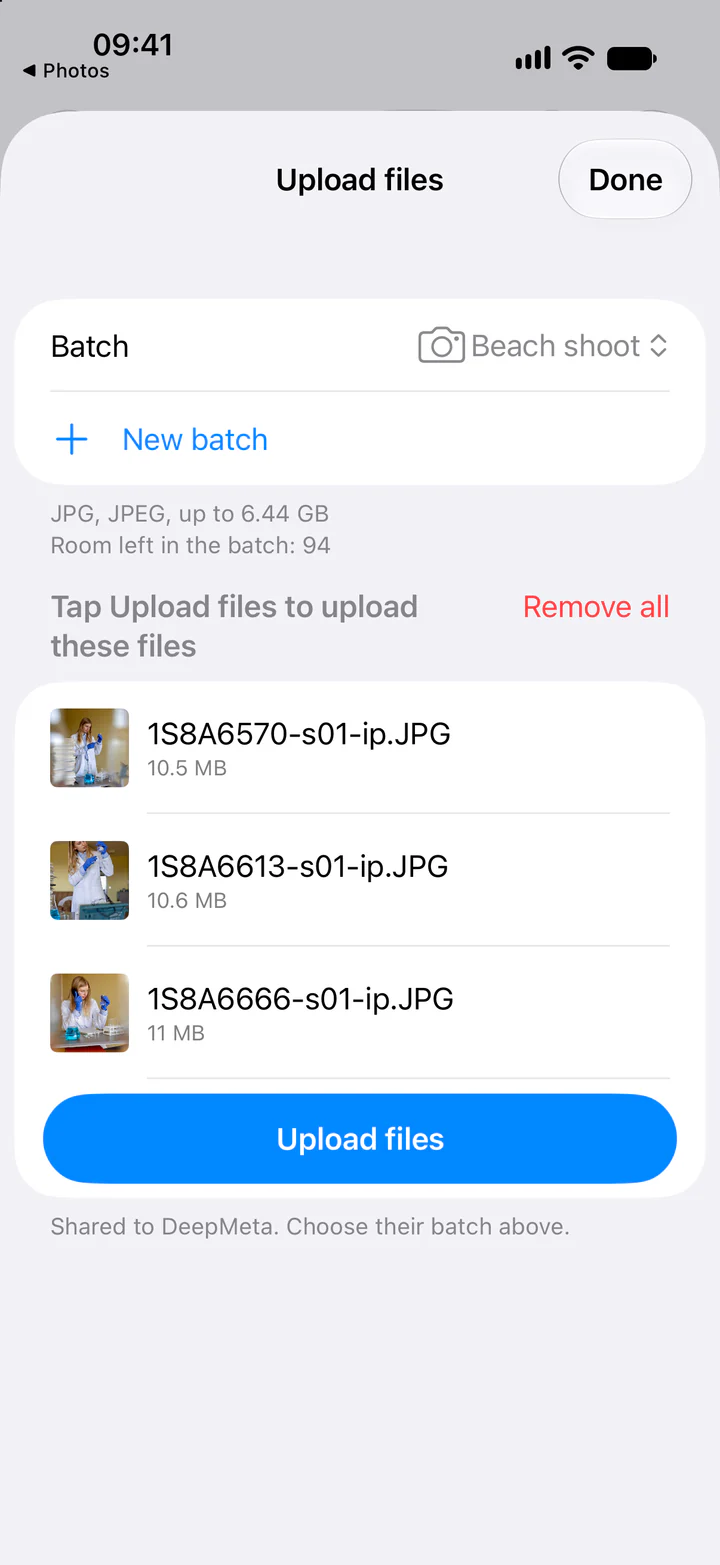
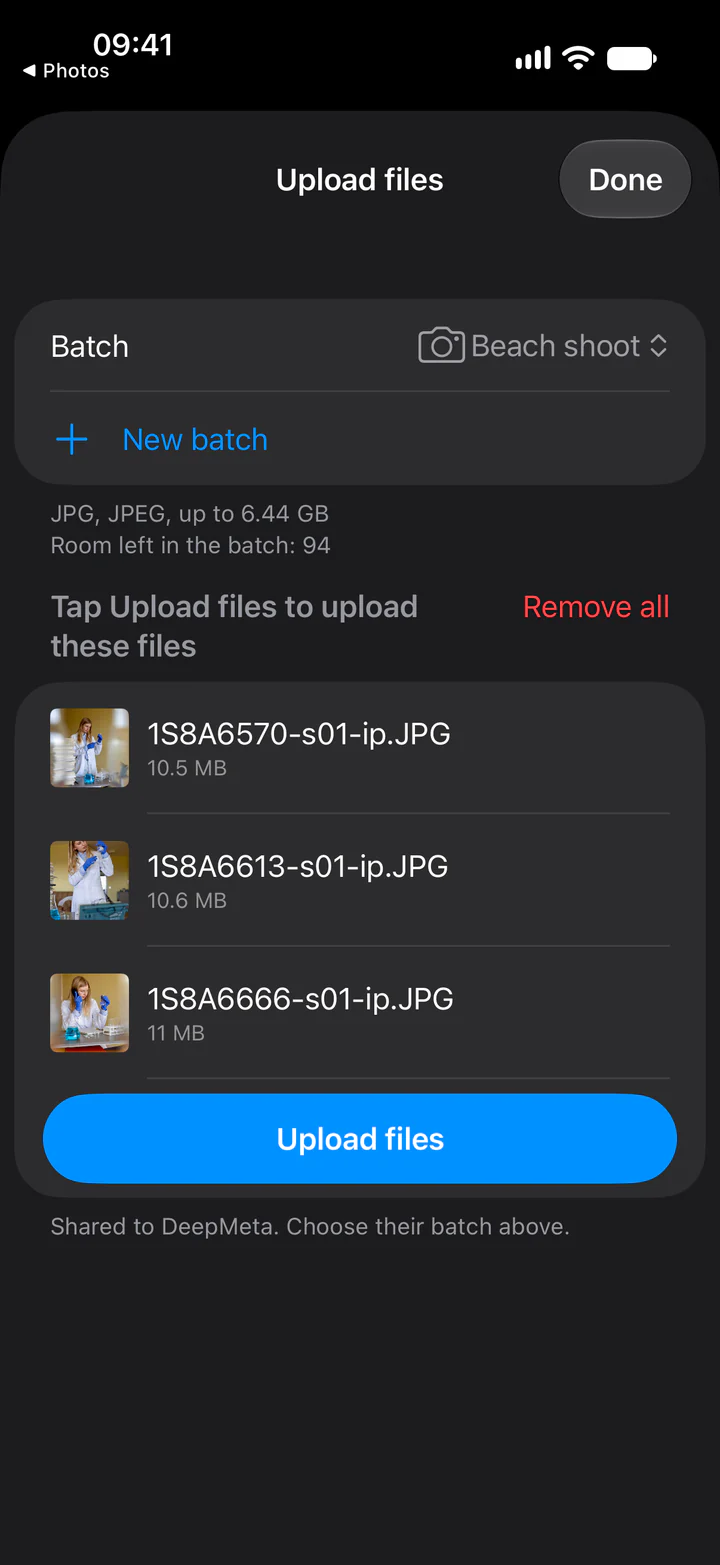
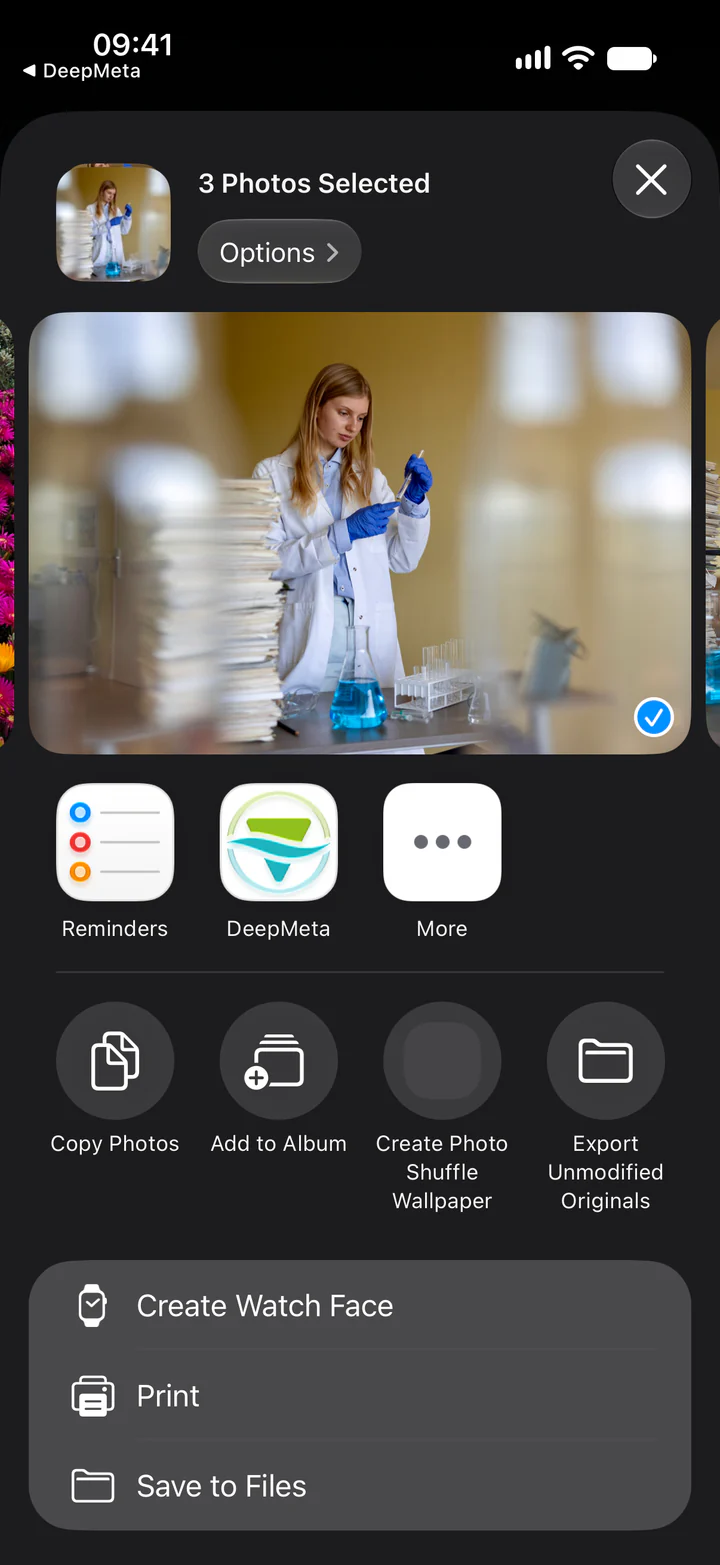
Select the files, tap Share and choose DeepMeta. The app opens its upload pane, where the files wait for a batch: choose it and tap Upload files.
7. AI suggests your metadata
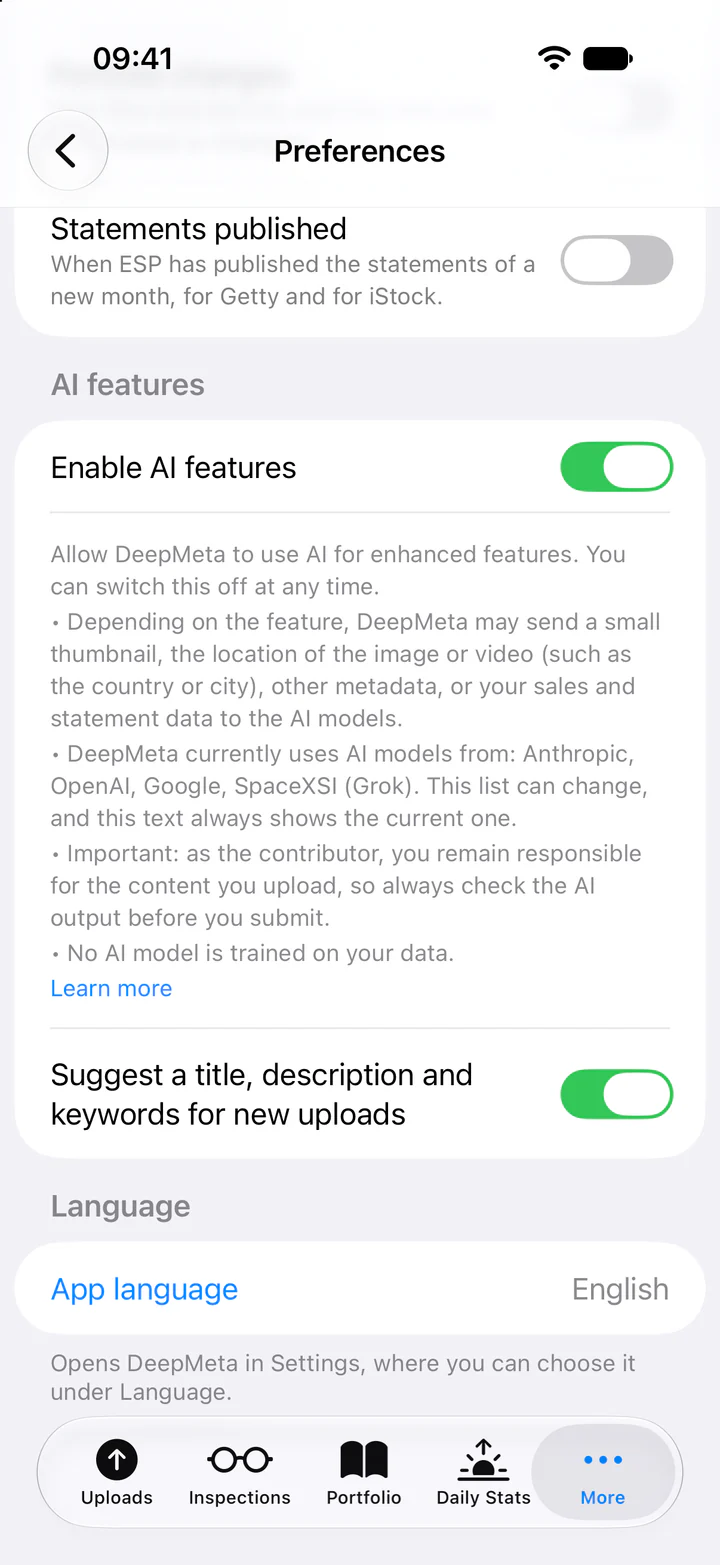
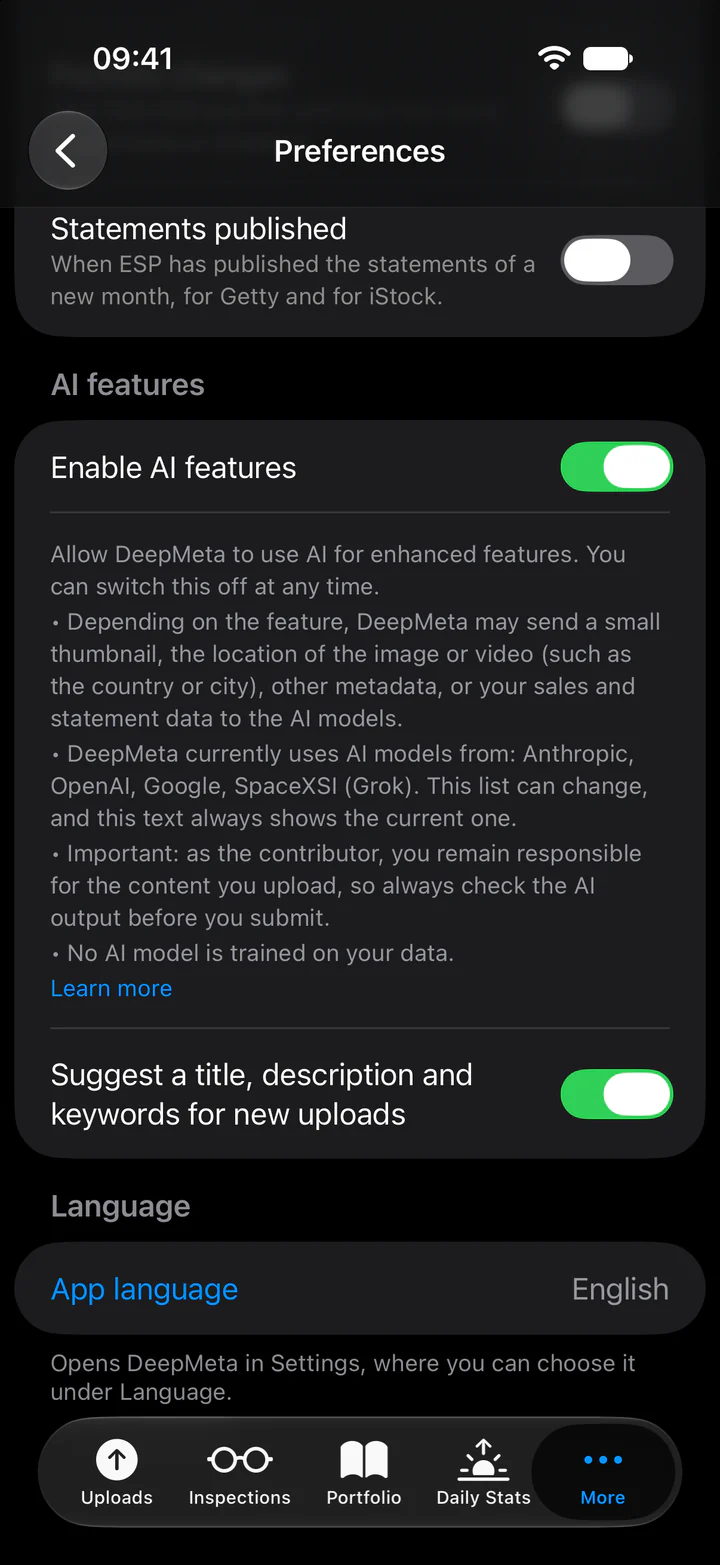
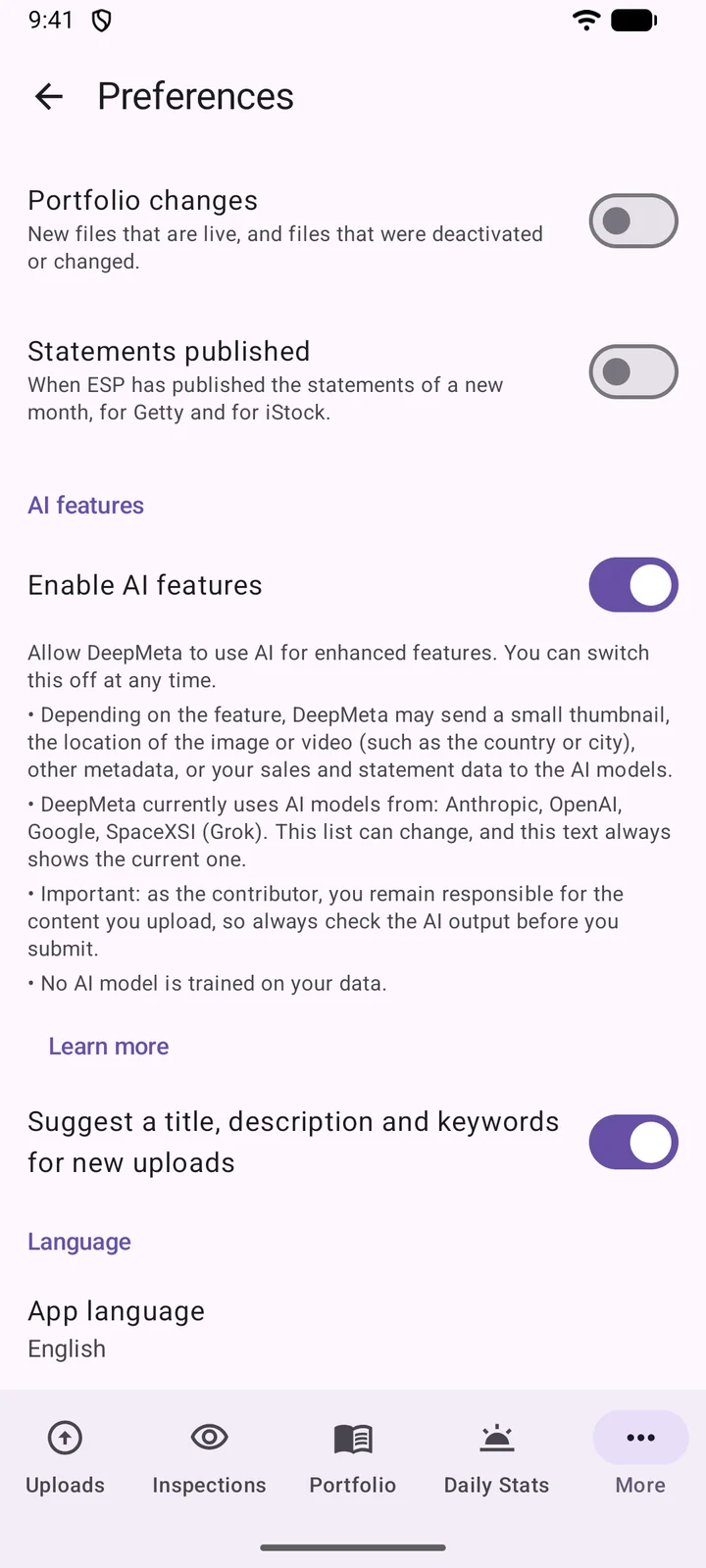
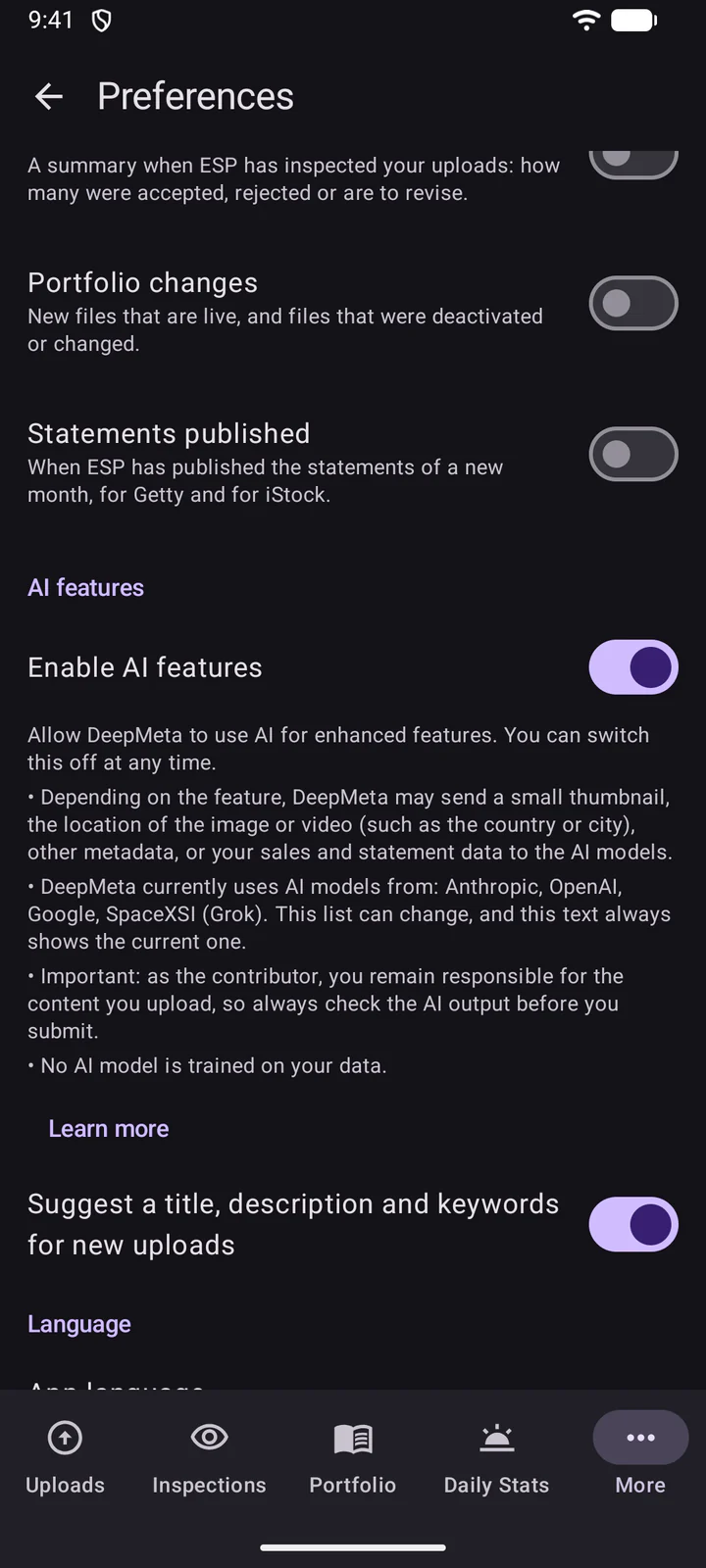
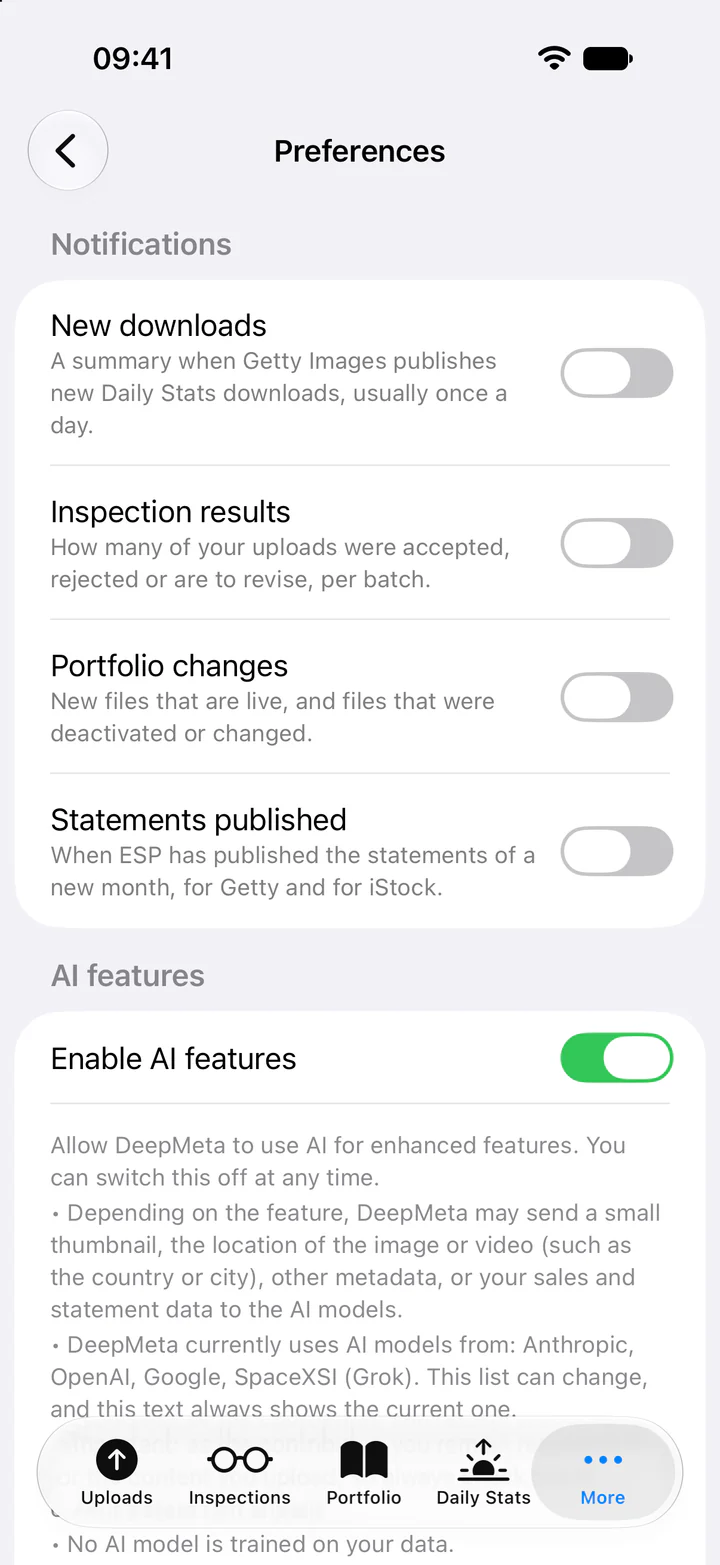
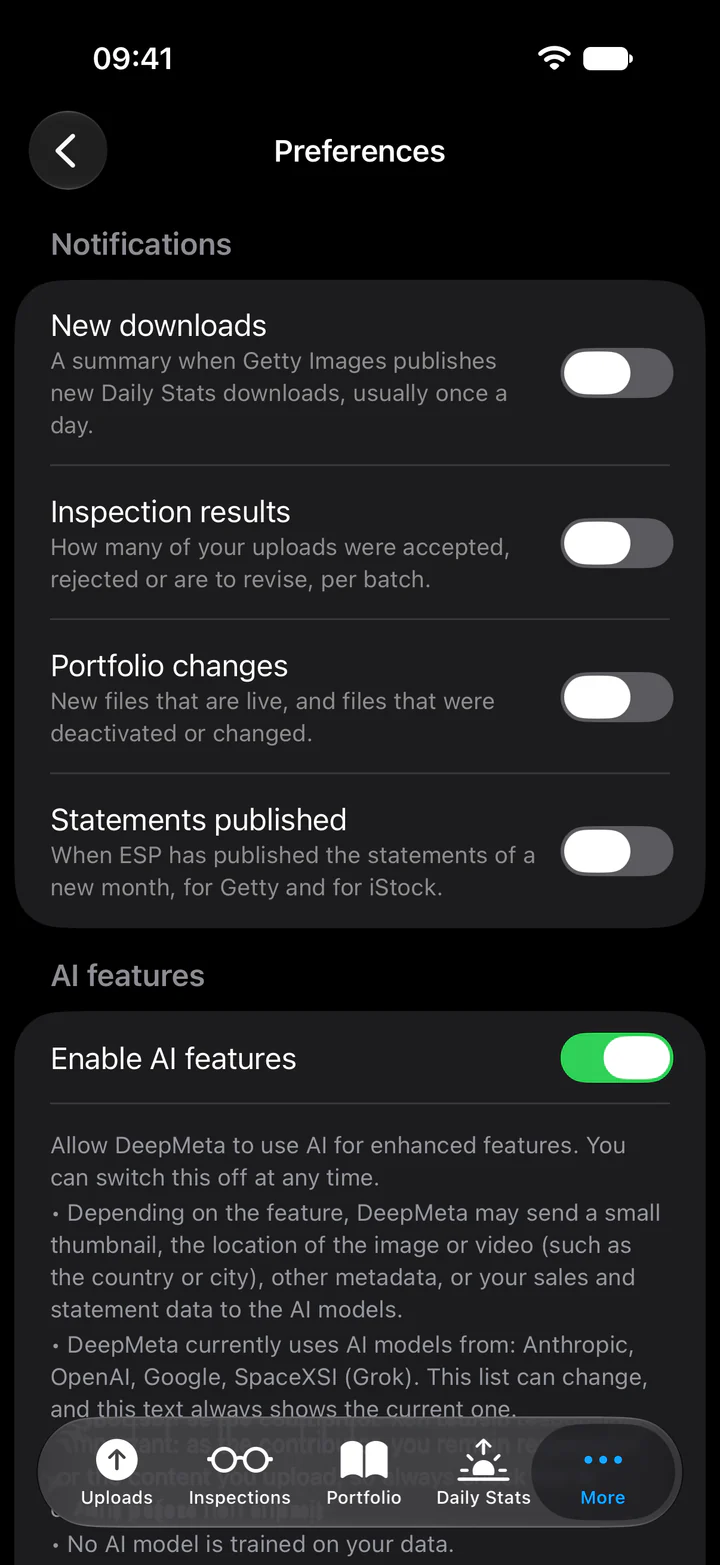
AI assistance is off until you switch it on. Under More, Preferences, turn on Enable AI features. The text under the switch says what DeepMeta may send to the AI models, and which models it uses. Below it, Suggest a title, description and keywords for new uploads is the switch for the suggestions on your uploads.
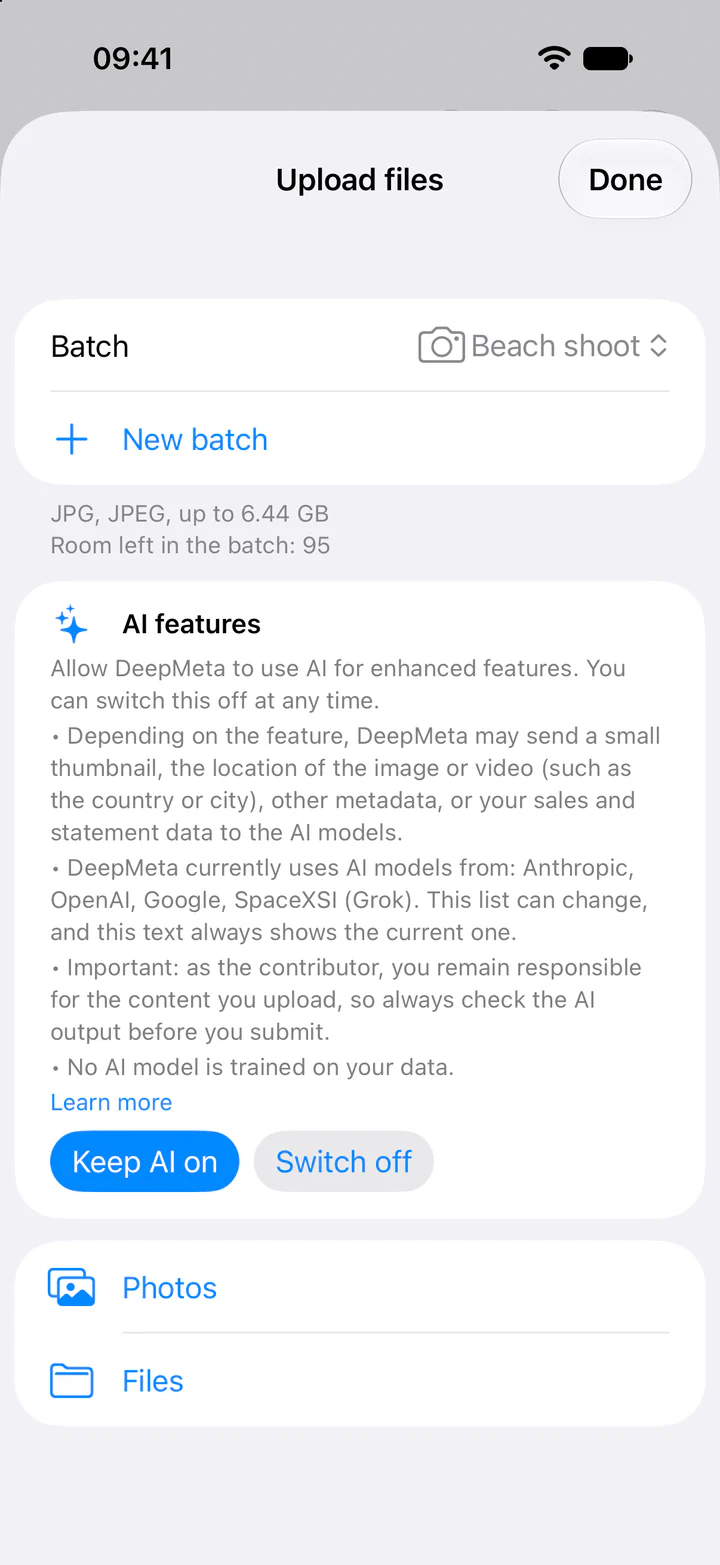
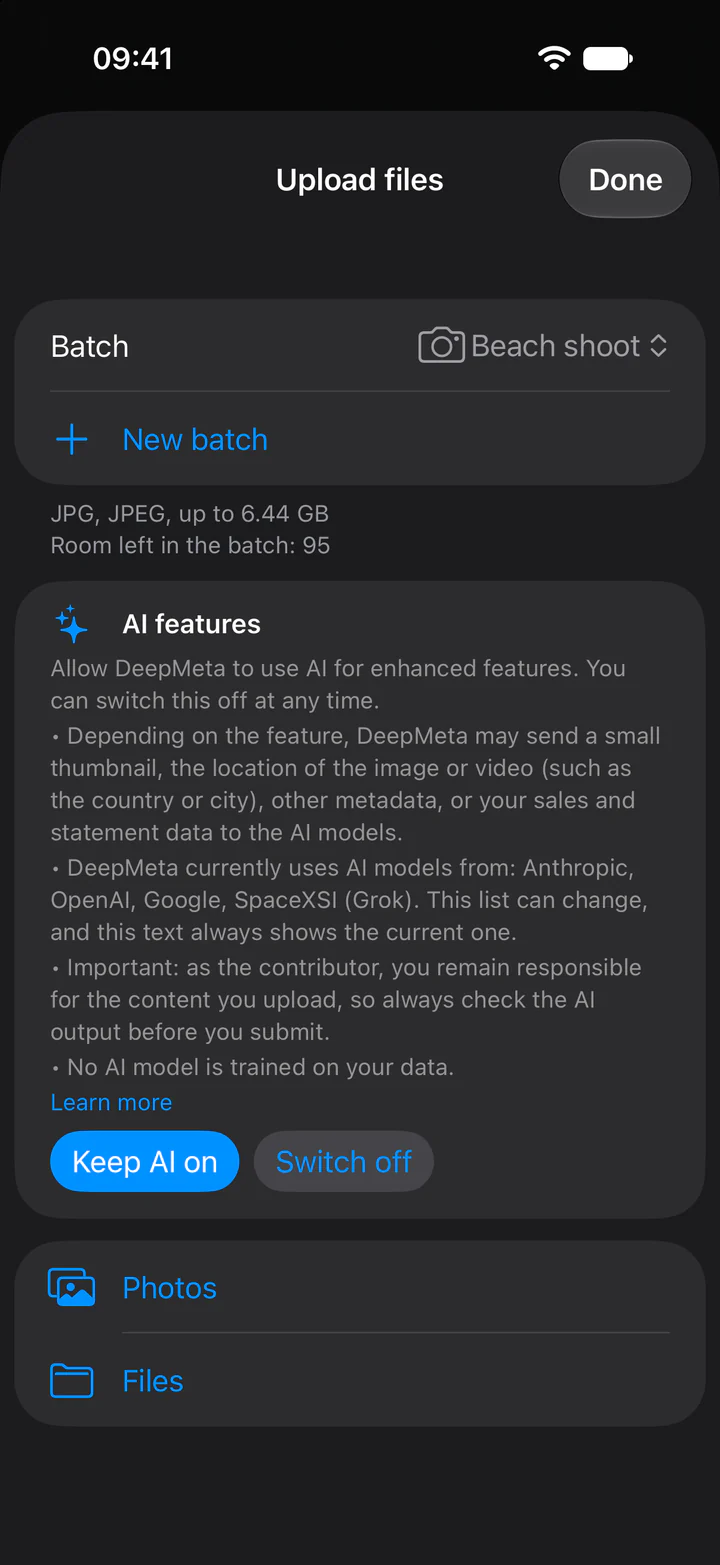
Is AI already on for your account, but not yet in this app? Then the upload pane asks once, above the Photos and Files buttons: tap Keep AI on, or Switch off. Your uploads go through either way, without AI suggestions until you keep it on.
With AI on, files you add from the app get a suggested title, description and keywords, usually within seconds of their upload. There is no button to press: it starts by itself.
You remain responsible for your metadata
The AI's suggestions are a starting point, not a final version. The metadata you submit is your responsibility as the contributor: check every title, description and keyword, and correct them before you submit.
- Your own texts stay: AI doesn't replace a title or description you wrote or emptied, and adds its keywords after yours.
- Editorial uploads: they get no title. Their description is the caption template (Getty's, or iStock's dateline), with your part still to fill in before you submit. Creative uploads marked Editorial use only get no title or description.
- New files only: for files you add from the mobile app, not for uploads you added on the website or earlier. Support for the DeepMeta web app is planned for later.
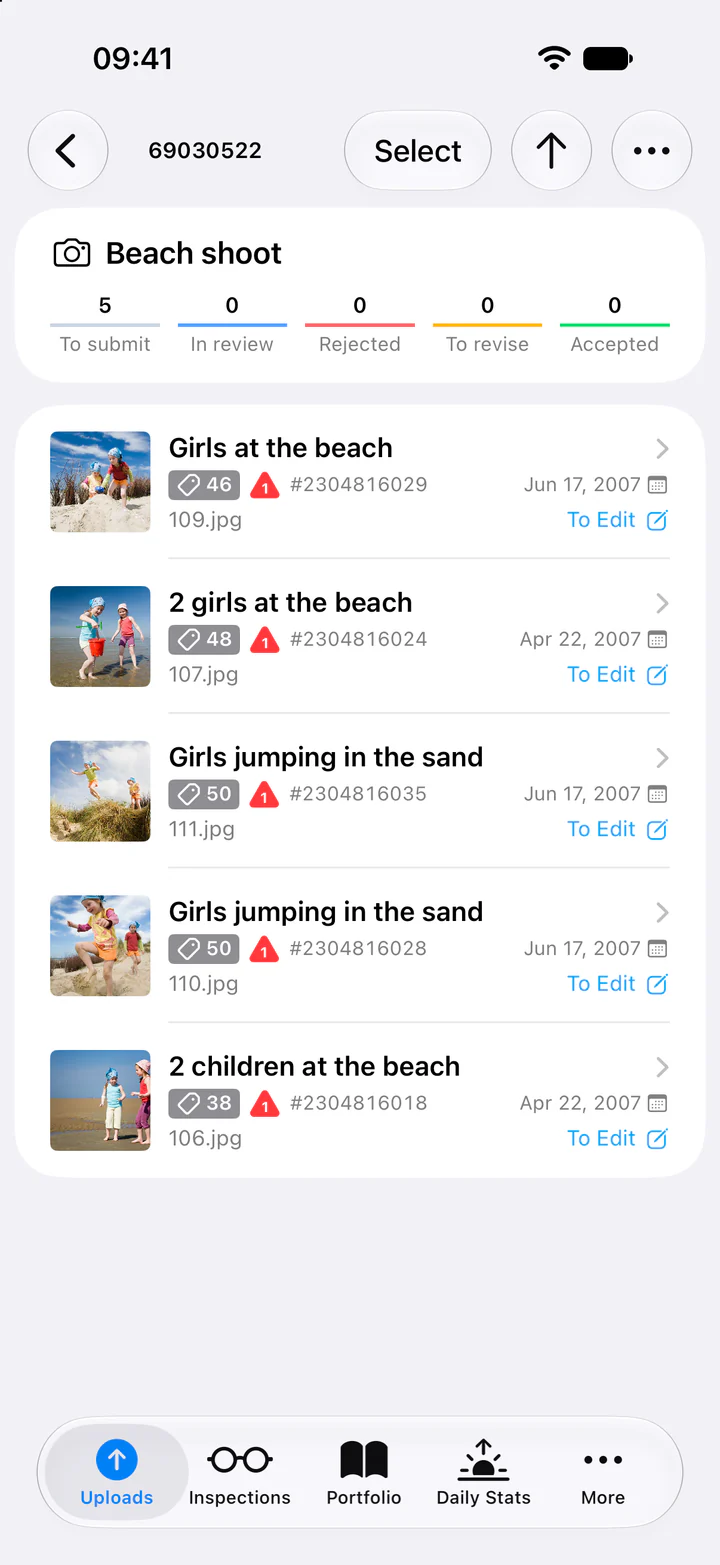
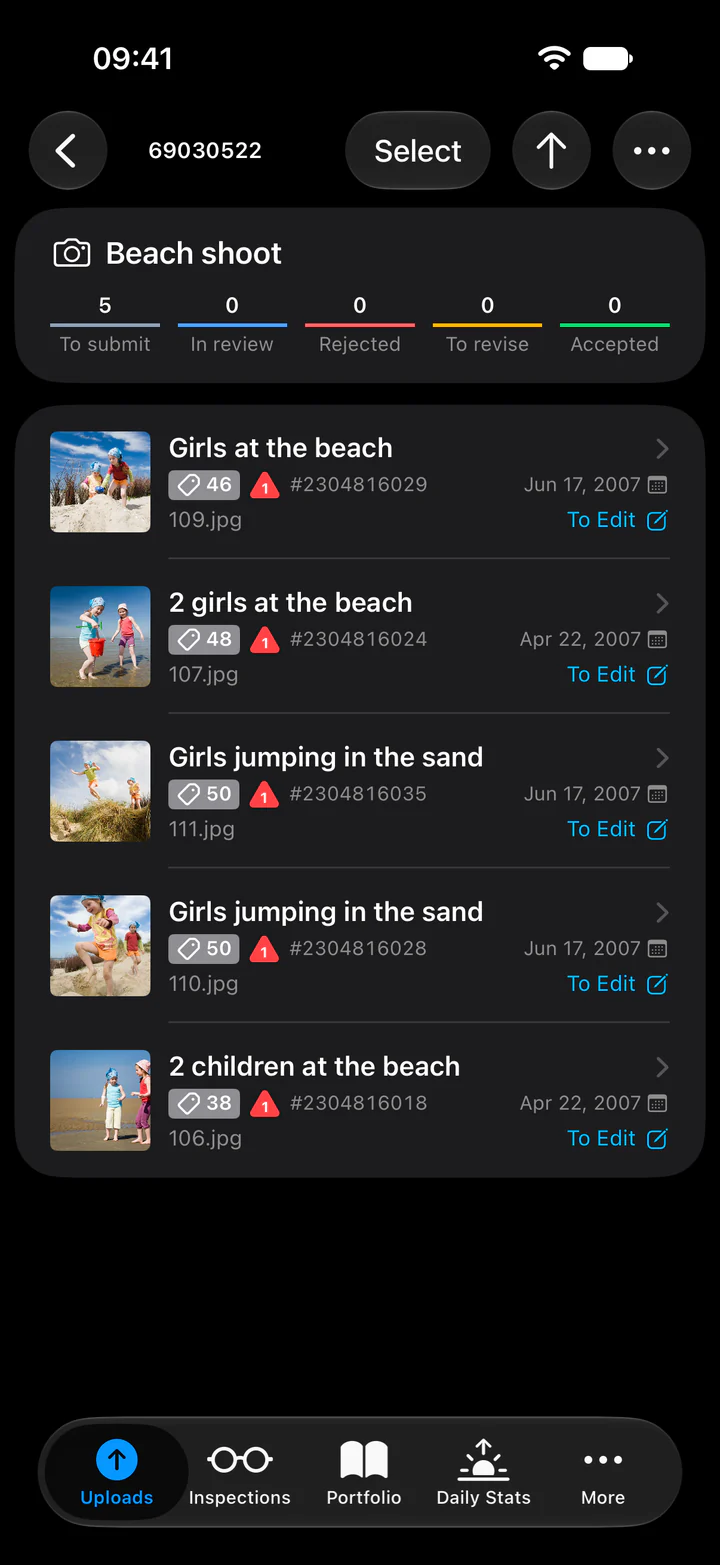
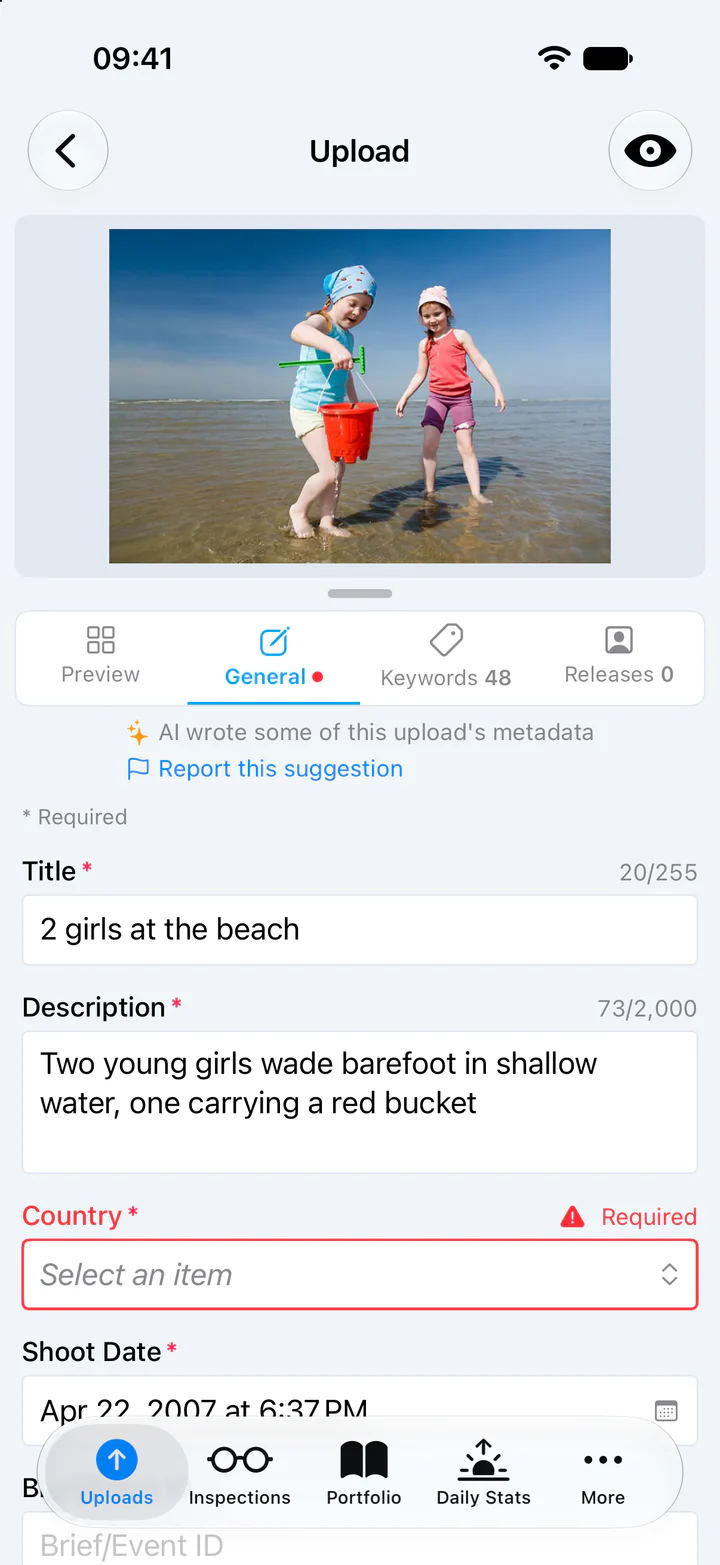
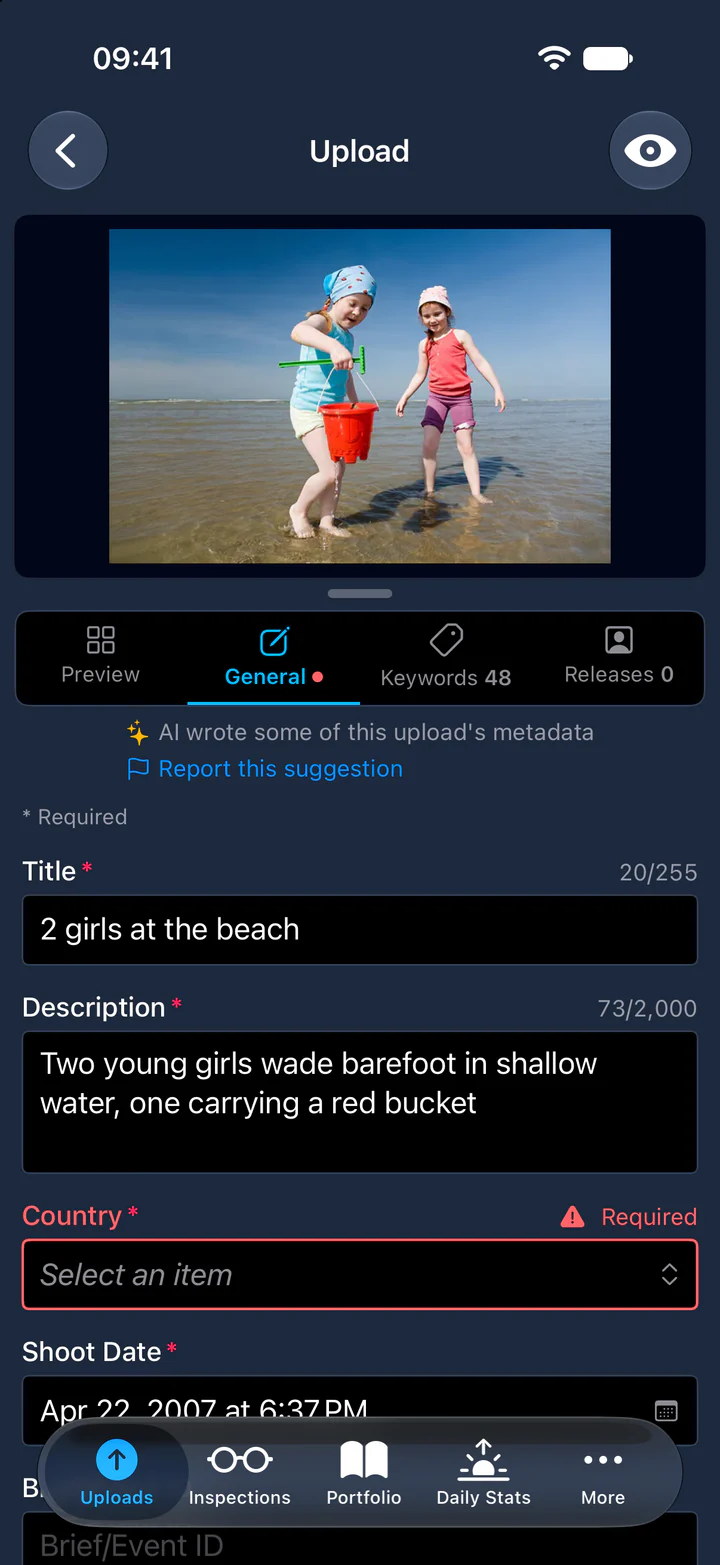
A red mark on an upload shows how many required fields are still missing, such as the country.
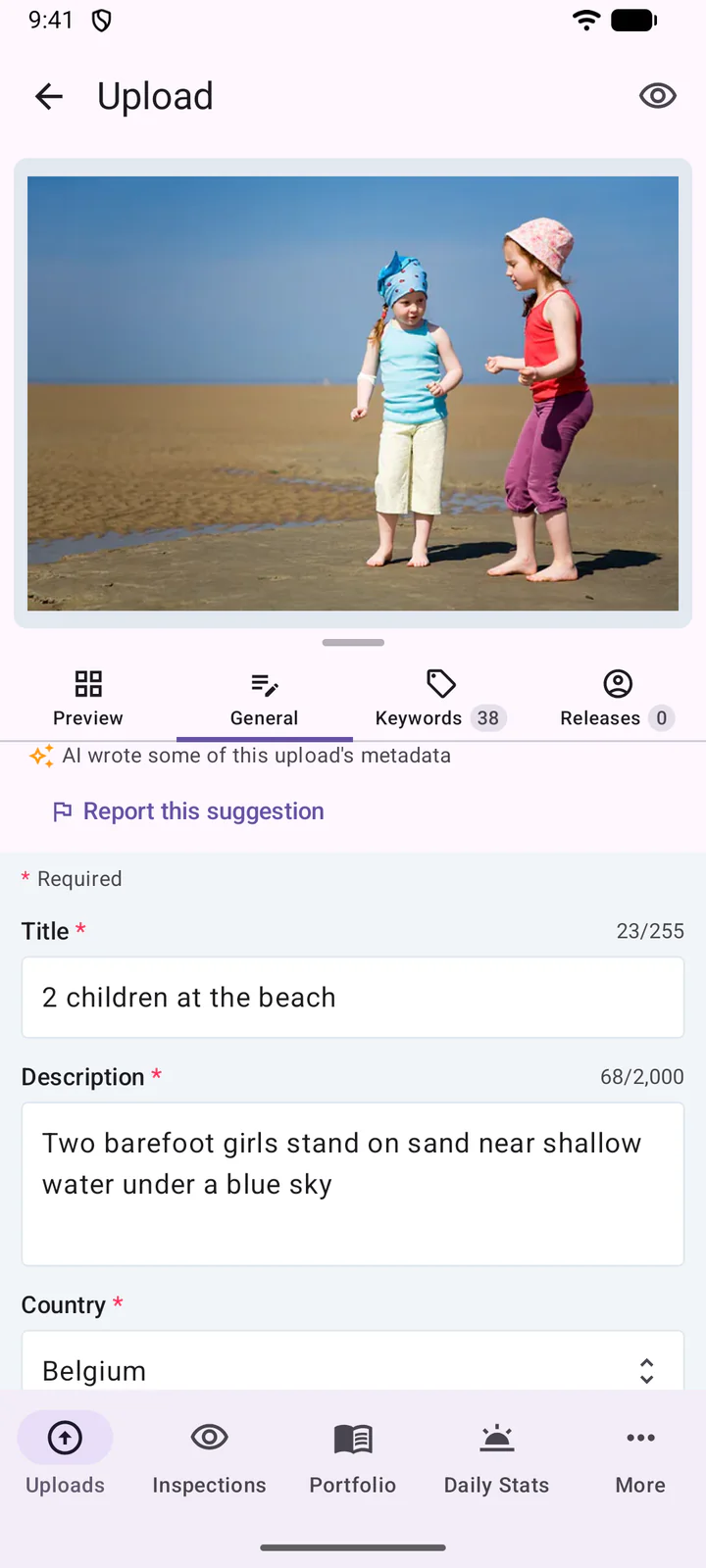
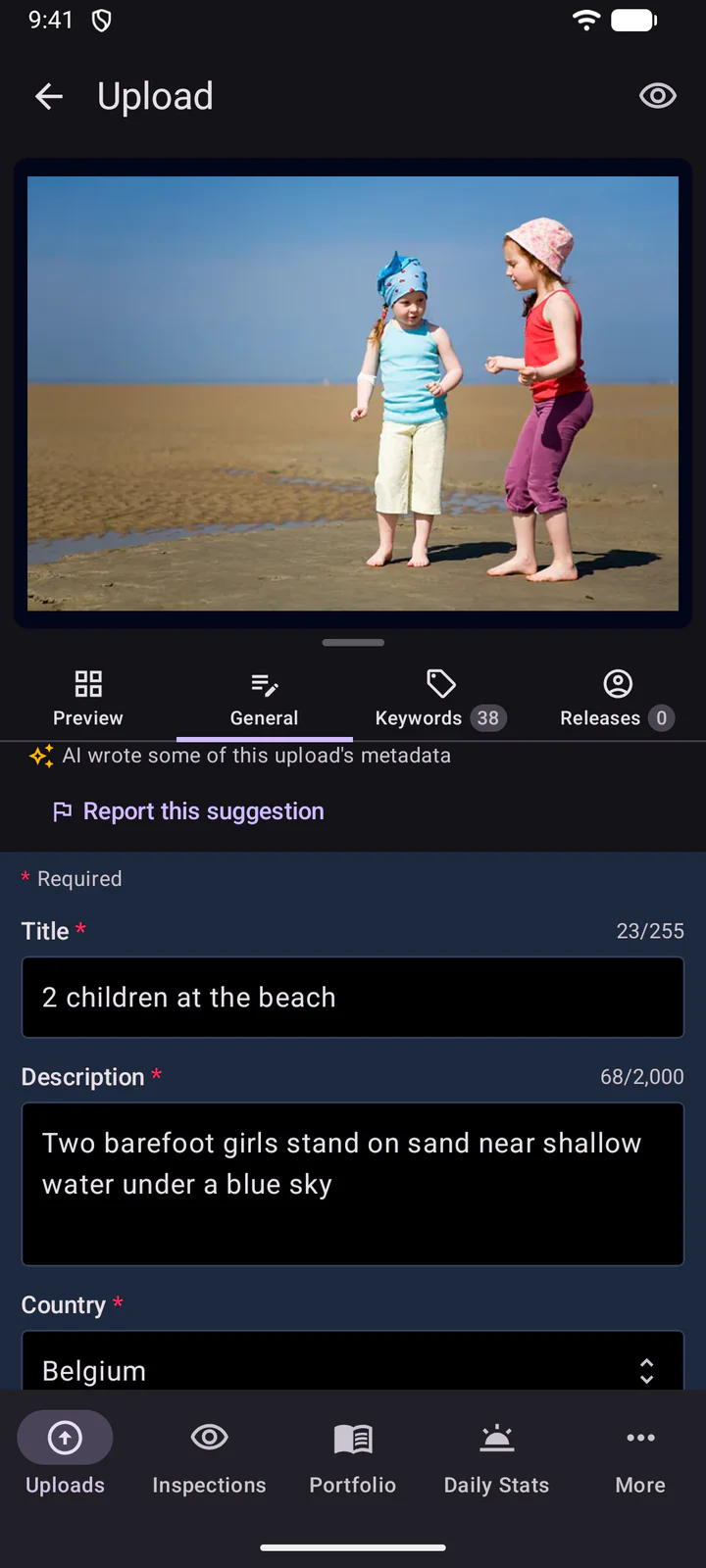
Report a suggestion: at the top of the editor, AI wrote some of this upload's metadata marks an upload with AI texts. Is a suggestion wrong or offensive? Tap Report this suggestion, say what's wrong if you like, and tap Send report. We review every report to improve the suggestions.
8. Edit an upload
Tap an upload to open it. The tabs are Preview, General, Keywords and Releases.
On General, a field saves by itself when you finish it: with the keyboard's Done, by going to another field or tab, or by leaving the editor. At the top of the editor, a small spinner shows that it's saving, then a cloud with a check mark for a moment once it's saved. A red cloud means the changes weren't saved: check your connection and try again.
On Keywords, type new keywords separated by commas and press the keyboard's Done (Return) to add them. Text still in the field when you leave isn't added. Further down, Suggestions offers keywords for the upload's title: tap one to add it.
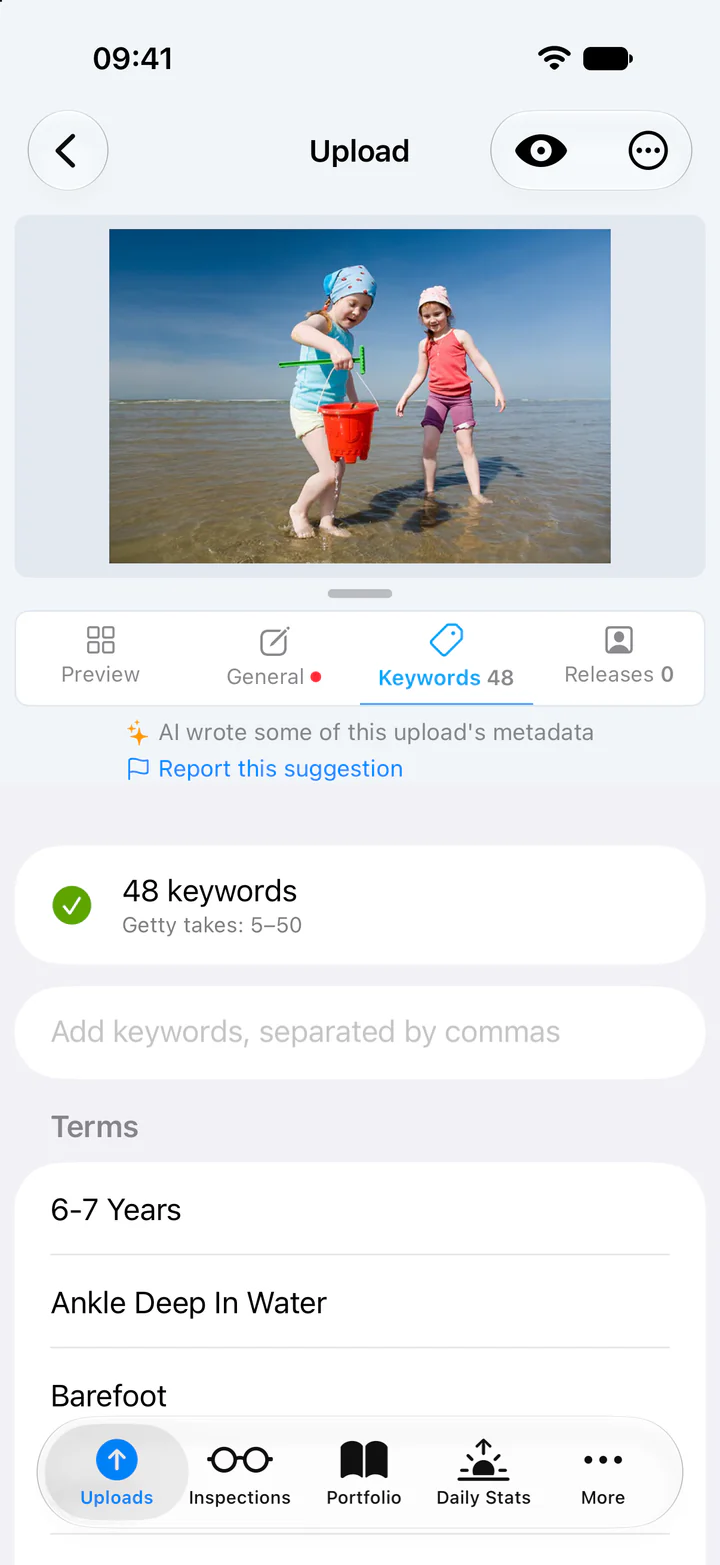
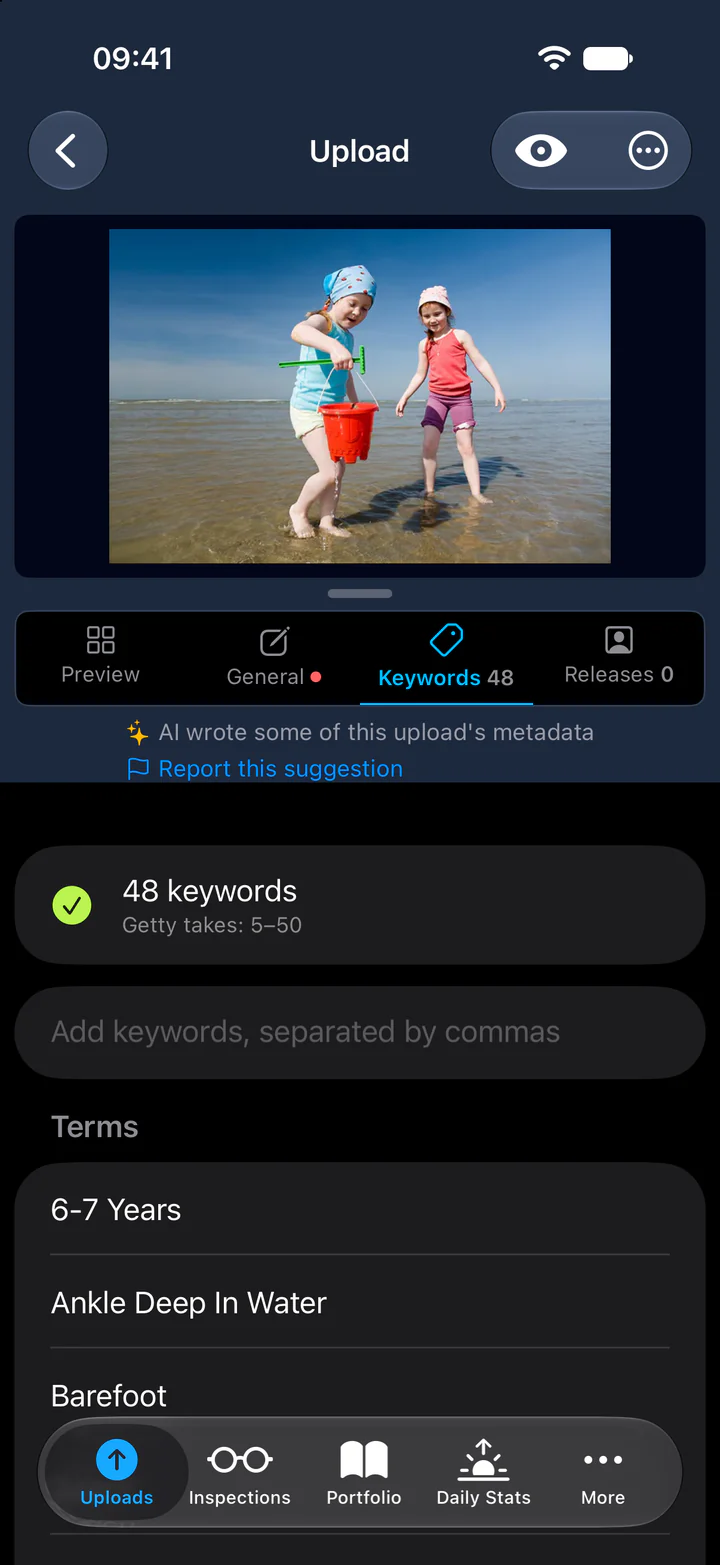
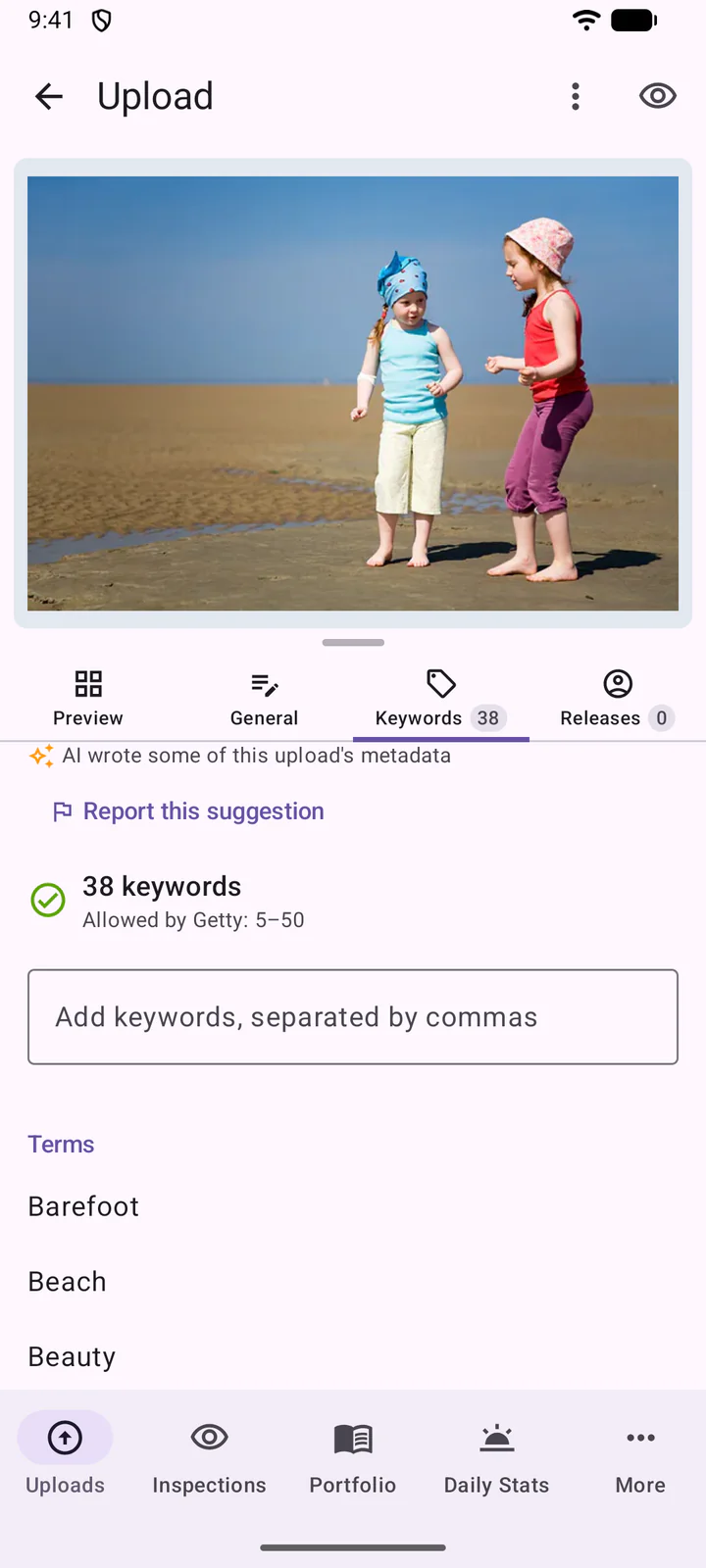
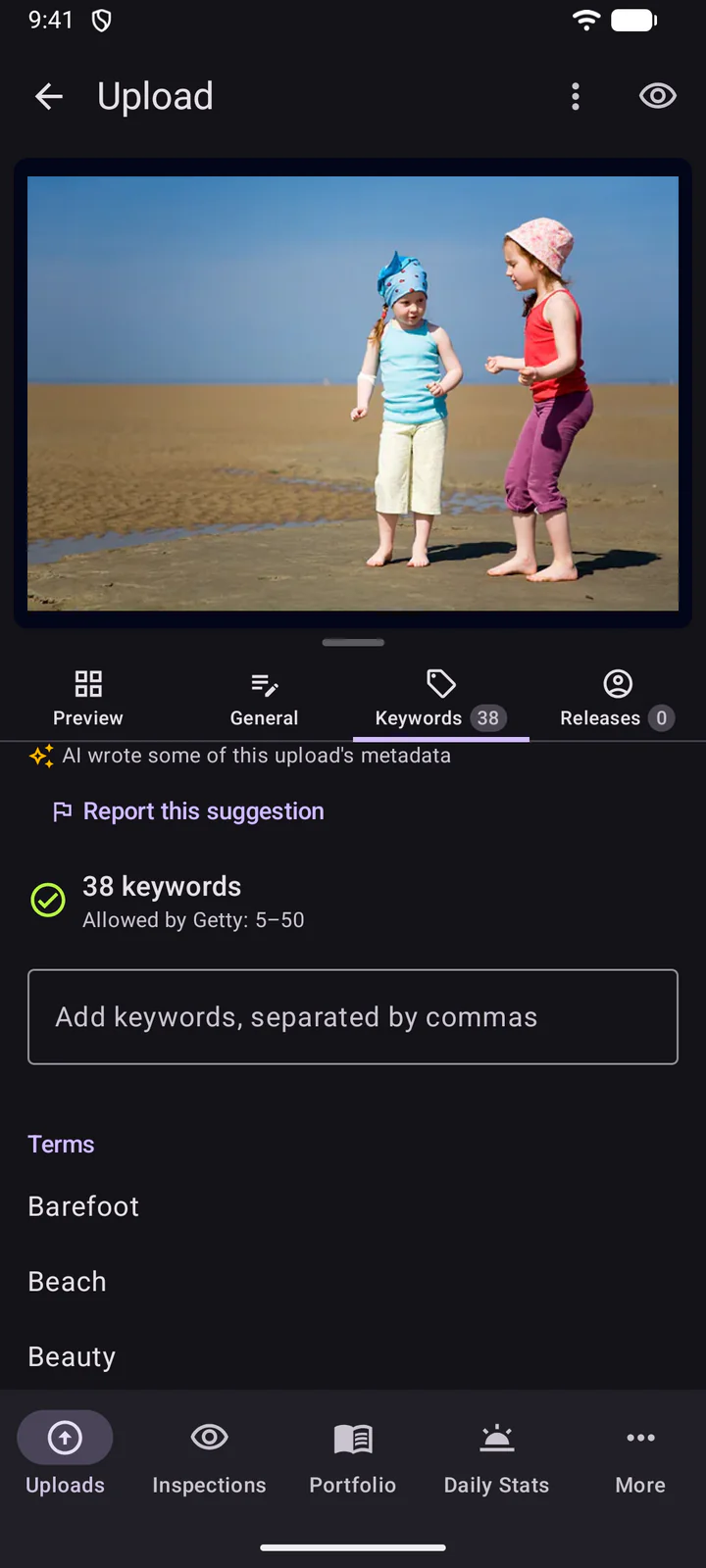
On Releases, Add release attaches a model or property release.
To edit several uploads at once, tap Select in the batch, choose the uploads (or Select all), then tap at the bottom.
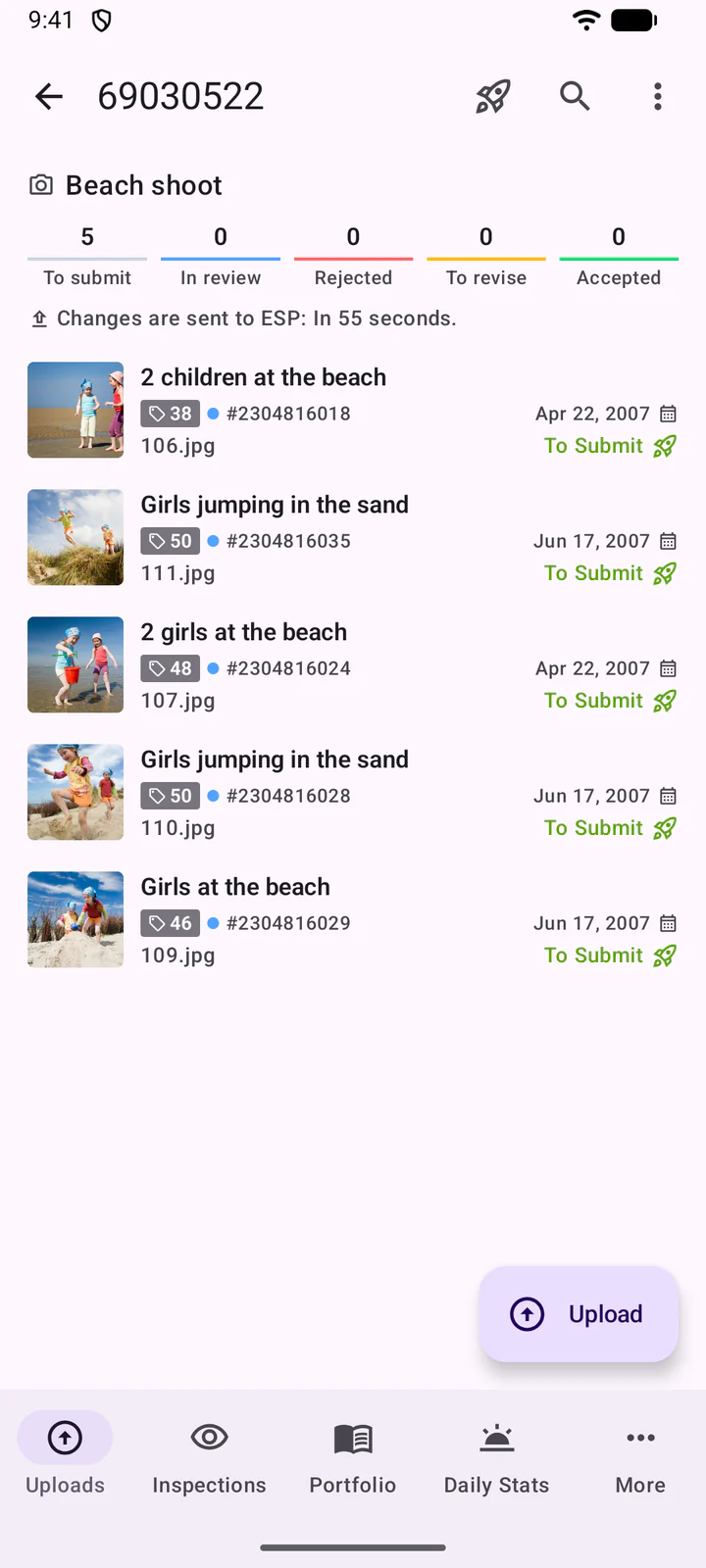
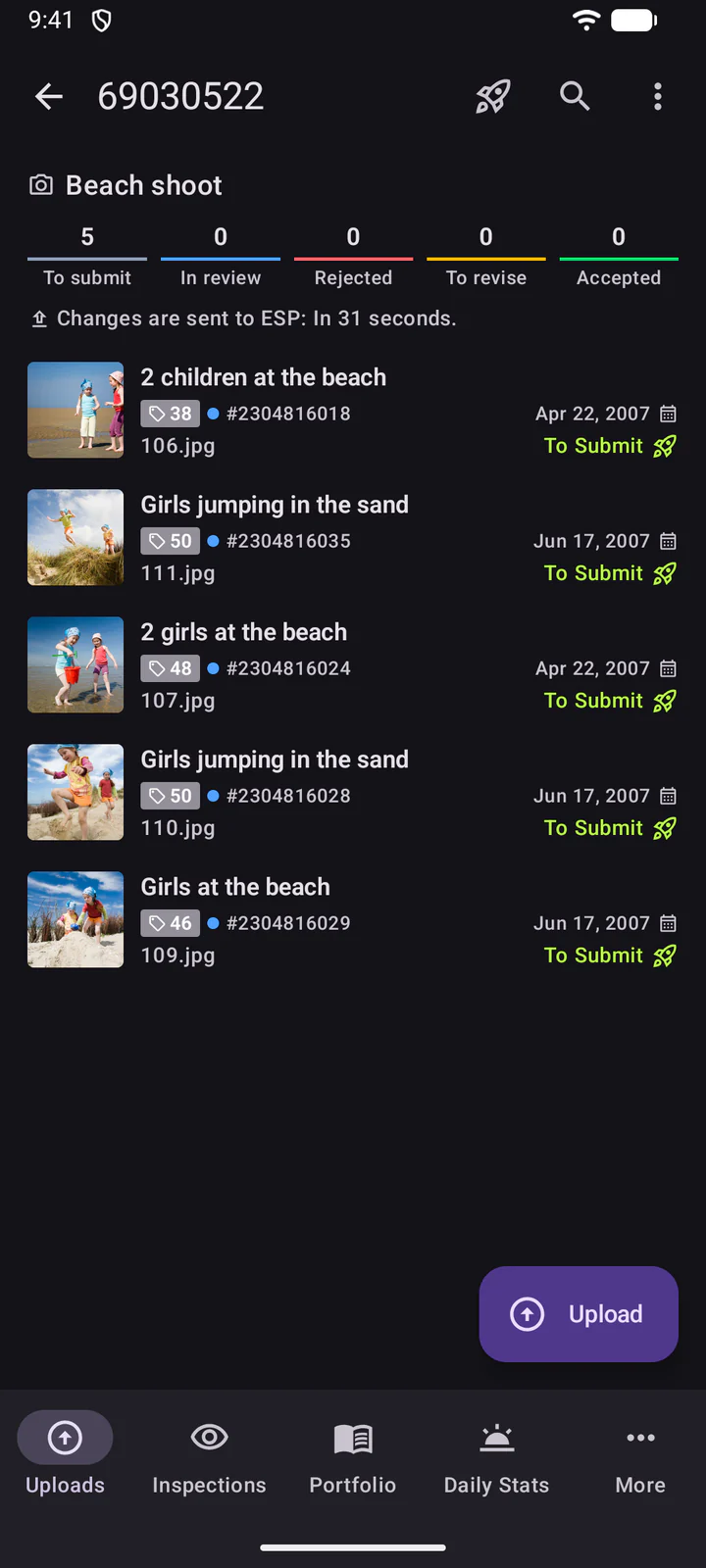
To edit several uploads at once, long-press an upload in the batch, choose the others, then tap the edit icon.
9. Sync and submit
DeepMeta sends your changes to ESP by itself, shortly after you make them: the batch shows when they go. To force the sync of a batch with ESP, pull it down. This is not normally needed.
To submit, tap ... at the top of the batch, then Submit. The same menu edits the batch, opens it on the DeepMeta site or the ESP site, and can delete it.
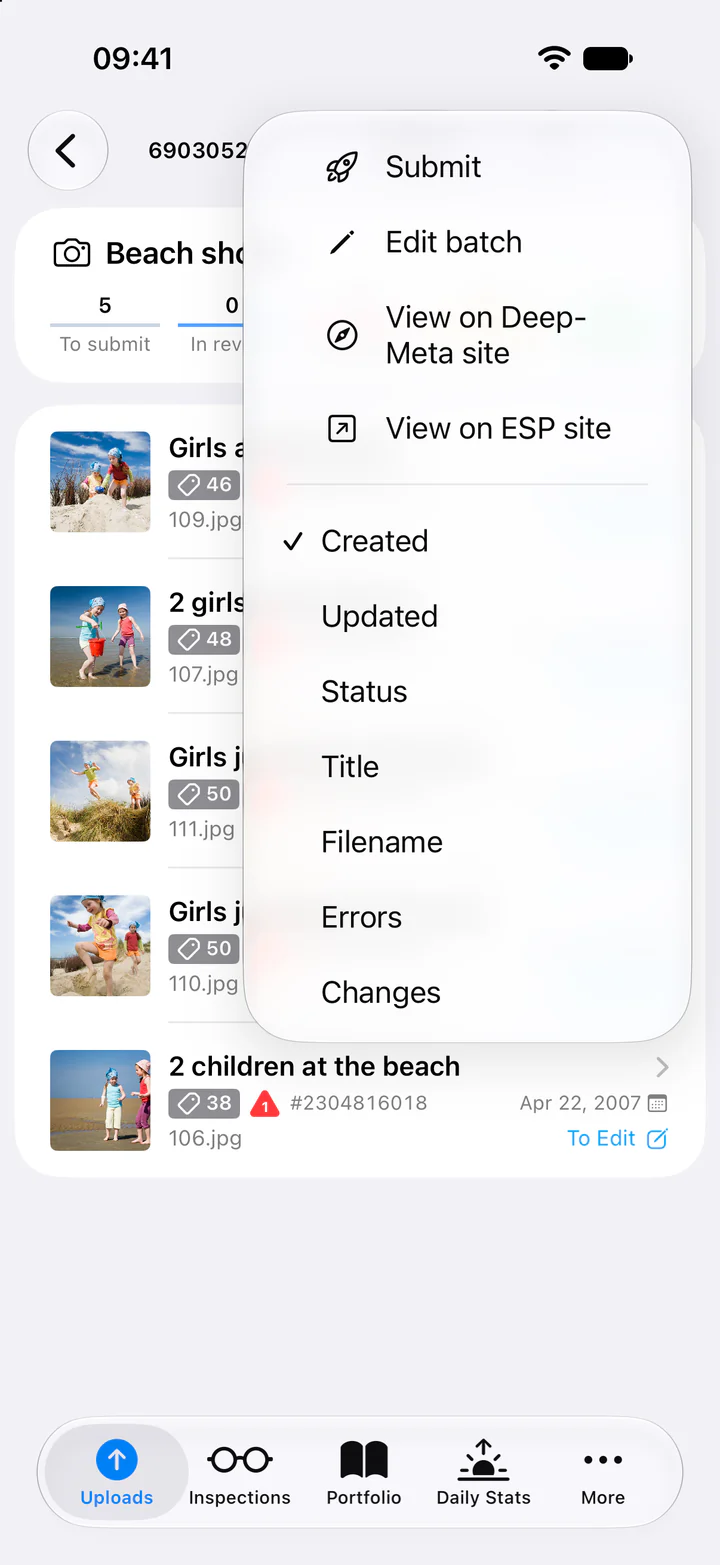
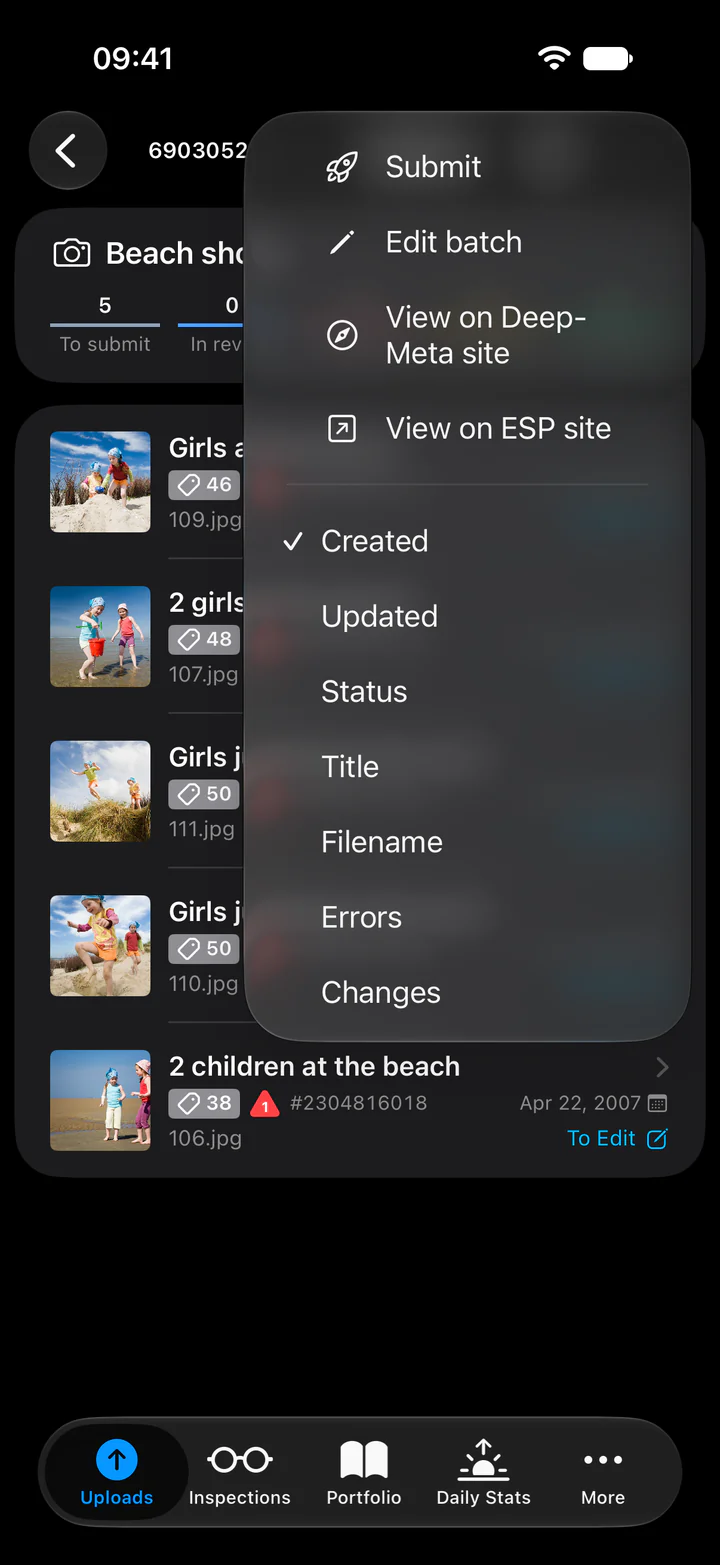
To submit only some uploads, tap Select, choose them, then tap at the bottom.
To submit, tap at the top of the batch. The ⋮ menu next to it edits the batch, opens it on the DeepMeta site or the ESP site, and can delete it.
To submit only some uploads, long-press one, choose the others, then tap .
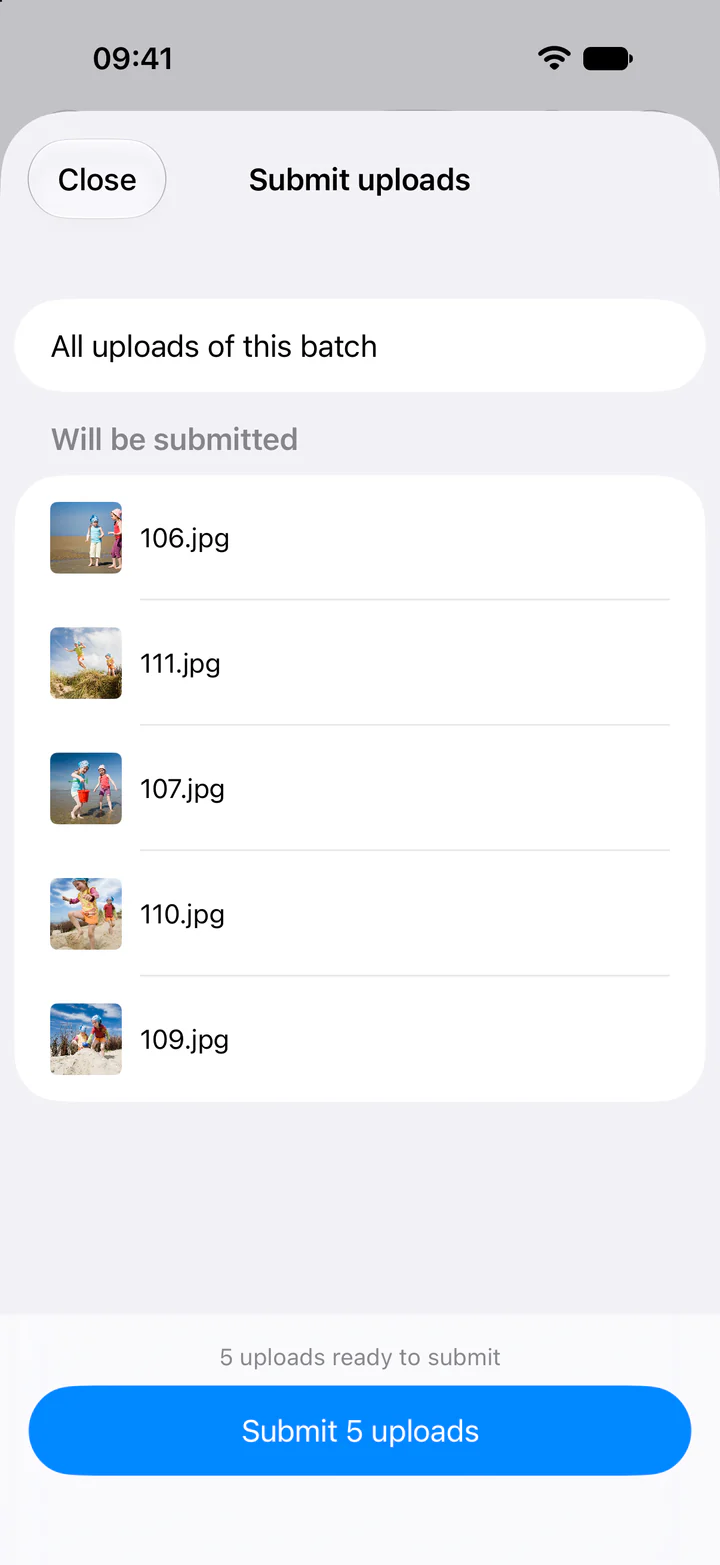
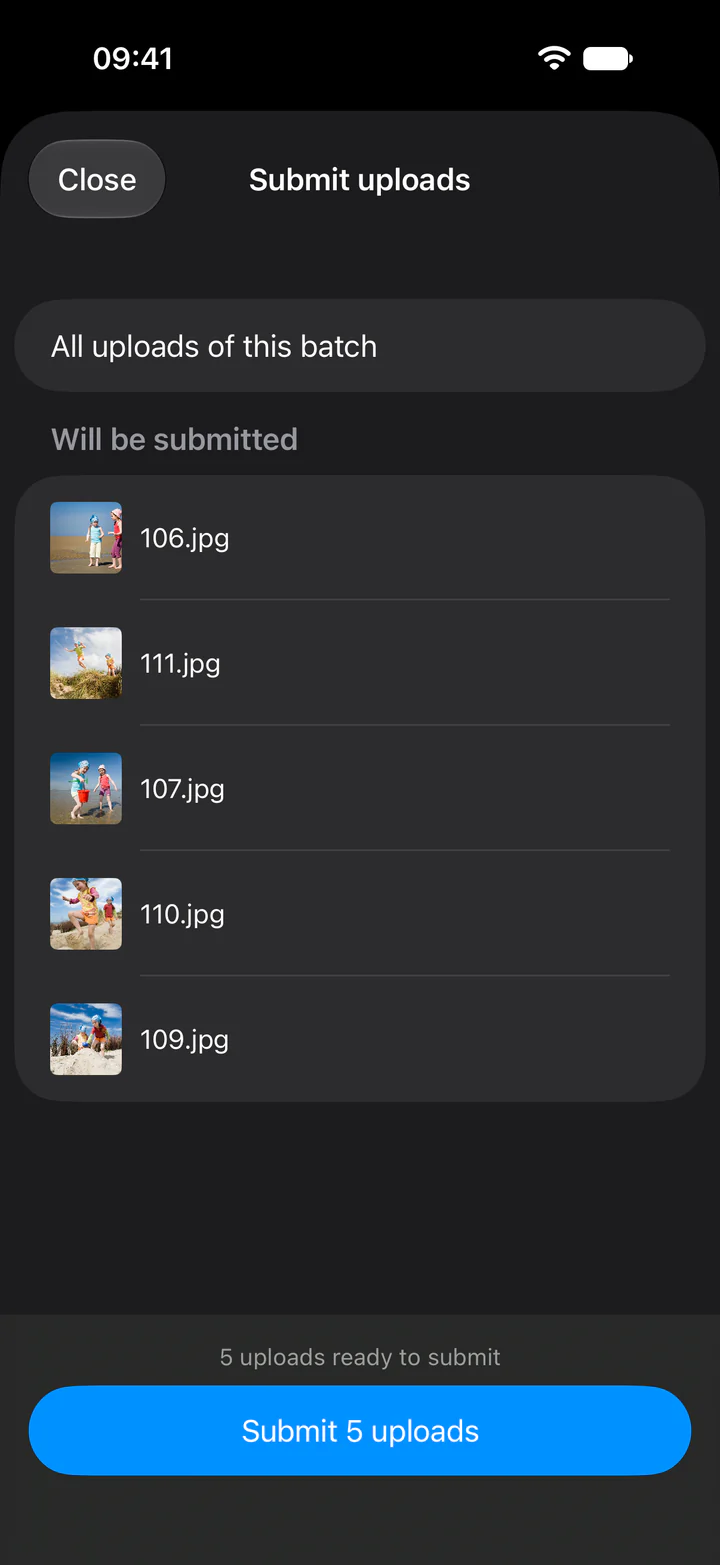
Submit uploads lists exactly what will go, under Will be submitted. Uploads that still wait for a file, a release or AI stay behind, and the others are grouped by their status. Check the list, then tap the button with the number of uploads, such as Submit 5 uploads. The sheet shows each step: it syncs the batch, submits it to the Getty ESP server and syncs it again. If Getty refuses files, it says which and why, and offers Try again.
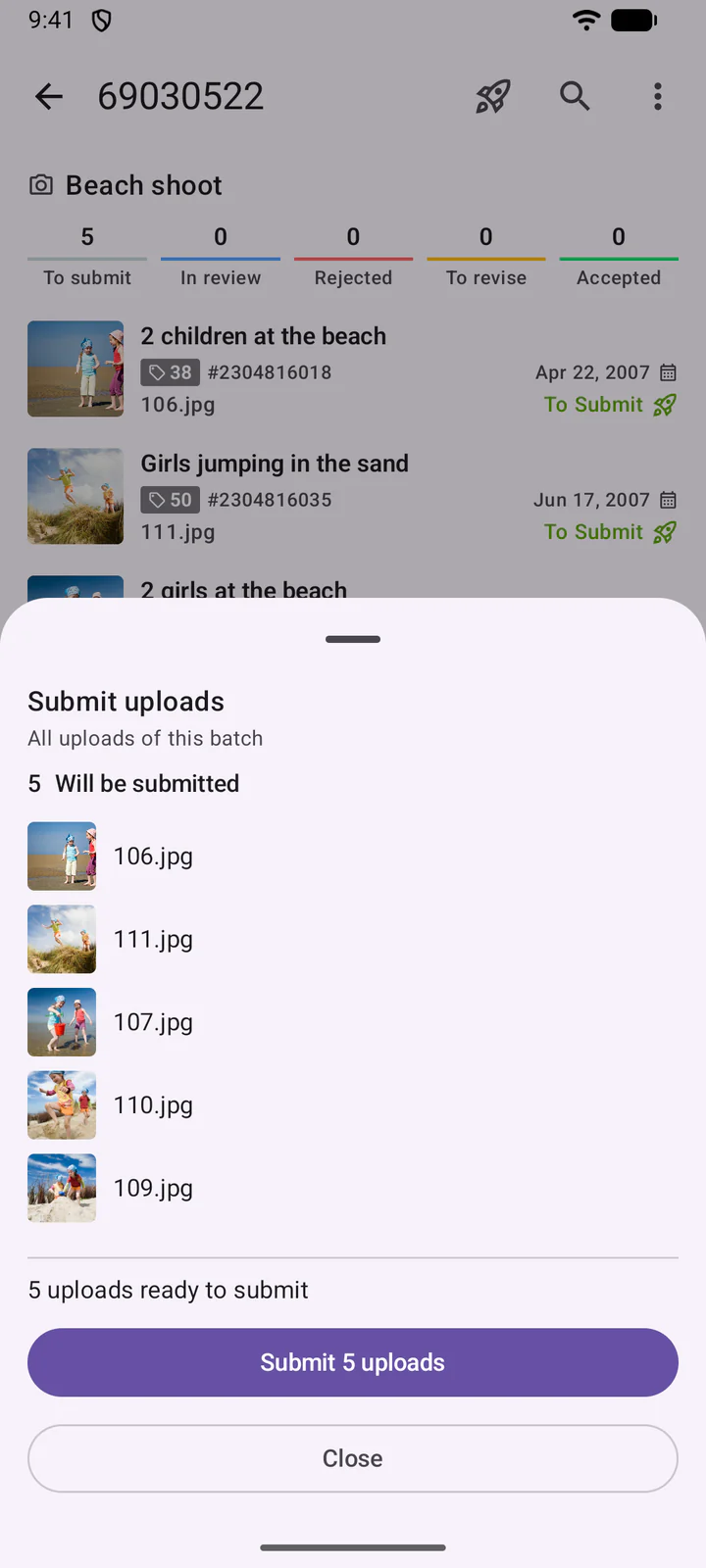
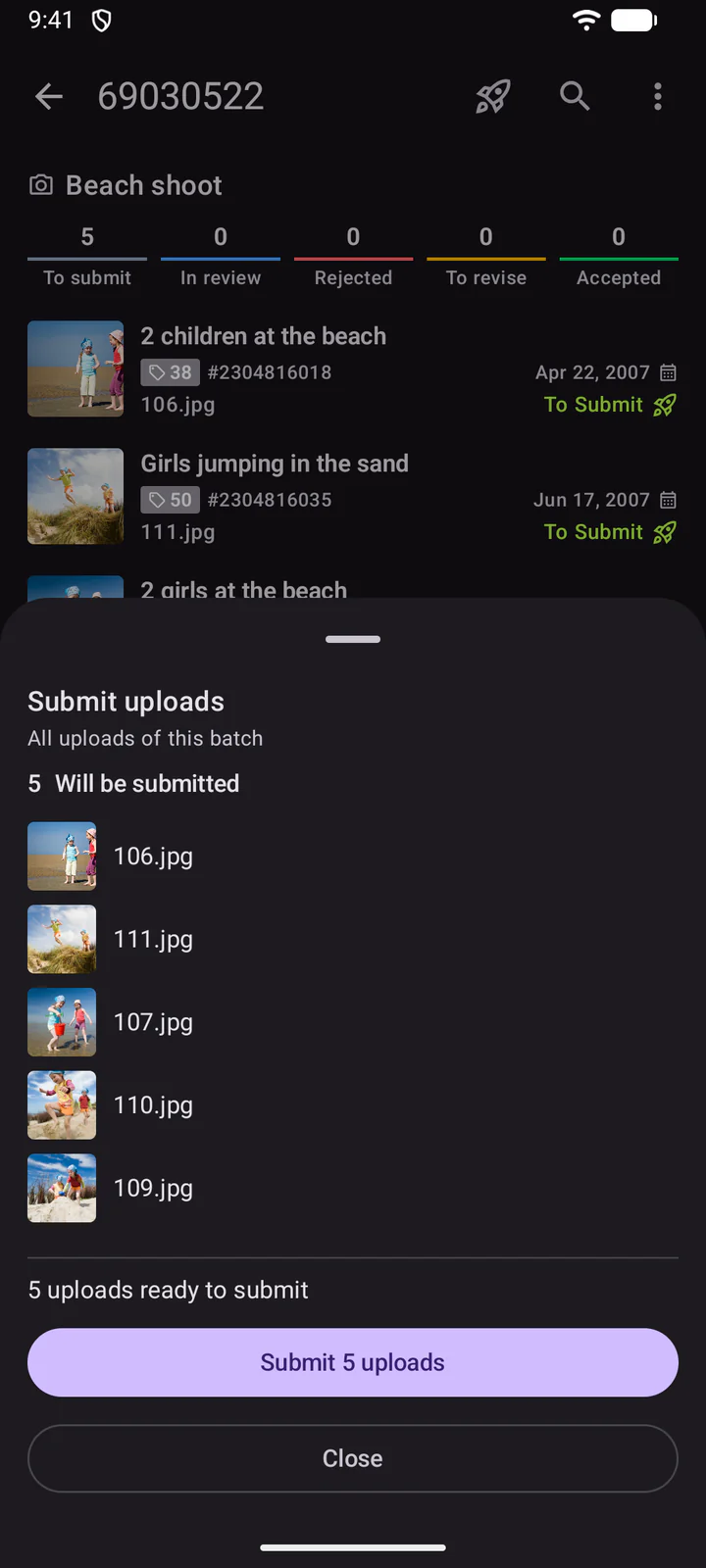
You can also give a batch an Auto-submit time: DeepMeta then submits its ready uploads for you.
10. Inspections, Portfolio and Daily Stats
Inspections shows your inspected batches: per batch what was accepted, rejected or is to revise, with the files.
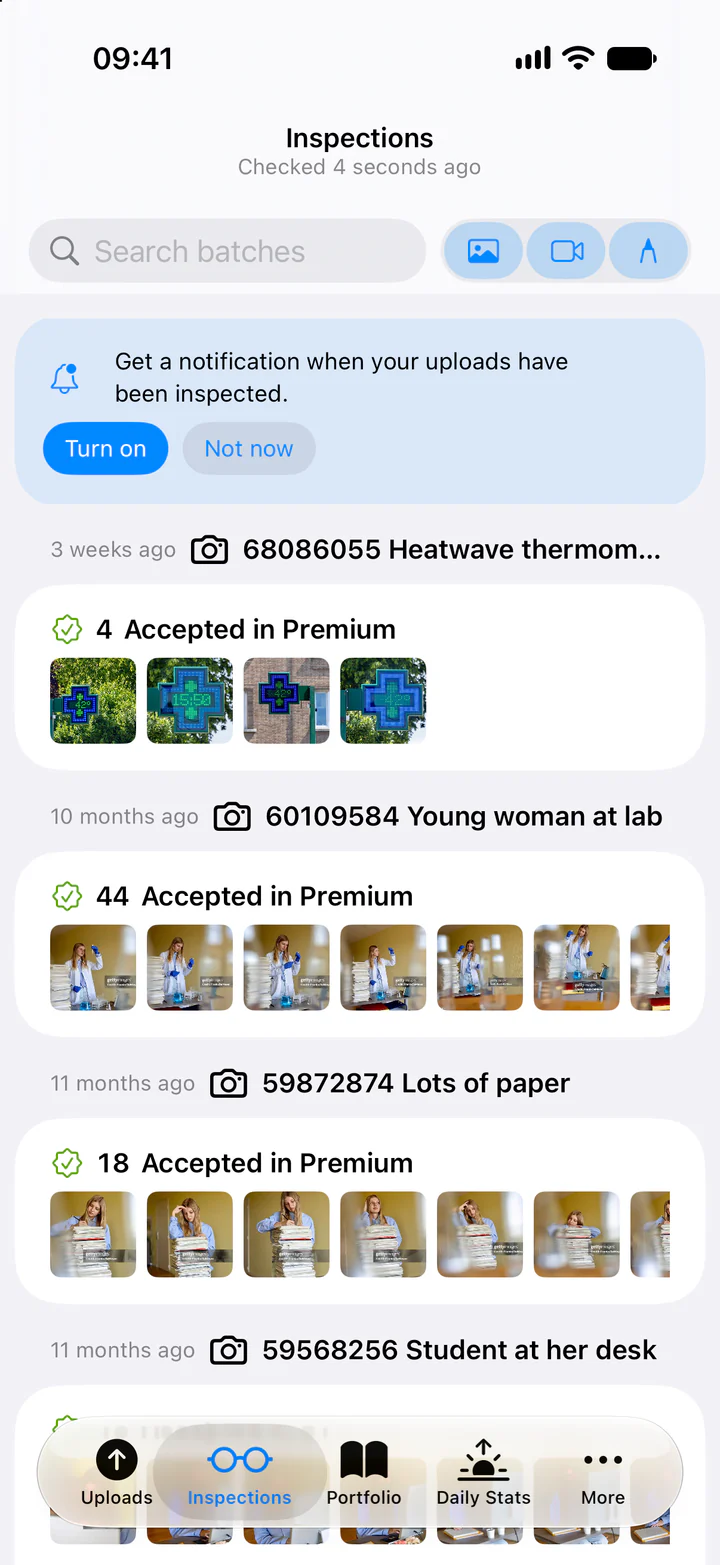
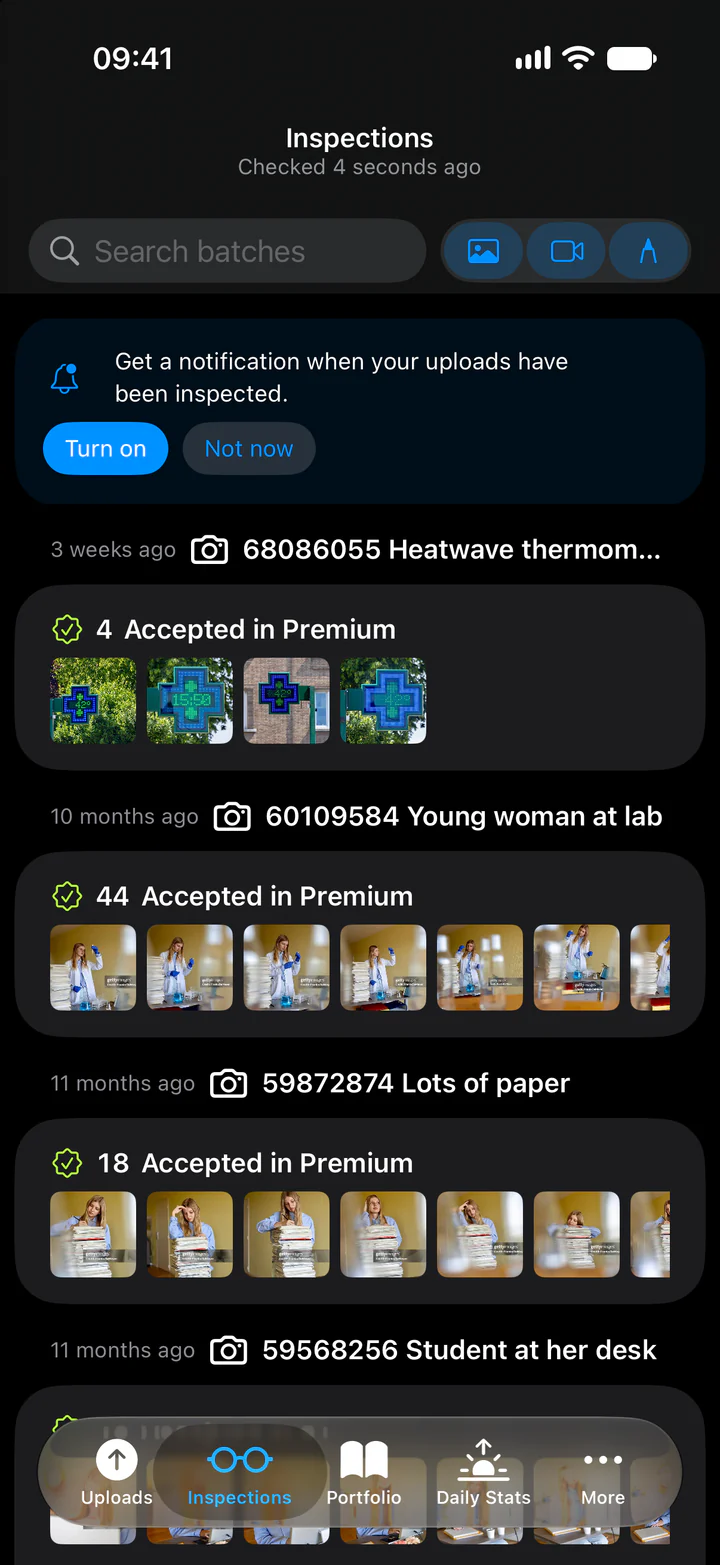
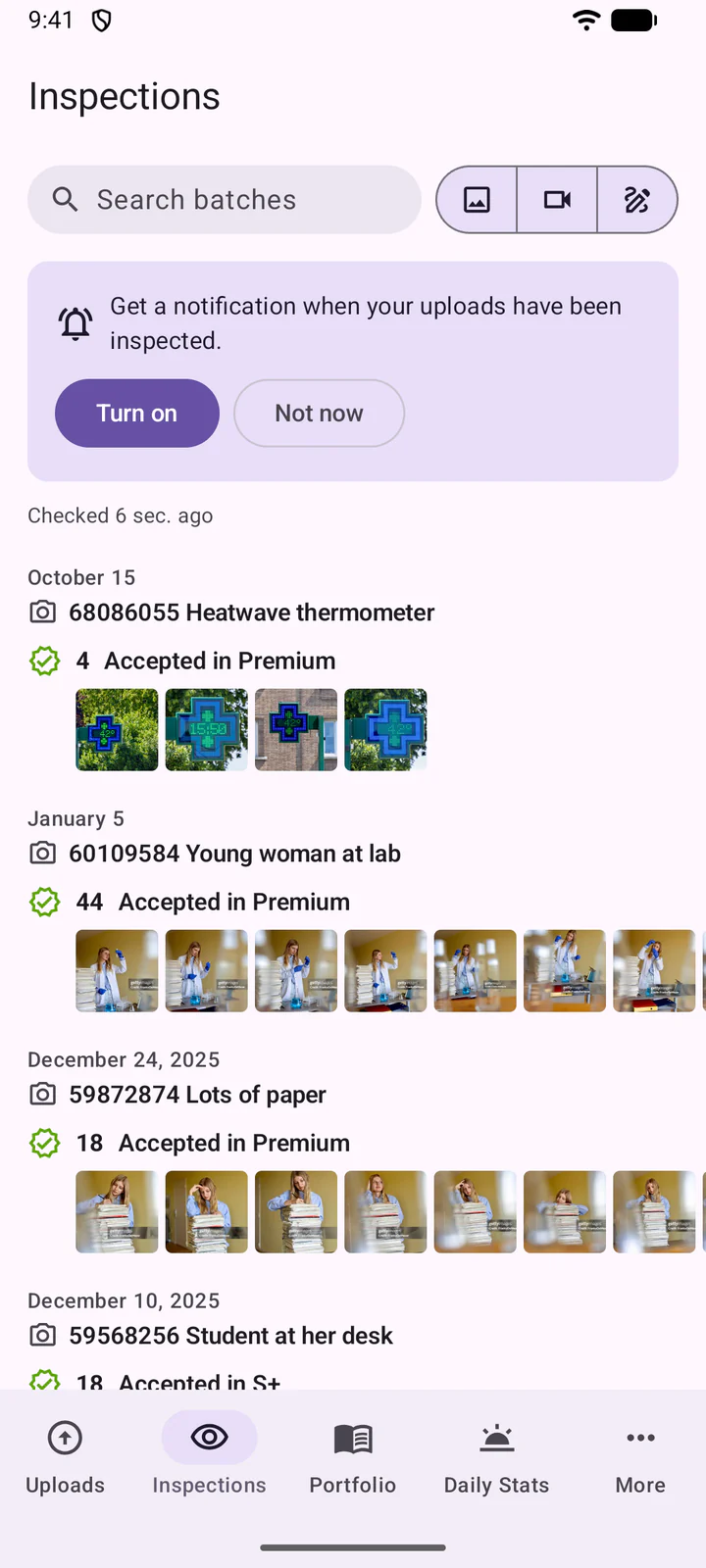
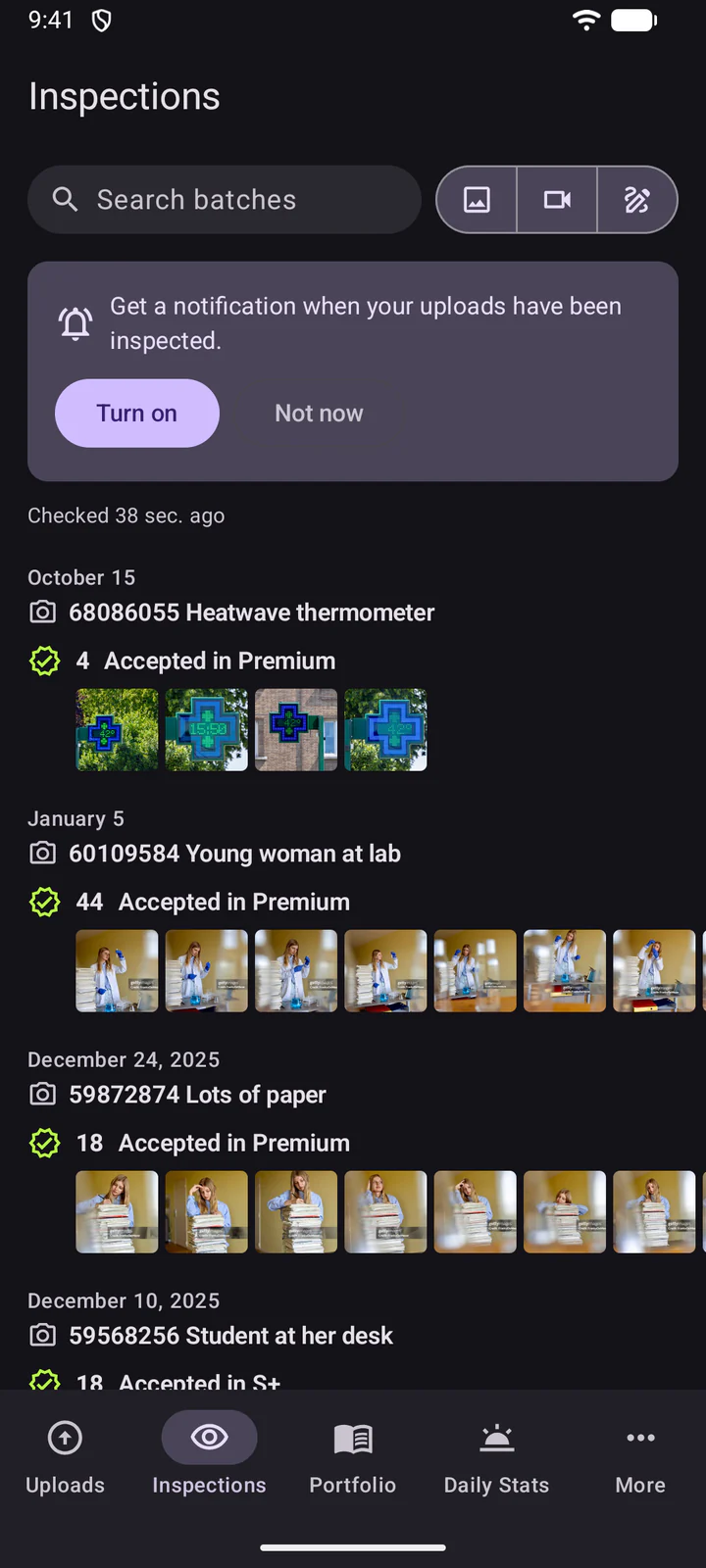
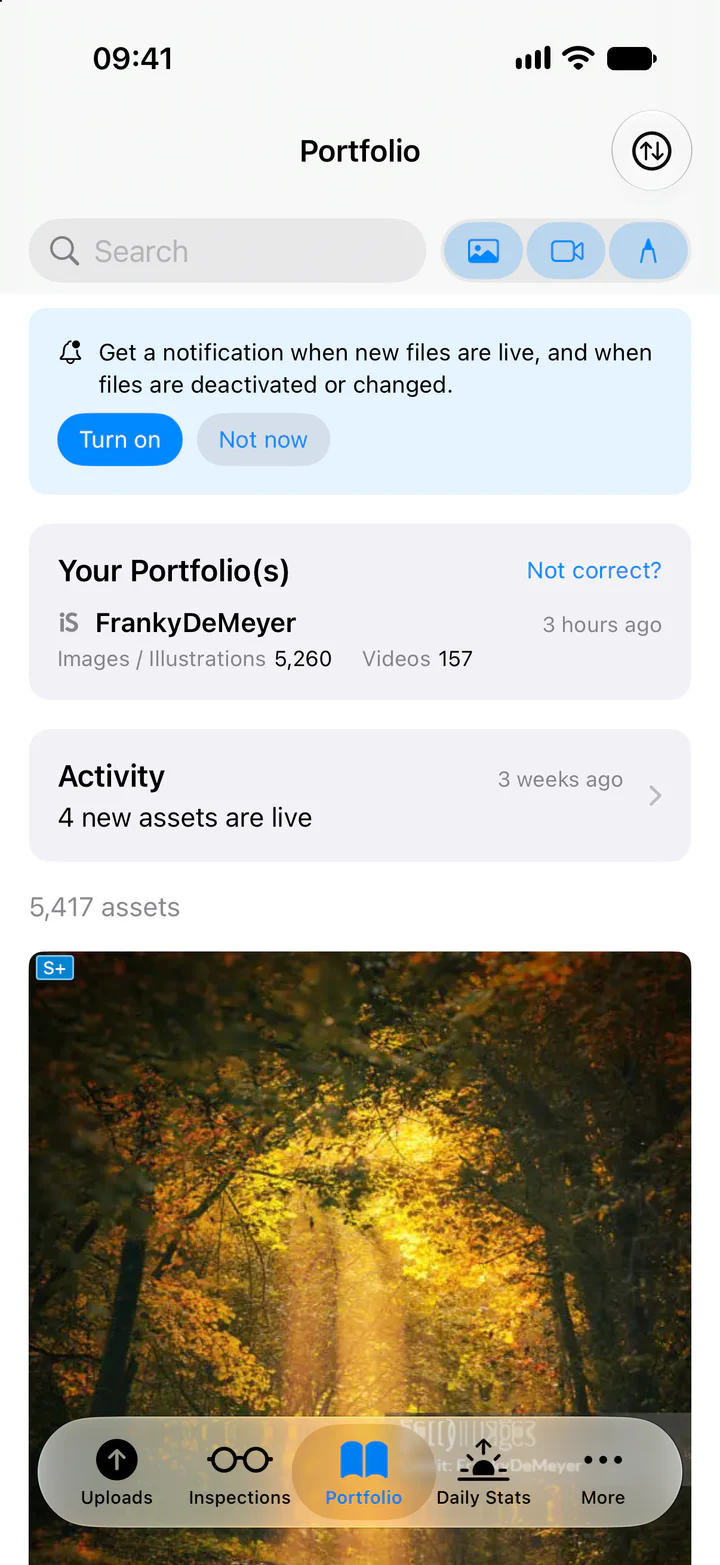
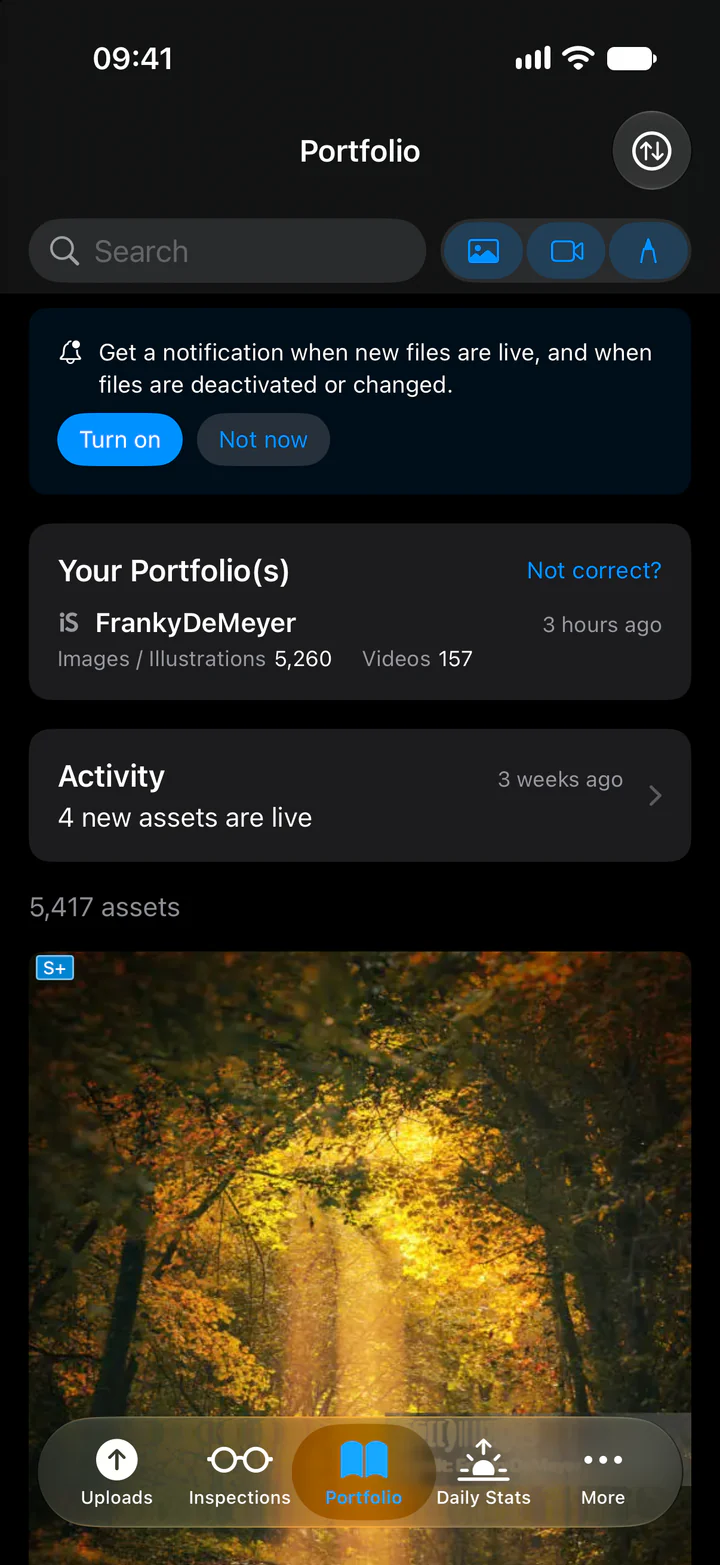
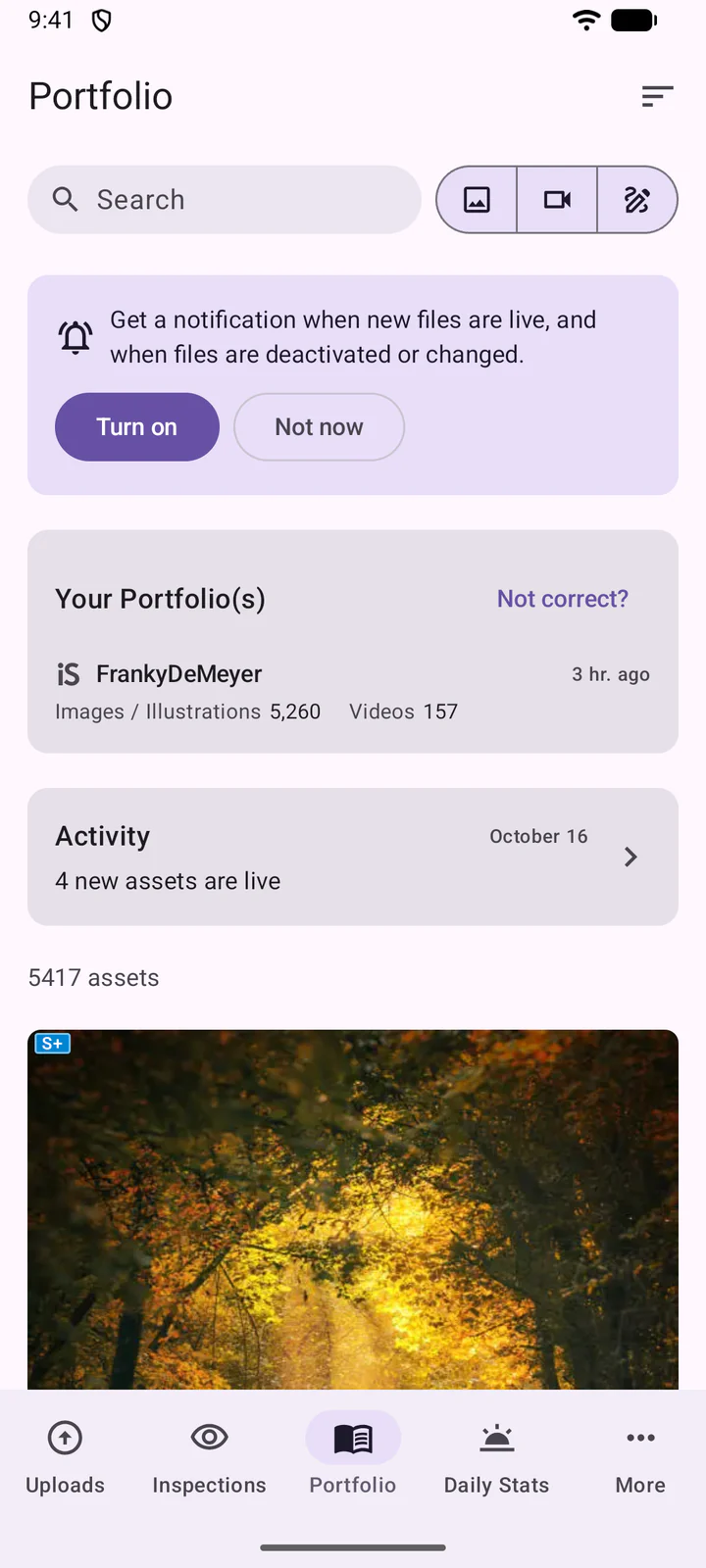
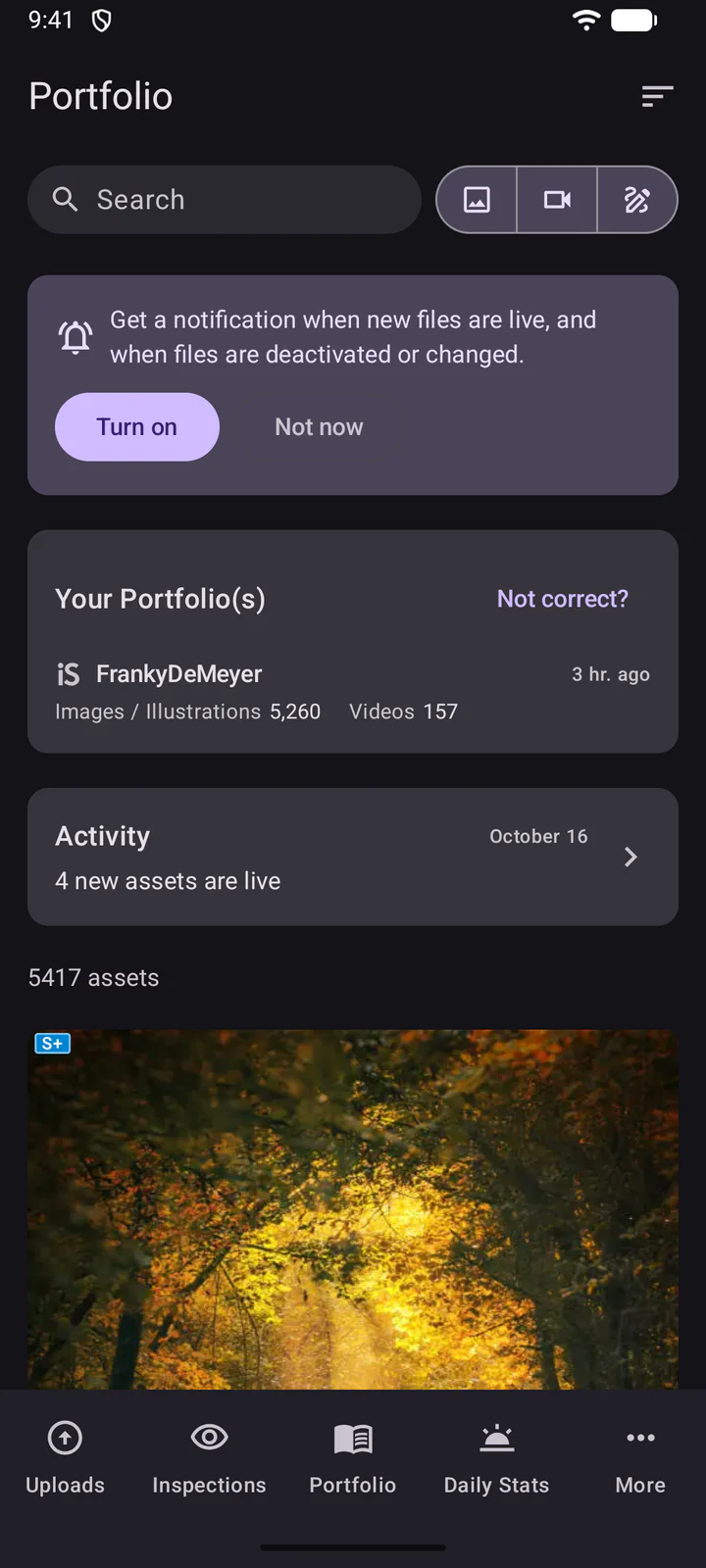
Portfolio shows your portfolio, its activity (new assets that are live, deactivated or changed files) and all your assets.
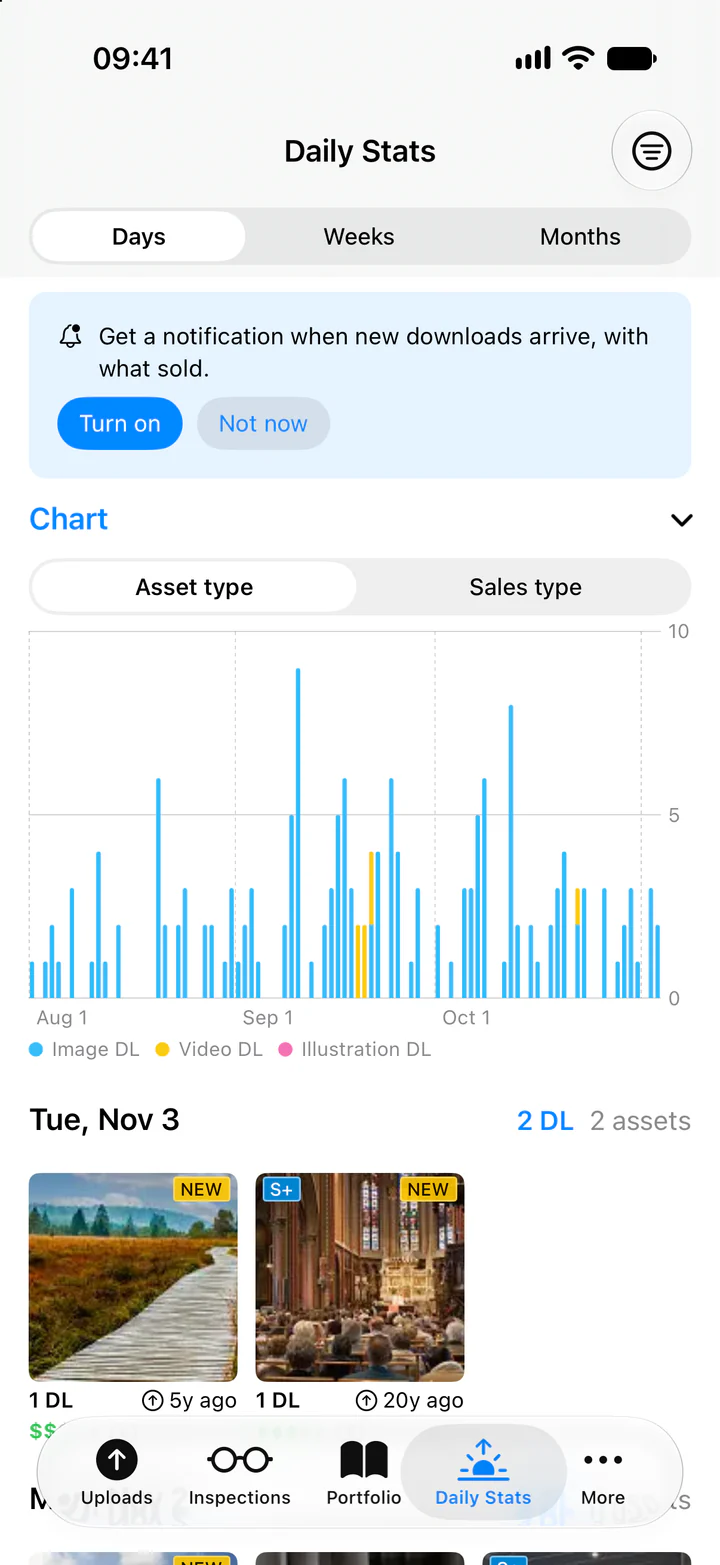
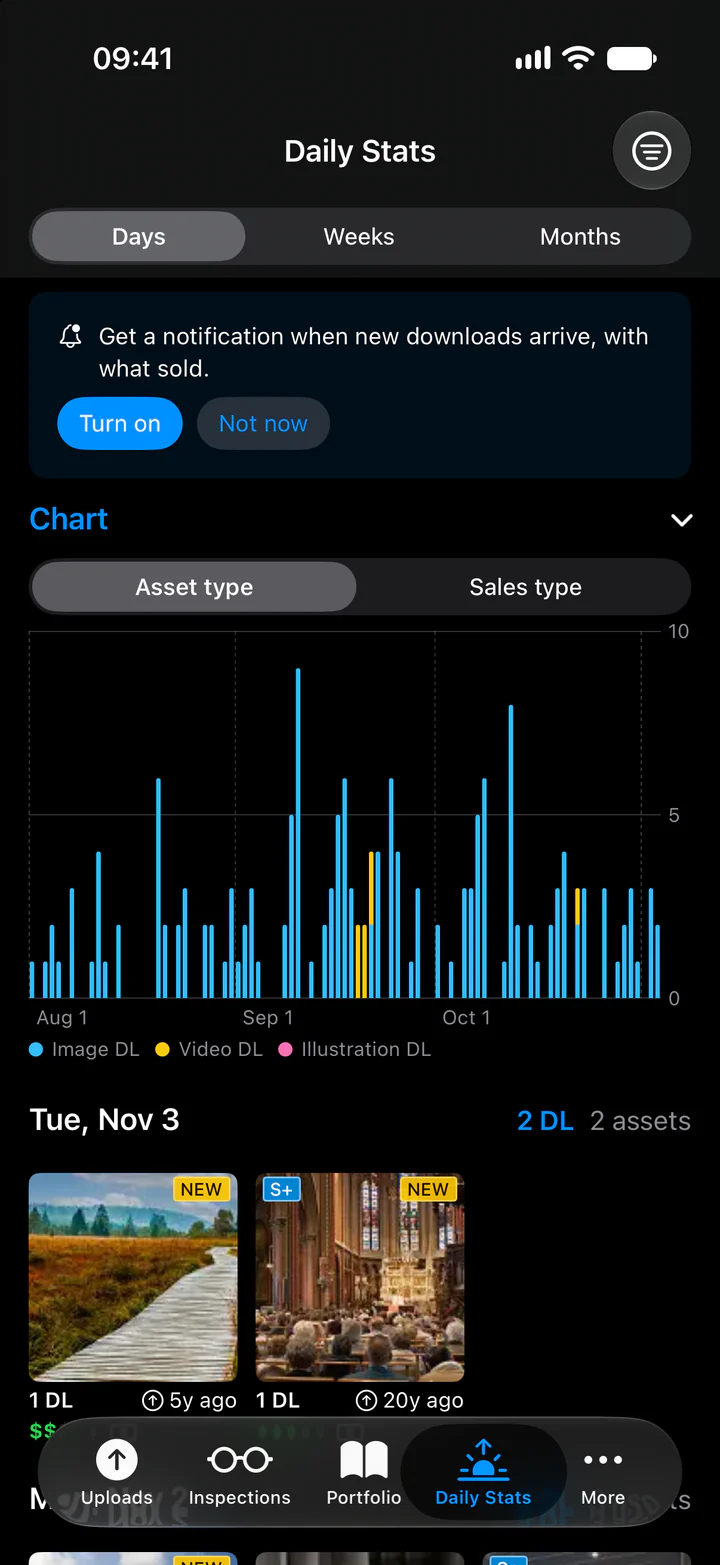
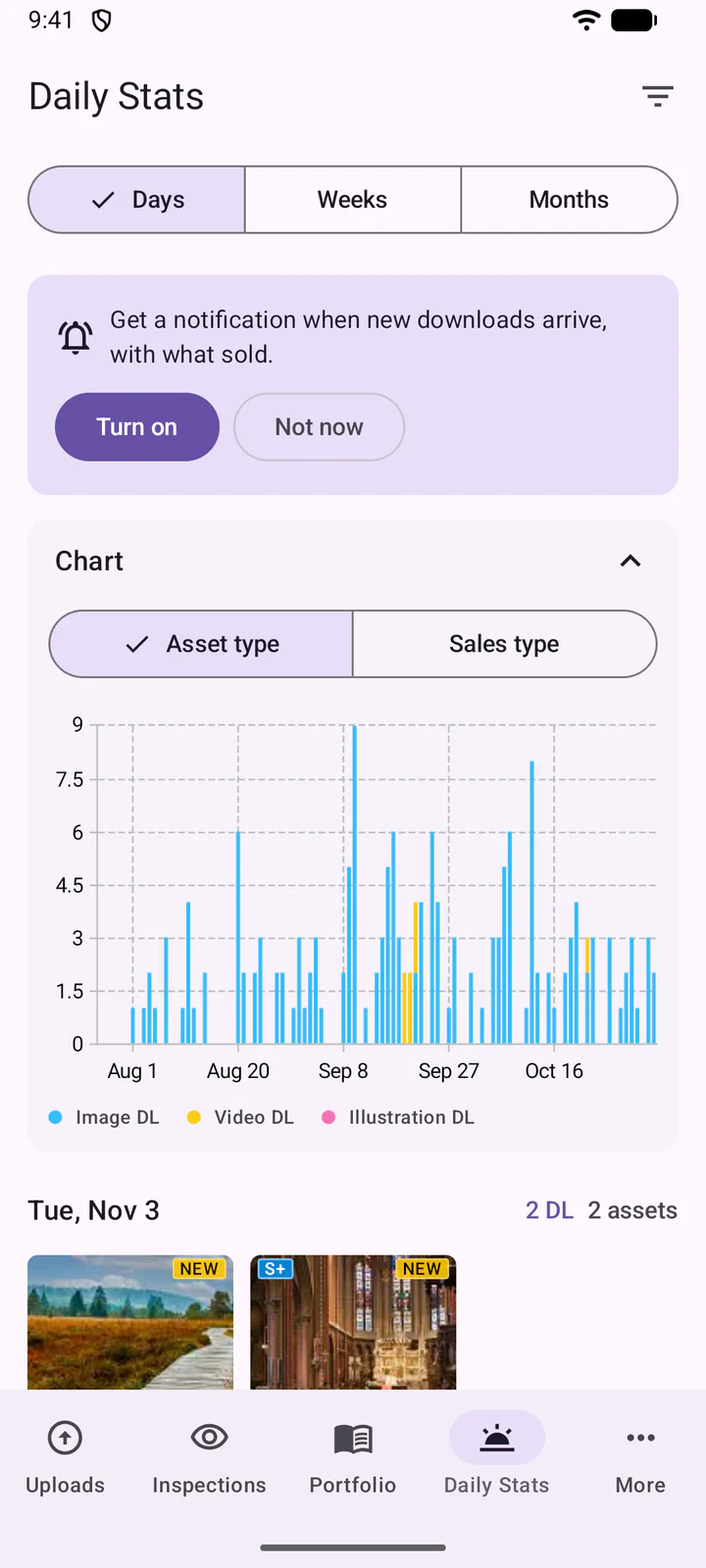
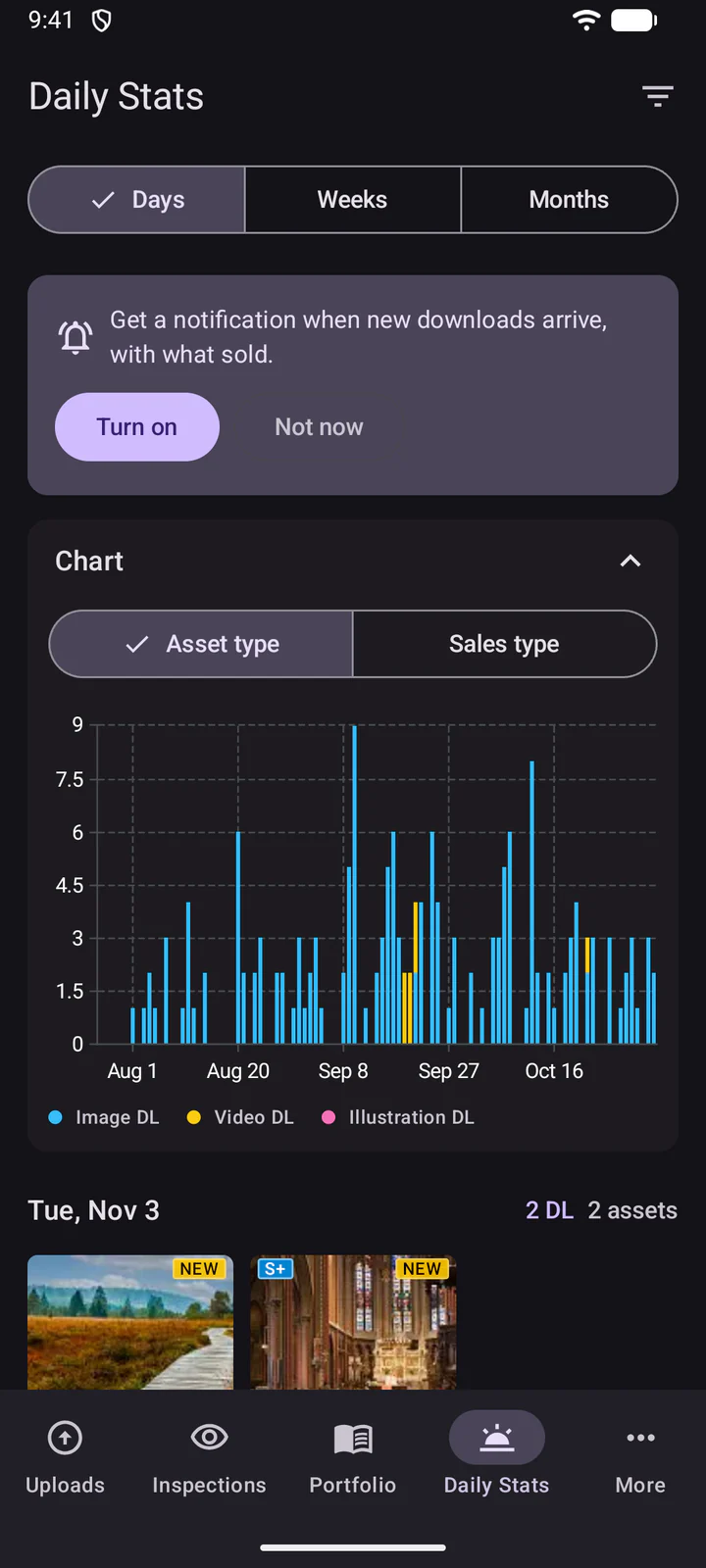
Daily Stats shows your downloads by day, week or month, with a chart and what sold.
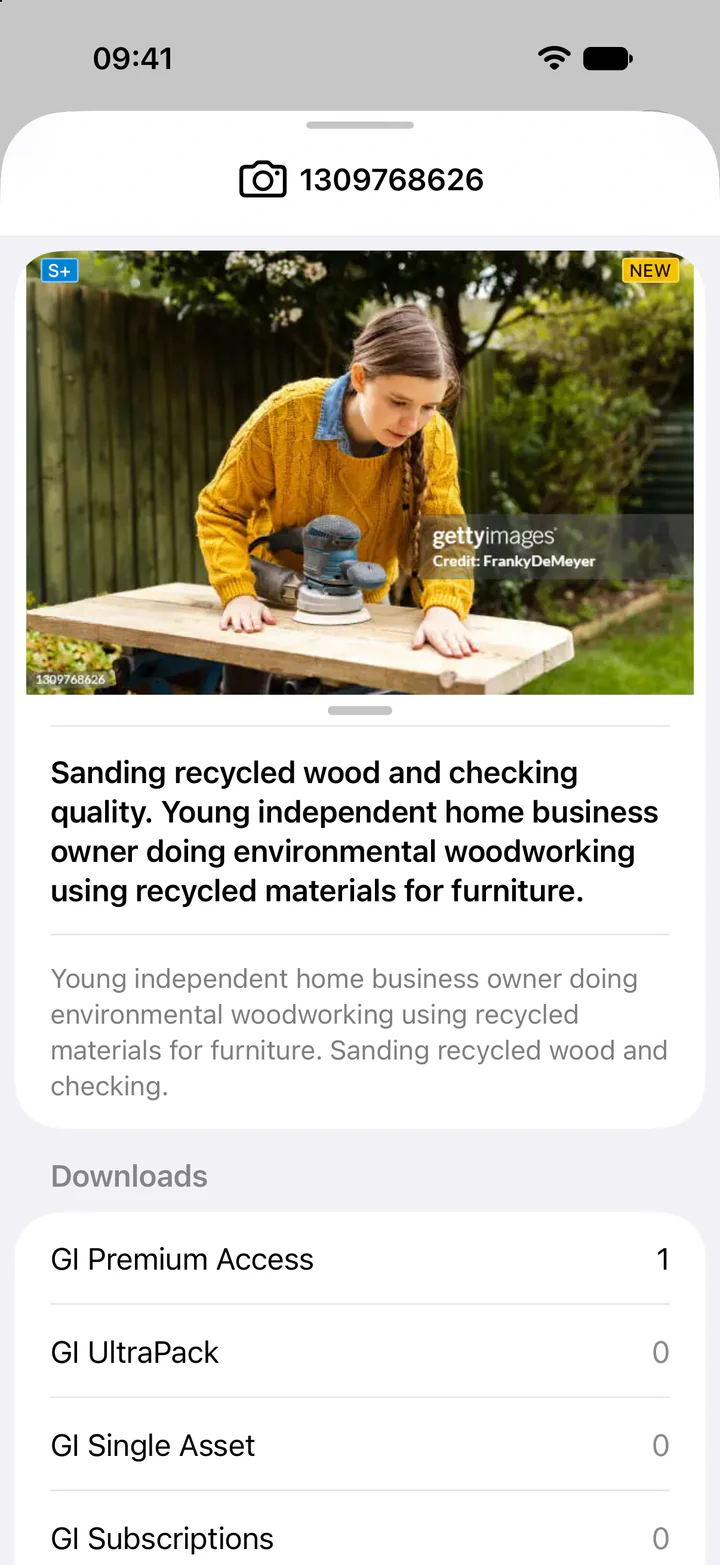
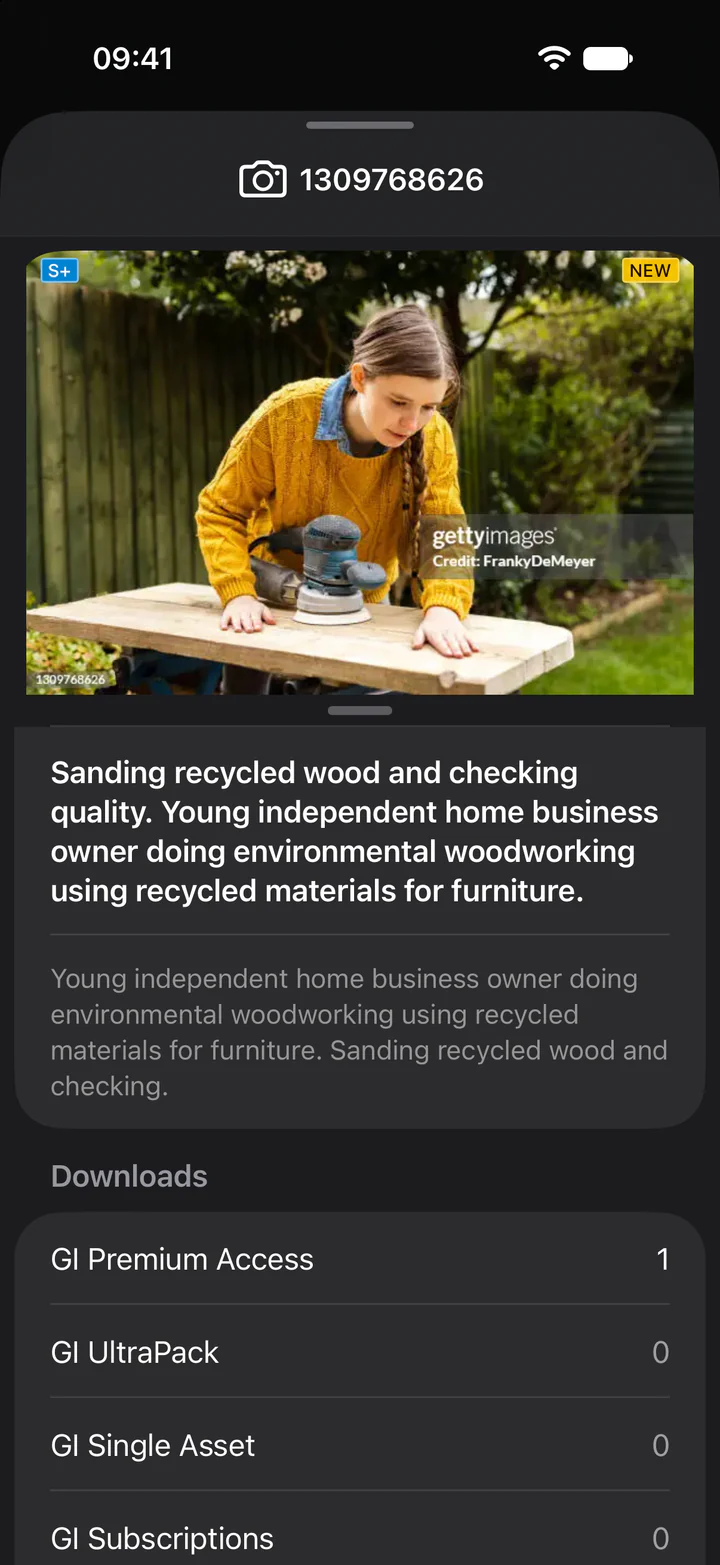
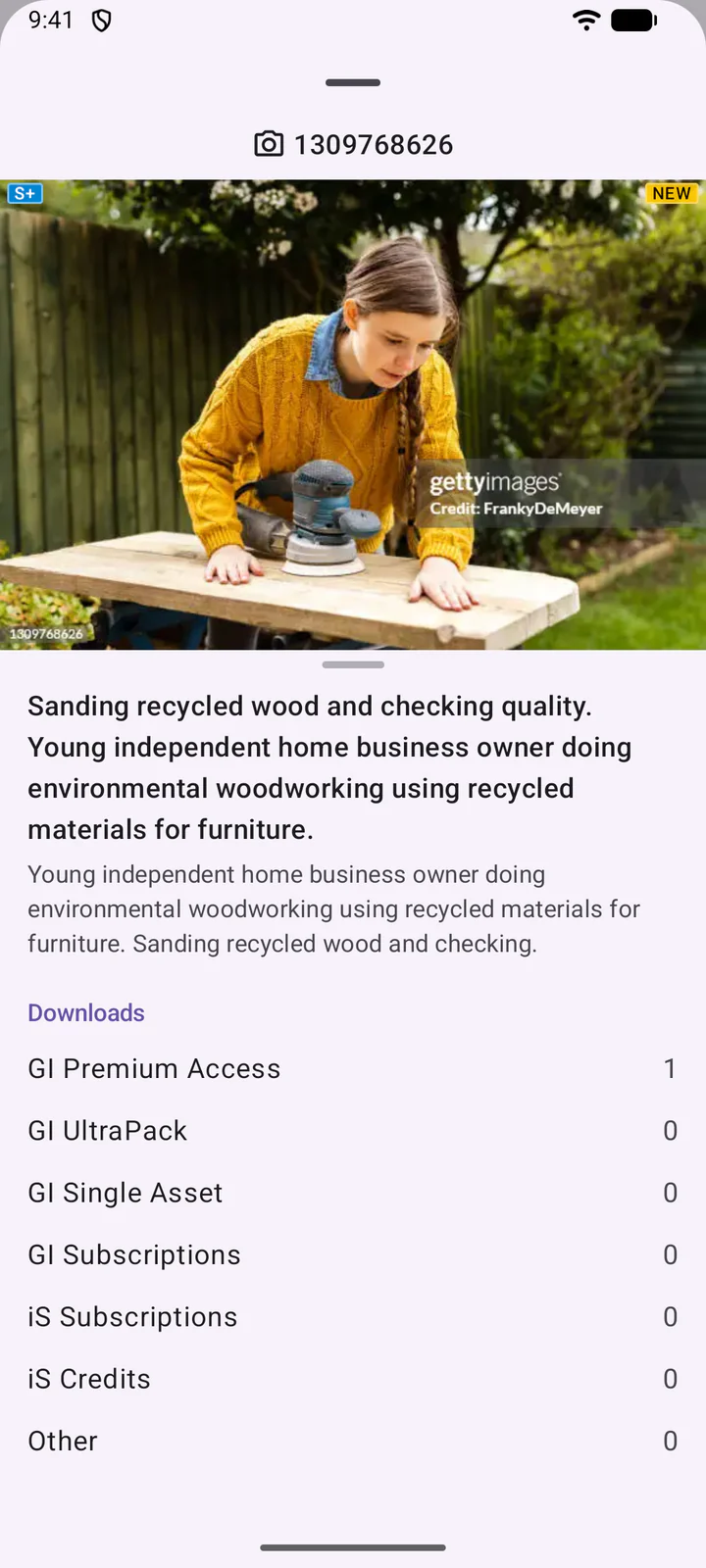
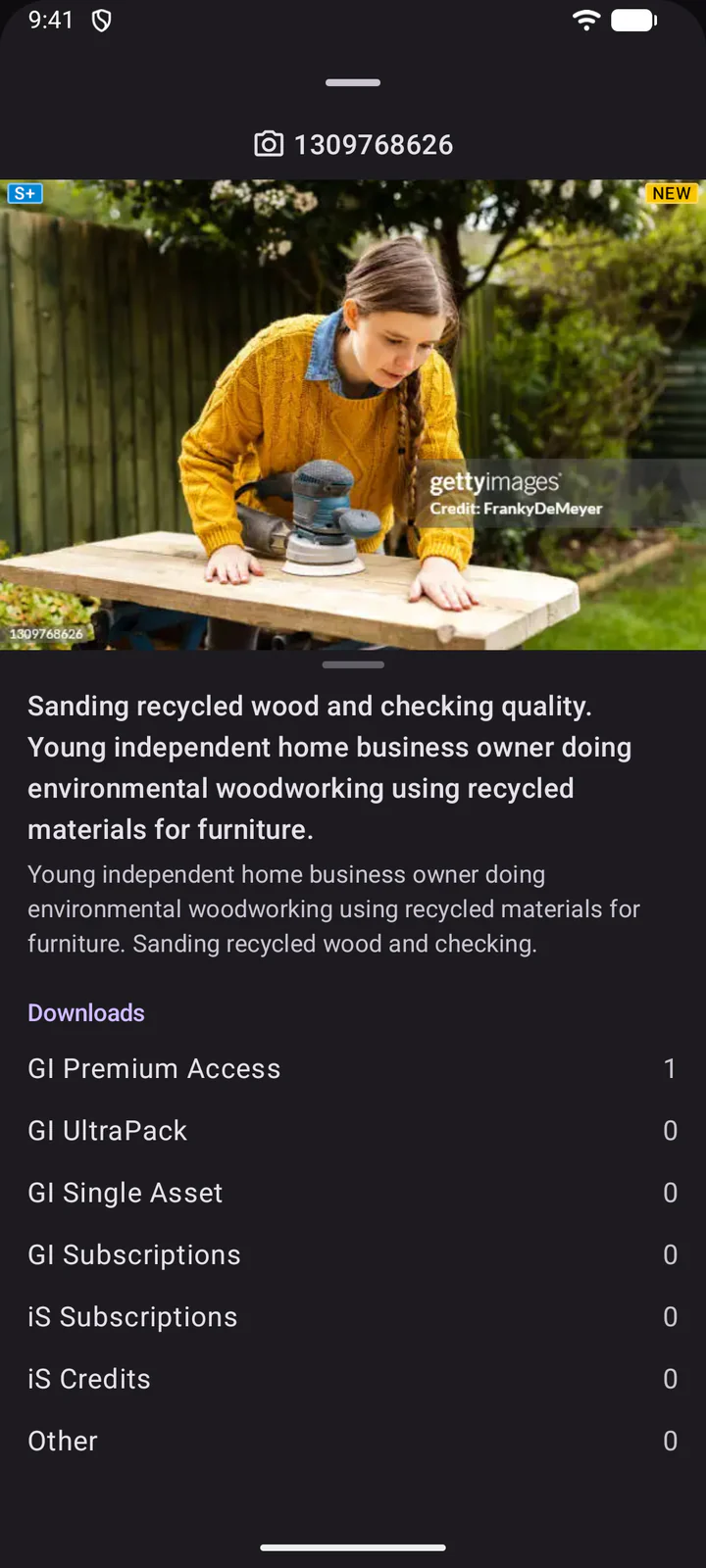
Tap an asset to see its details: its type and ID at the top, then its title, description and downloads by sales type. Swipe left or right to go to the previous or next one.
11. Portfolio activity
Tap Activity on the Portfolio to see what changed in your portfolio on Getty Images and iStock, the latest first. Each entry stays there for 90 days. Tap a file to see its details and what changed.
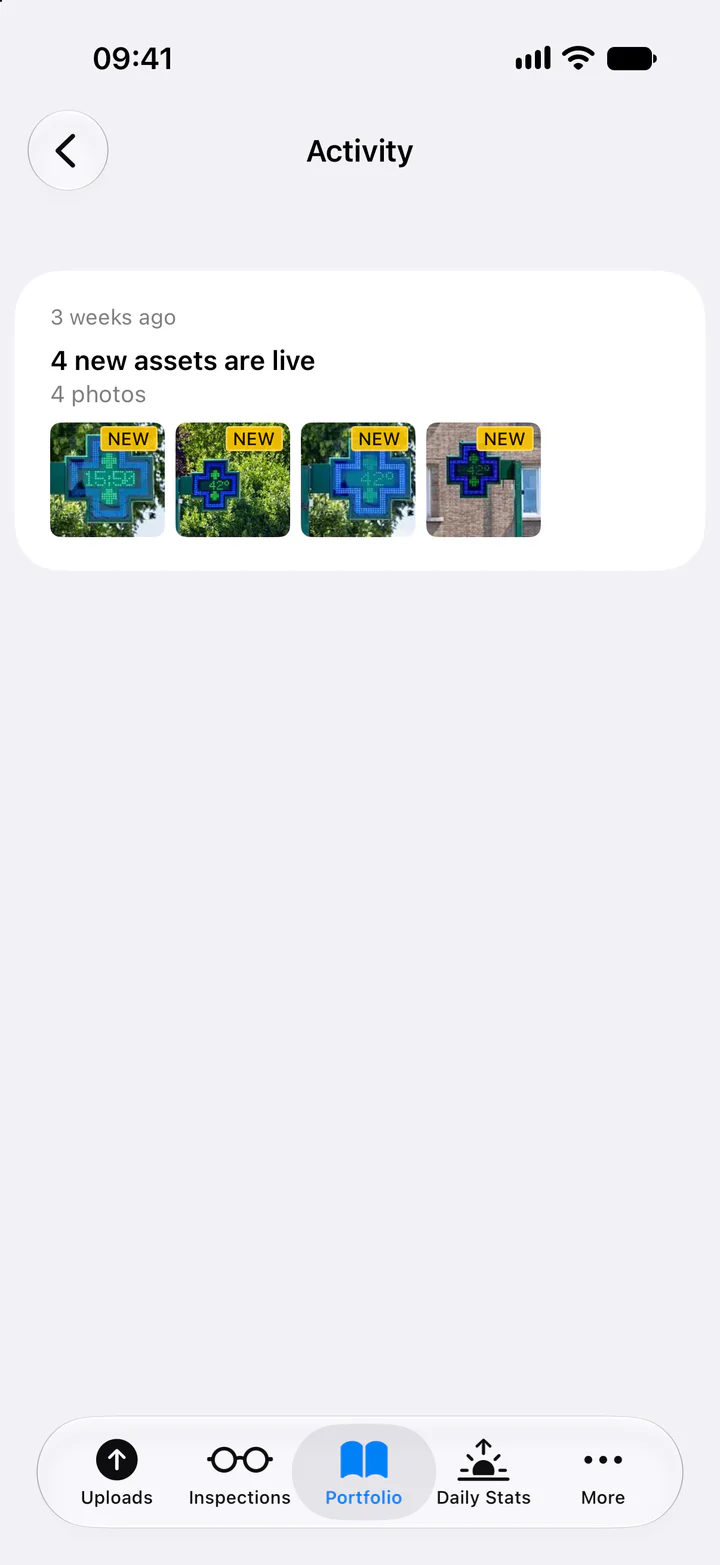
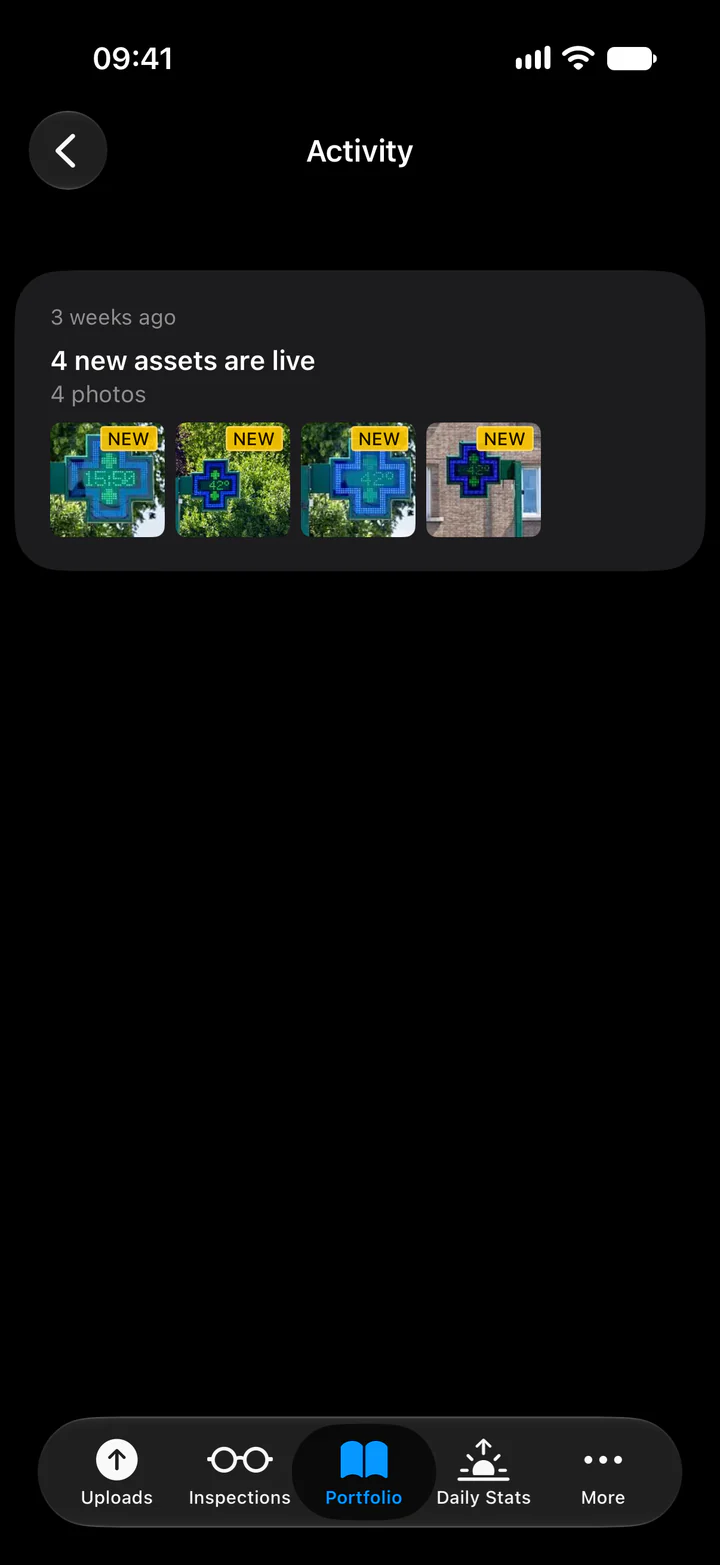
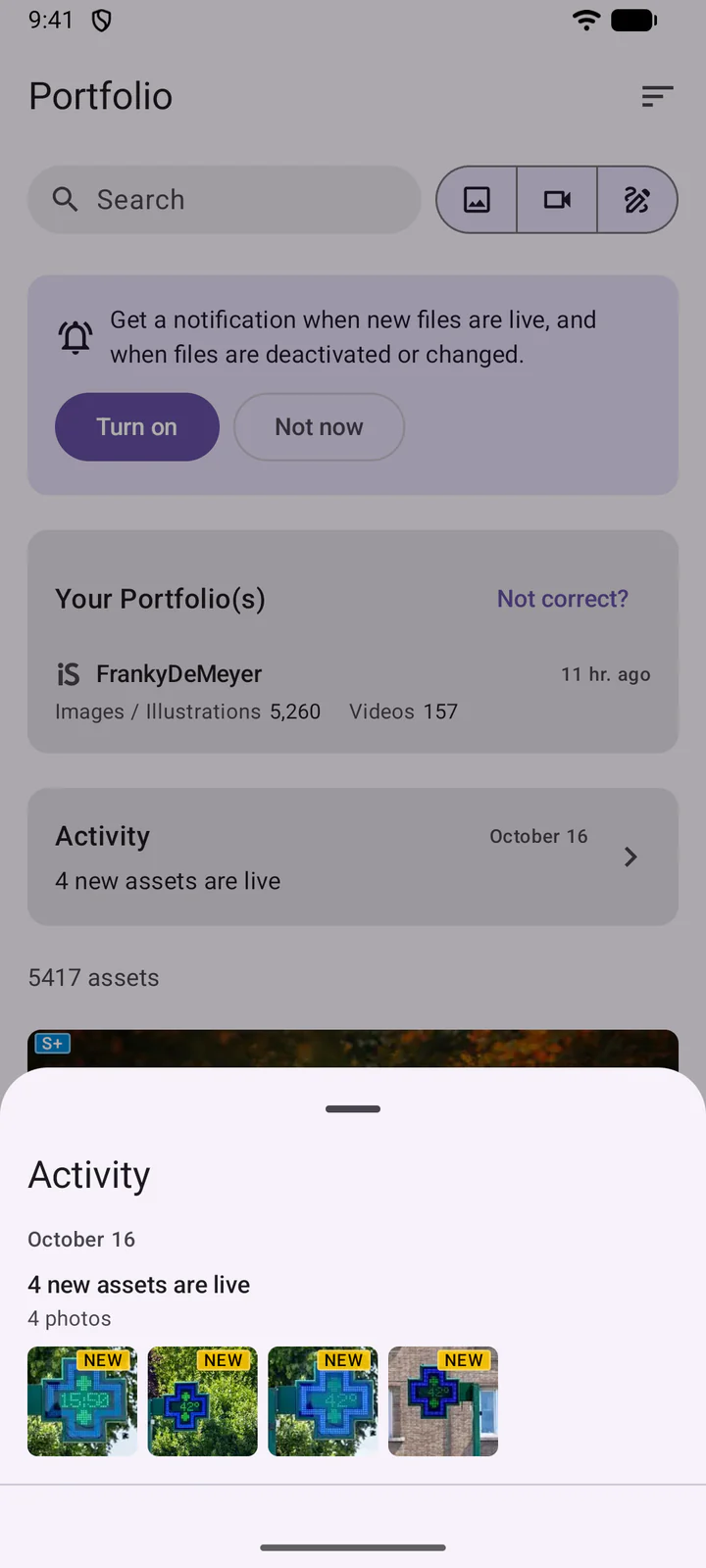
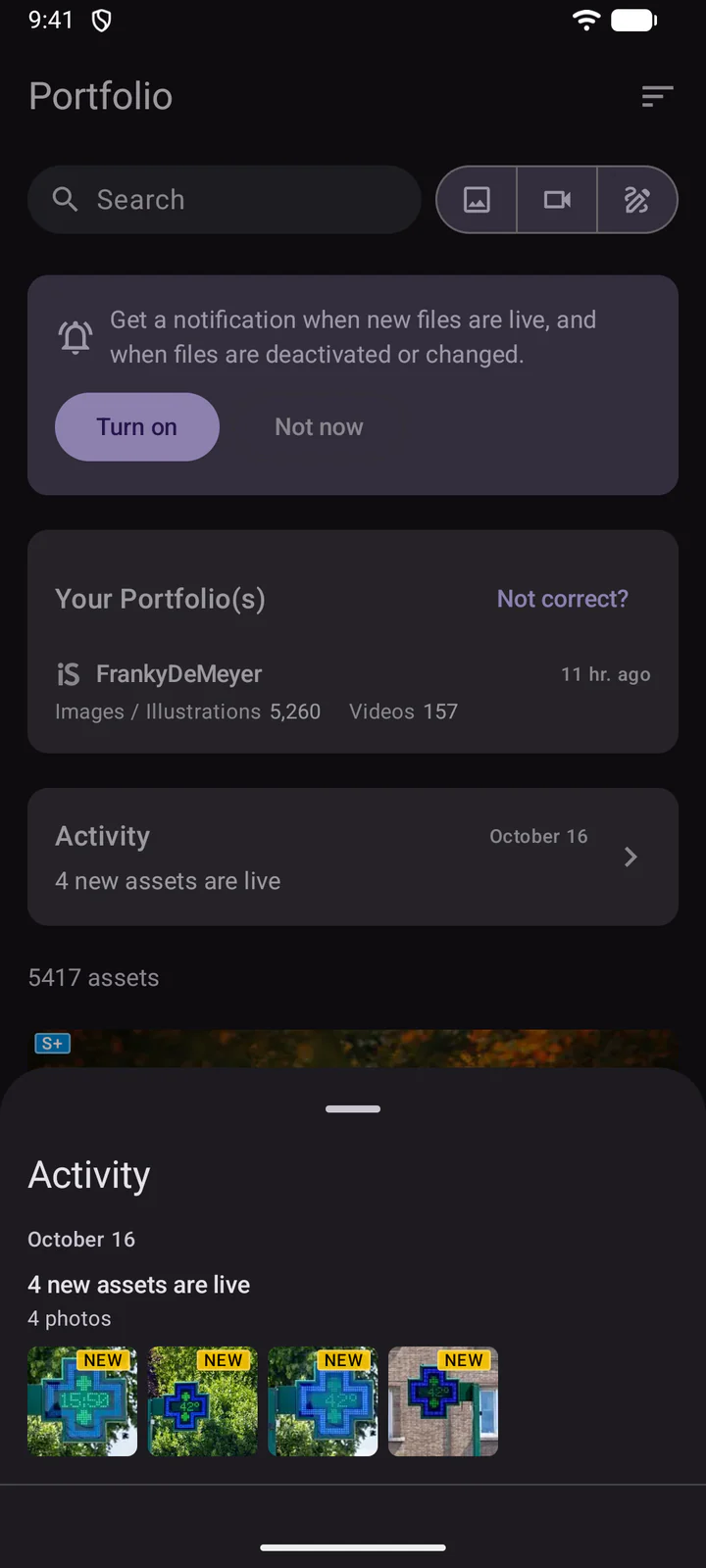
A file is marked NEW when both are true:
- DeepMeta finds it in your portfolio for the first time. A file shows as new only once.
- You submitted it in the last 90 days. An older file that DeepMeta only finds now, for example after a rescan, isn't counted as new.
The first import of your portfolio shows no activity: the list starts with the changes after it. The other marks on the files are a red cross for a deactivated file (also greyed out), an orange pencil for a changed title, description or Getty collection, and arrows for a file that iStock moved to another collection.
iStock's moves into and out of its Signature+ collection have lines of their own, such as 2 assets moved to S+ or 1 asset moved out of S+, with an arrow up or down on their files. In a file's changes, a Signature+ collection shows as, for example, E+ (S+).
12. Notifications and settings
Under More, Preferences has the notifications: New downloads, Inspection results, Portfolio changes and Statements published. Your phone asks for permission the first time you turn one on. Once one is on, Send test notification checks that they reach your phone. Further down are the AI features (step 7).
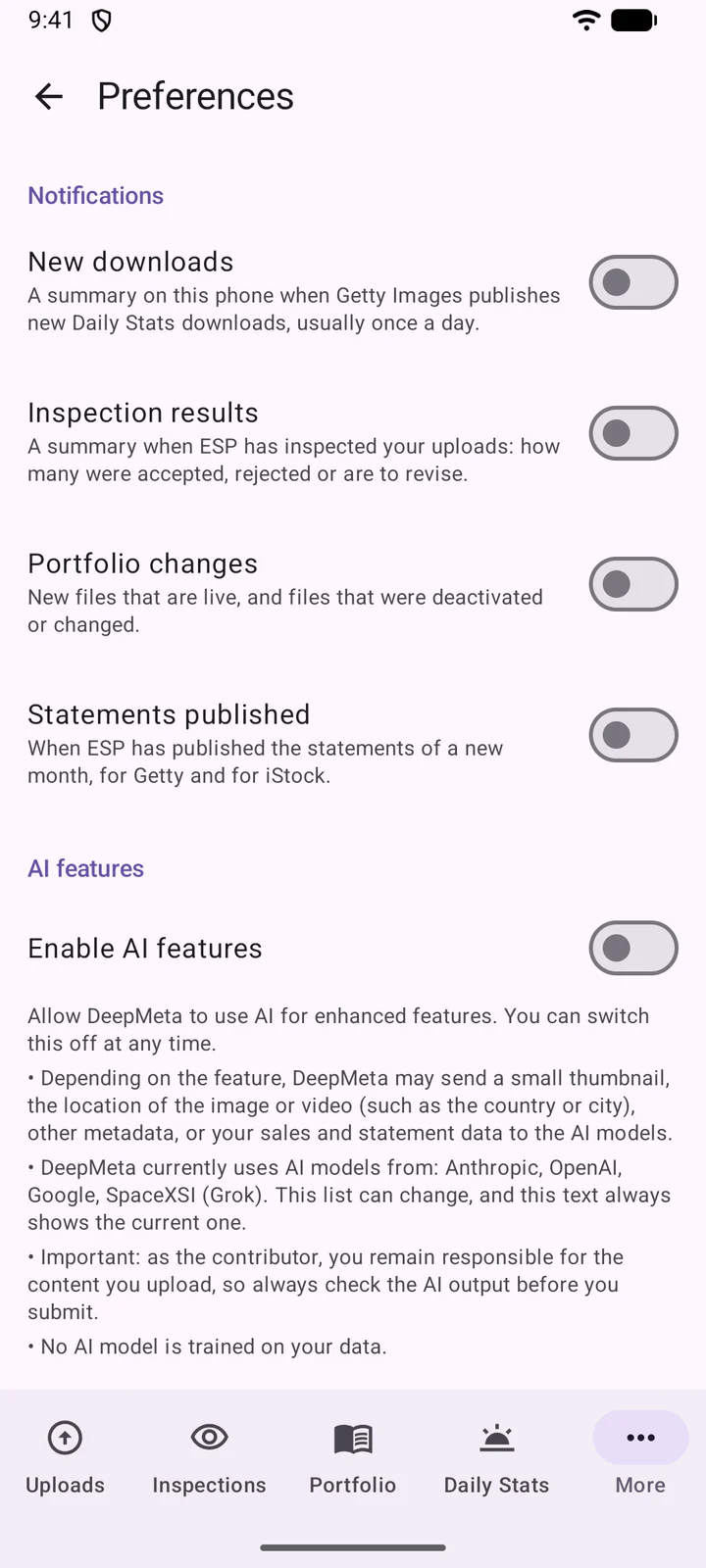
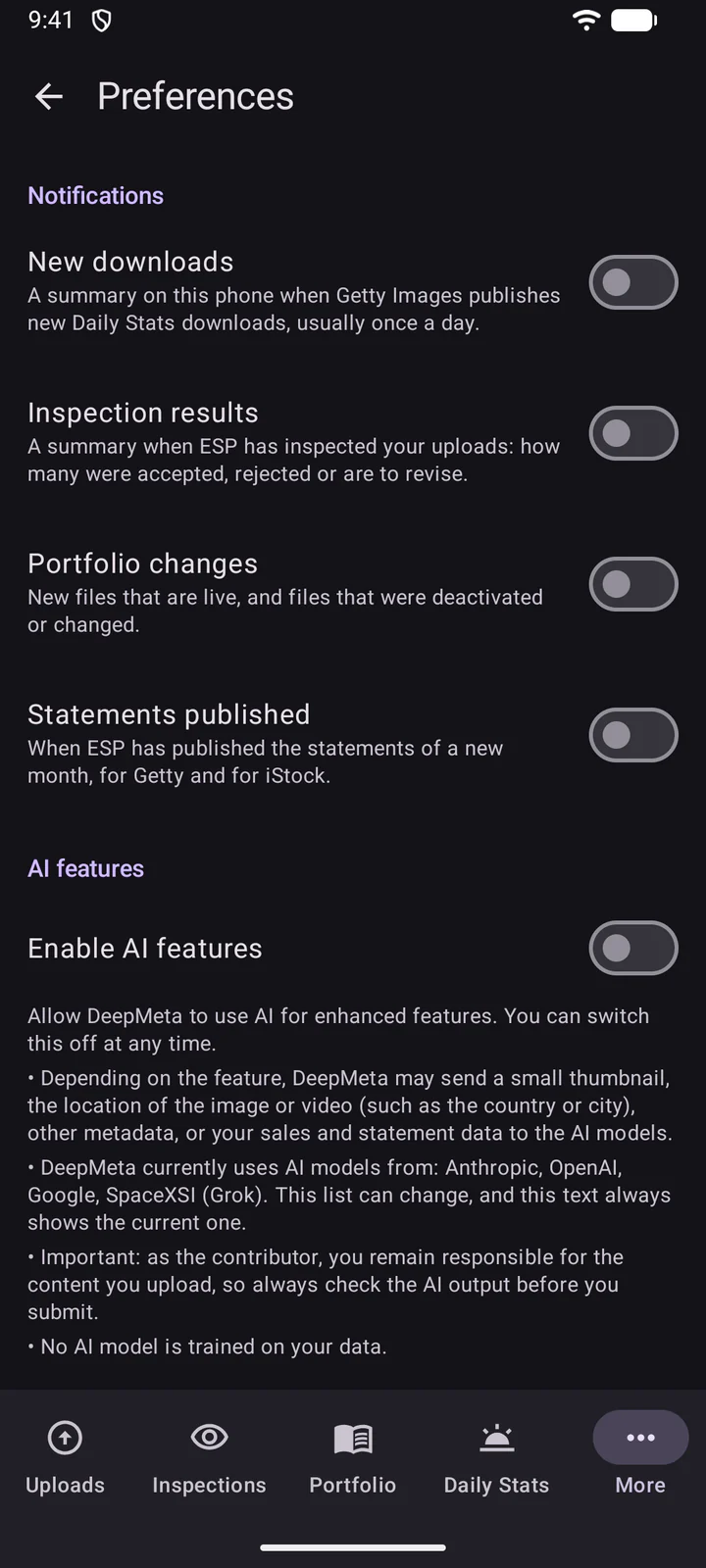
App language chooses the app's language.
On Android 12 and earlier, the app follows your phone's language.
Tap your name at the top of More for your account: Log out, our Privacy policy and Terms of use, and Delete account. Deleting your account works as on the website: the app first shows what goes, then emails you a 6-digit code to confirm. A deletion can't be undone. Your ESP account at Getty Images is not affected.
13. Planned features
The app isn't meant to do everything the website does. It focuses on what's useful on a phone: uploading, AI suggestions for your metadata, submitting, and following your Inspections, Portfolio and Daily Stats. The in-depth work, such as the statistics pages, your royalty statements or linking an ESP account, stays on the website, where a bigger screen makes it easier.
We'll keep adding what makes sense on a phone, and your suggestions help us decide what comes next. Which feature would you like to see in the app? Share your ideas on Discord or through our contact page.
Would you also like a native app for your iPad or Android tablet? Let us know, and tell us what you would use it for.
Feedback
As with any feature in DeepMeta, we deeply care about how it works for you. So: does the app work for you? Let us know on Discord or through our contact page.
Found a bug? Tell us your phone's model, its iOS or Android version, the app's version (the last row of More) and what you did just before: it helps us find it much faster.
Not testing yet?
Join the public beta with the link for your phone. On Android, join the DeepMeta beta testers group first.