

How To
Download your Royalty Statements
Detailed instructions on how to download your Royalty Statements from the Getty ESP website, so you can import them in DeepMeta
Introduction
In order to show you detailed sales statistics in DeepMeta, download your Royalty Statements from the Getty ESP site. These are .txt files you can subsequently import in DeepMeta. Here's a step‑by‑step guide on how to do this.
Sign in
In your browser, navigate to https://esp.gettyimages.com and login if needed:
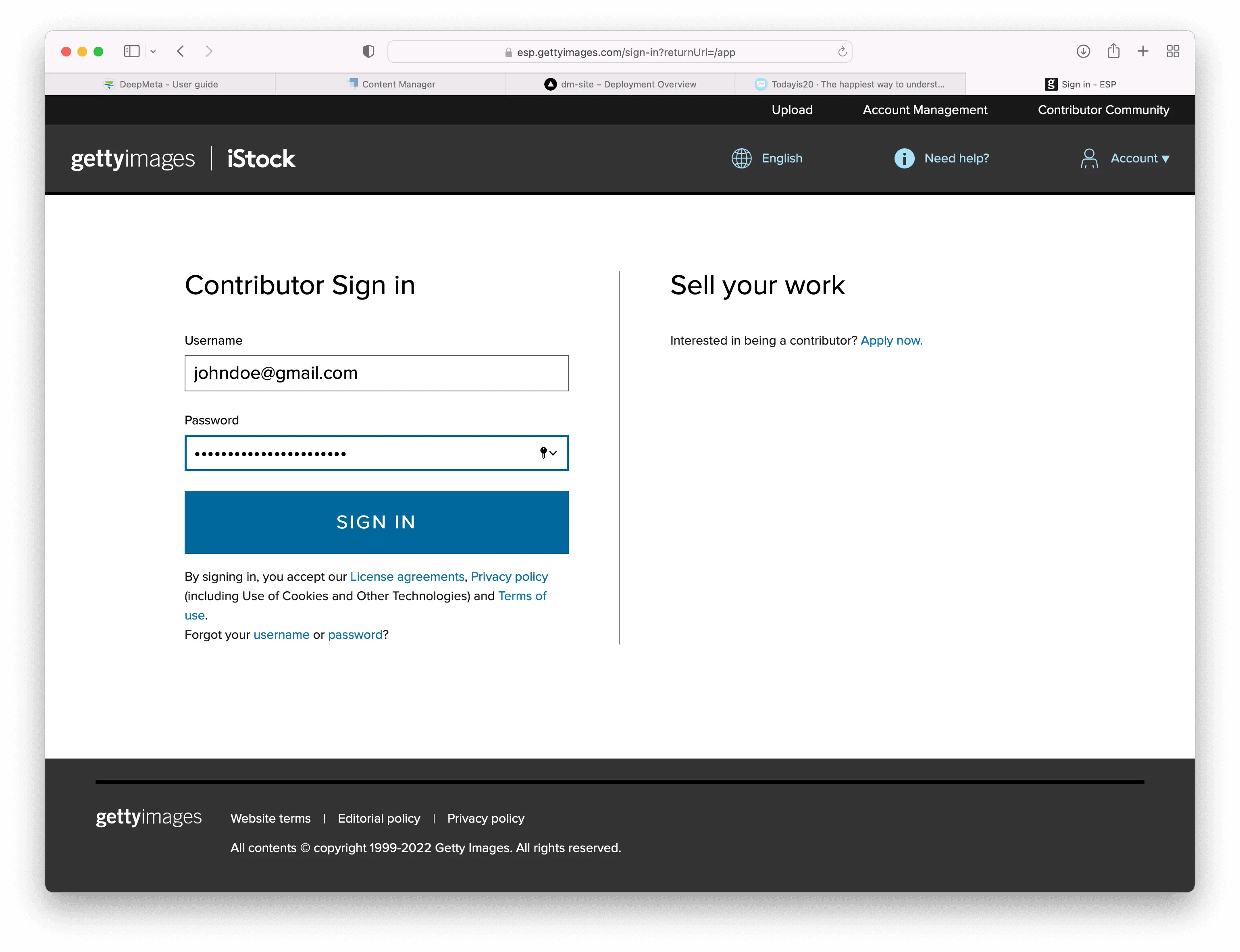
Getty ESP Portal
Use your regular Getty Images contributor credentials to access the Getty ESP site where your royalty information is managed.
Account management
Click on the 'Account management' menu option at the top right. This brings you to your personal account page.
Select the 'Royalties' tab if not already active:
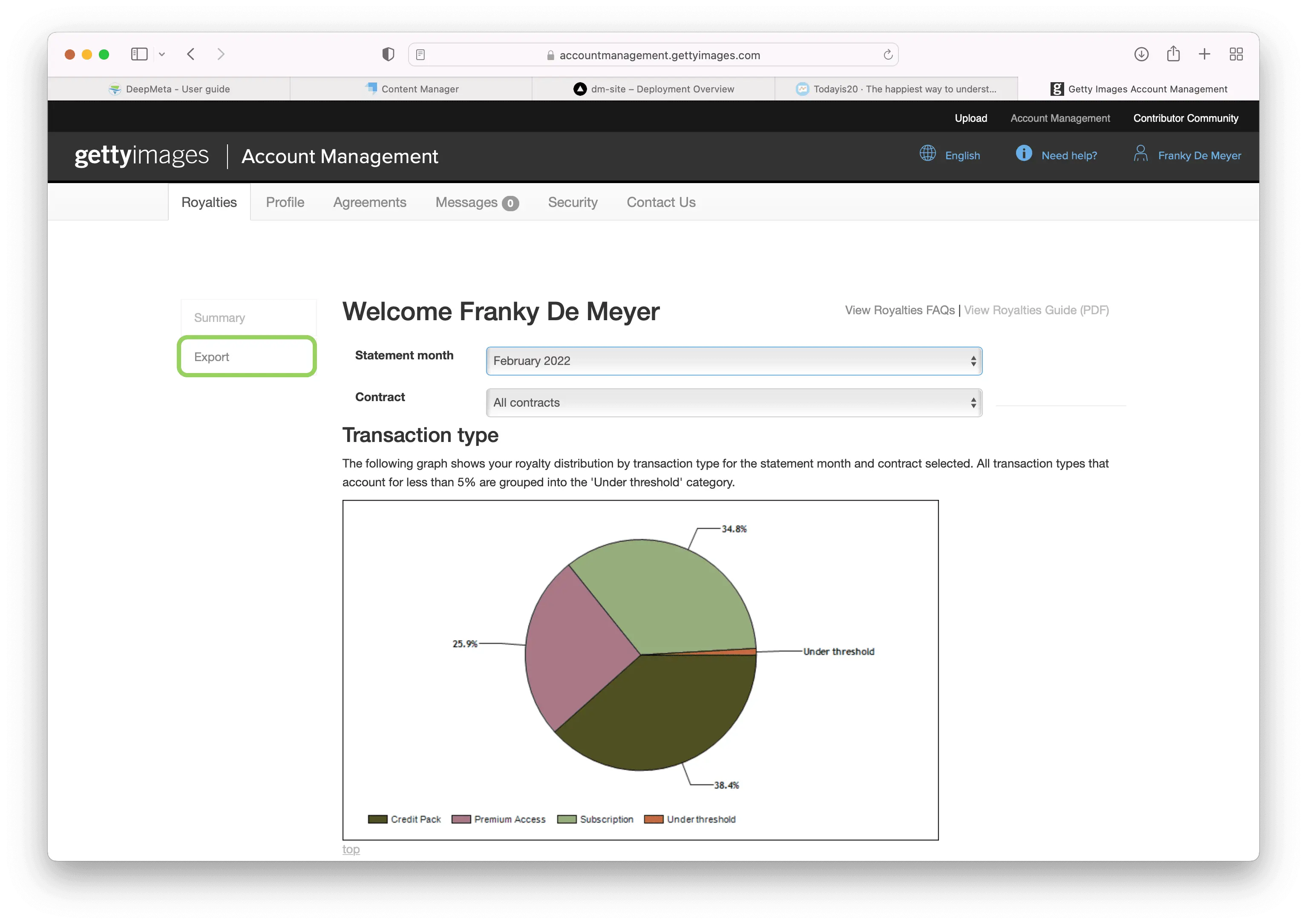
Export
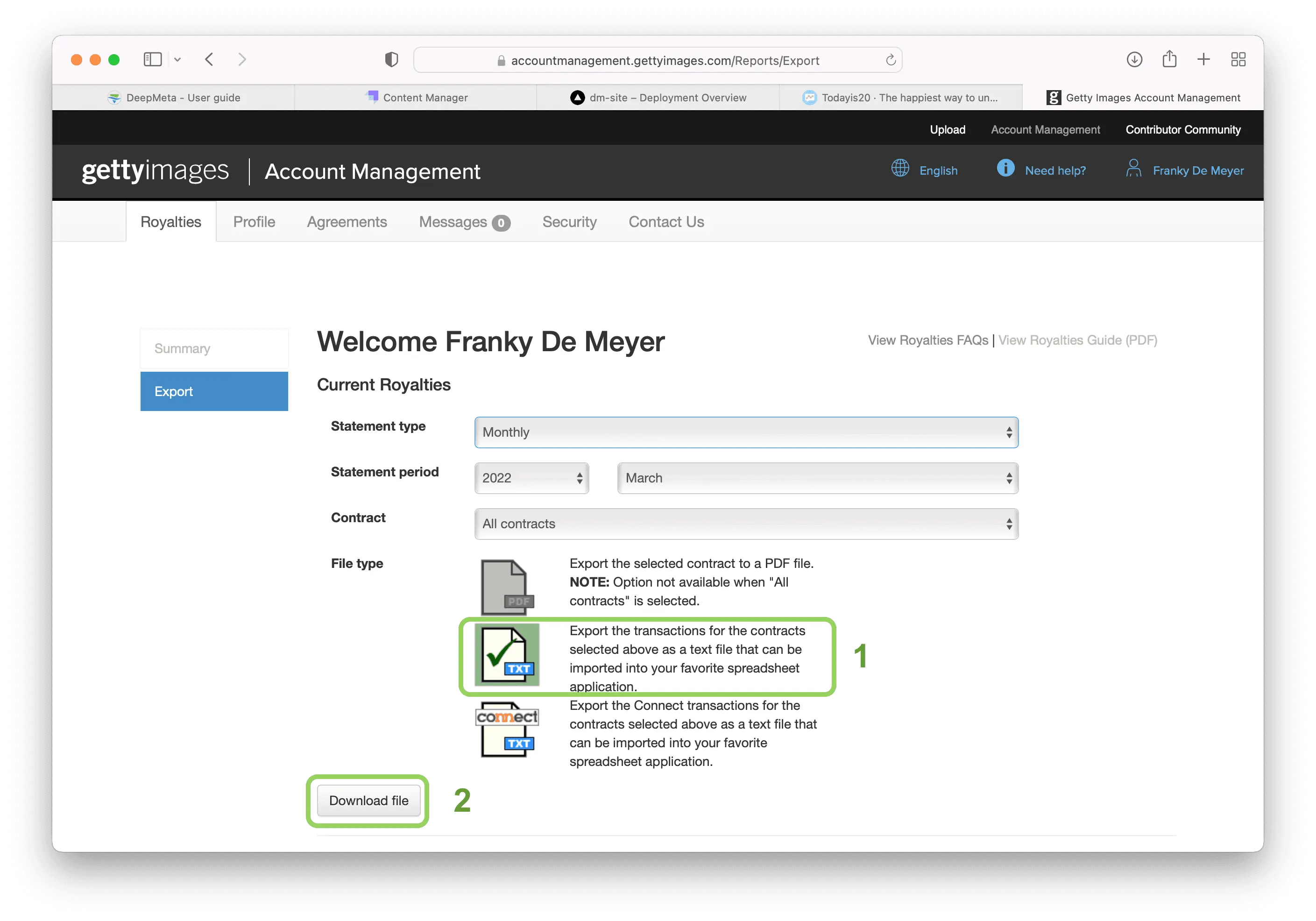
Follow these steps to export your royalty data:
- Select the 'Export' option at the left
- Select month, year and select 'All contracts'
- Select 'TXT' as File type
- Click the 'Download file' button to download the .txt file with your statement data
- Also download the 'Connect' transactions, so select the 'Connect TXT' icon and hit the Download button again
Two File Downloads
The result will be 2 .txt files, one for your regular sales and one for your 'connect' transactions. It is these 2 files you can import in the Statements section of DeepMeta: click the round blue + button at the top right of the list, or drop the files on the '... or drop your files here' field next to it. You can select or drop both files at once. If you haven't imported any statements yet, click the 'Import your Royalty Statements' button instead.
Archiving
We advise to systematically store the downloaded files on your computer, since they represent your official sales report from Getty Images. You may want to refer to them at a later date for fiscal or reporting reasons.
One possible method is to store them together in one folder per year:
Royalty Statements/
├── 2024/
│   ├── January_2024_Regular.txt
│   ├── January_2024_Connect.txt
│   ├── February_2024_Regular.txt
│   └── February_2024_Connect.txt
├── 2025/
│   ├── January_2025_Regular.txt
│   └── January_2025_Connect.txt
File Naming Convention
Use a consistent naming convention that includes the month, year, and transaction type (Regular/Connect) for easy identification and retrieval.
Backup Considerations
Consider including these files in your backups, as they serve as your official revenue documentation from Getty Images.
Troubleshooting
File Format Issues Ensure you're downloading the TXT format files from Getty ESP. Other formats, such as PDF, are not compatible with DeepMeta's import functionality.
Multi-month Statements Only statements for a single month can be imported. Multi-month or historical exports don't contain individual sales records, so DeepMeta can't use them. Importing the same month again simply replaces it.
Connection Problems If you're unable to access the Getty ESP site, check your internet connection and ensure you're using the correct login credentials.
Missing Data If expected transaction data is missing, verify that you selected the right month and year in the export options, and that you've imported both the Regular and Connect files for that month.