


FeatureNew
Getting Started with DeepMeta 4
Create your DeepMeta account, find your portfolio, import your sales, and connect ESP for uploading.

By Franky De Meyer
Moving from DeepMeta 3, or using DeepMeta for the first time? This guide takes you from signing up to seeing your portfolio, importing your sales, and uploading your first files.
DeepMeta 4 runs in your web browser at deepmeta.creativ.zone. There is no desktop application to install.
Your Getty login is not your DeepMeta login
DeepMeta 4 needs its own account. Your Getty, iStock, or ESP username and password will not log you in, even if you used DeepMeta 3 for years. Start by signing up (step 1 below). You only need your ESP credentials later, when you link your ESP account in step 3.
There are three things to set up:
- Your DeepMeta account: sign up and complete the four registration steps.
- Your portfolio and sales: import at least one Regular royalty statement so DeepMeta can find your portfolio. Add more statements for more sales history.
- Your uploads and batches: link at least one ESP account.
After registration, you can do the last two in either order. If you are a new contributor without a royalty statement yet, you can still link ESP and start uploading.
Coming from DeepMeta 3? Also read the section Coming from DeepMeta 3 further down: it explains what happens to your existing work.
1. Create your DeepMeta account
Open DeepMeta and click the orange Sign up button at the top right.
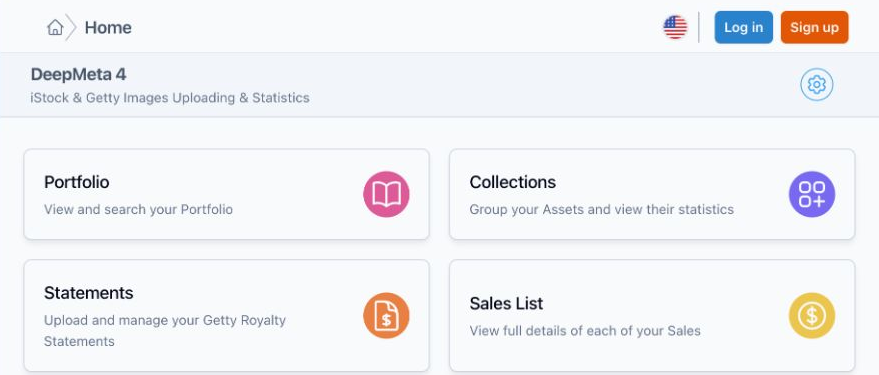
Already registered with DeepMeta 4 or creativ.zone? Then you don't need to sign up again: log in with that account's email address and password. Forgot it? Use Forgot your password?. Resetting your DeepMeta password does not change your Getty/ESP password, and vice versa.
Registration takes four short steps. The screenshots show a demo account.
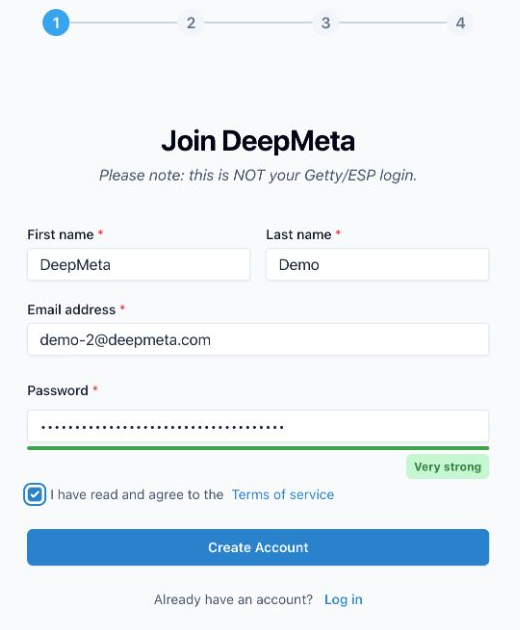
Step 1: Enter your account details
Enter your first and last name, an email address you can access, and a new password for your DeepMeta account. Accept the terms, then click Create Account.
Step 2: Confirm your email
Enter the six-digit code from the confirmation email we sent you.
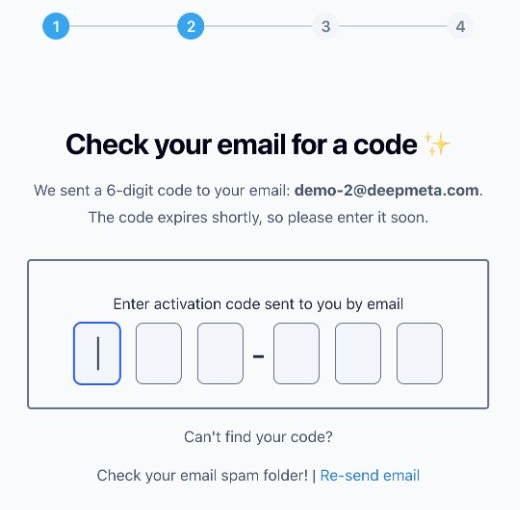
No email? Check your spam folder and the email address shown on this screen, then use Re-send email. The code expires, so enter it promptly.
Step 3: Create your Zone
DeepMeta is part of creativ.zone. Your Zone is your own space on the platform:
- Zone Name: the name you want to display. You can change it later.
- Zone Handle: a unique name used in your Zone's web address, such as pauline-images.creativ.zone. The name of your photography business or studio is a good choice.
Neither has to match your Getty or iStock name, and neither is used to find your portfolio.
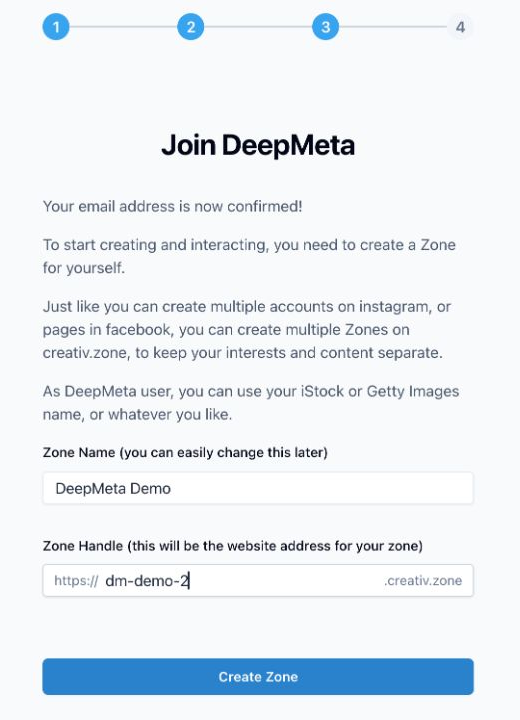
Click Create Zone to finish this step.
Step 4: Go to DeepMeta
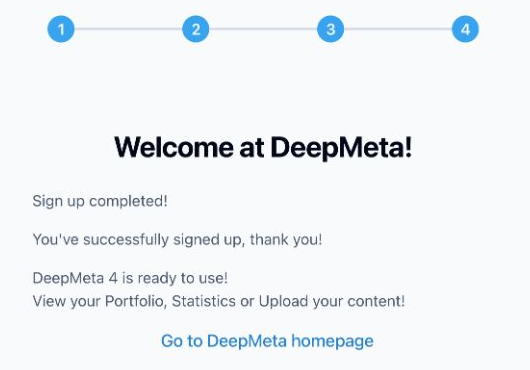
The confirmation screen says Sign up completed! Click Go to DeepMeta homepage.
Your homepage gives you direct access to Statements, Portfolio, ESP Accounts, and Batches & Uploads:
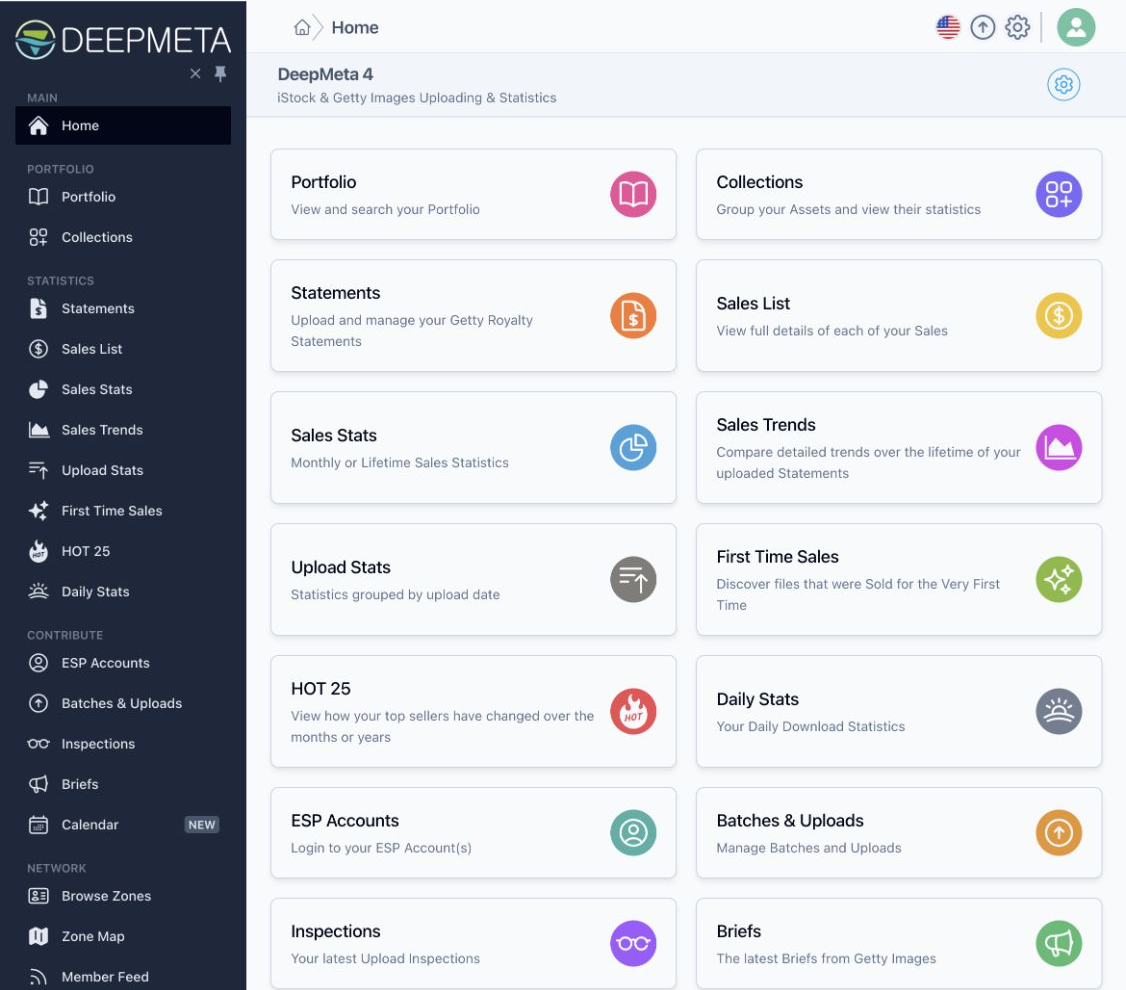
Your account is ready, but it stays empty until you complete the next two steps.
Seeing “Complete your Sign up”?
Your registration is not finished yet. Click that prompt and create your Zone (step 3 above).
2. Import a Regular statement to find your portfolio
DeepMeta finds your portfolio through your royalty statements. Every sale in a statement refers to an asset, and every asset carries your artist name. DeepMeta collects those artist names, then retrieves all assets for sale under them from the iStock catalogue (for iStock contracts) or the Getty Images catalogue (for Getty contracts). That includes assets that have never sold. You don't need to upload your original files again.
Start with at least one Regular statement containing sales. A Connect statement alone is not enough to find your portfolio.
Download the statement from Getty ESP
Sign in to Getty ESP using your Getty/ESP credentials. Open Account management → Royalties → Export, select the month and year, choose All contracts and TXT, then download the file.
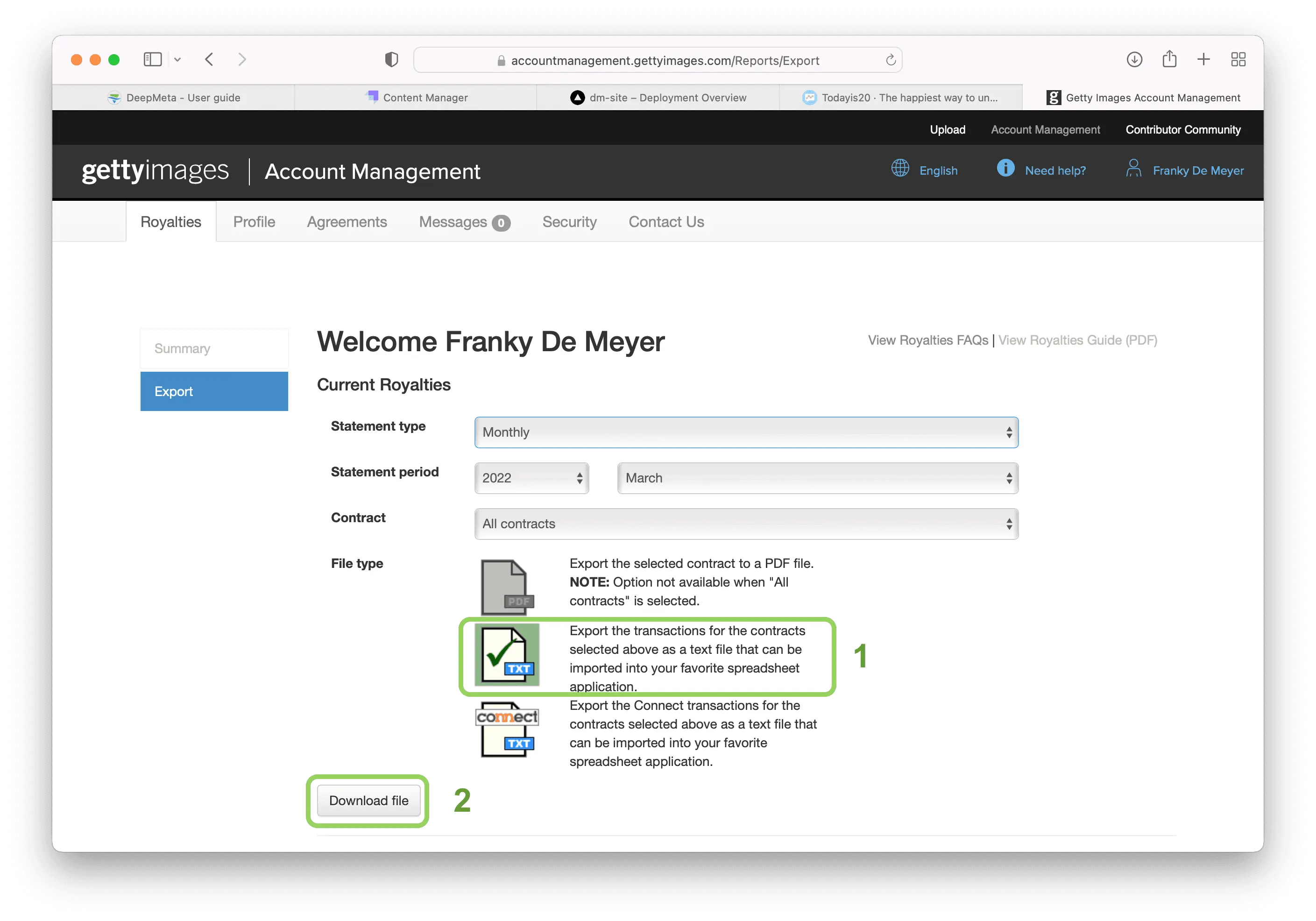
The statement download guide explains each screen in more detail. Download the Regular TXT file first. Also download the Connect TXT files for the months with Connect transactions, so you can include those earnings too.
Both an iStock and a Getty Images portfolio?
DeepMeta can only find a portfolio if your imported statements contain sales for it. If your Getty Images portfolio falls under a different ESP account than your iStock portfolio, download and import statements from that ESP account as well.
Only the monthly TXT statements from the Export tab can be imported. Multi-month statements, iStock's historical earnings file (one total per month), and very old statements in a different format are rejected, because they don't list individual sales.
Import it in DeepMeta
Open Statements. Click the blue + button at the top right and select your downloaded TXT file, or drop it in the import area.
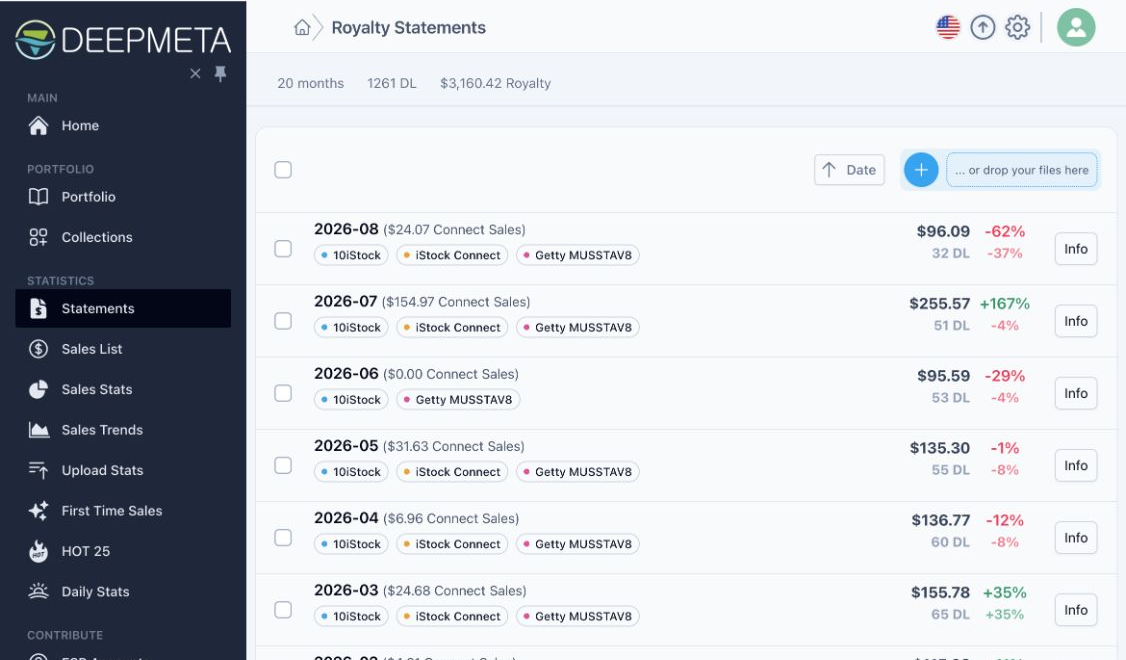
This example already has several months imported. On a new account, the list starts empty. Once an import is processed, the month appears in the list; its Info button shows the included contracts and source files.
Statement processing and portfolio retrieval run in the background. Allow a few hours for your portfolio to appear (large portfolios can take longer), then open Portfolio:
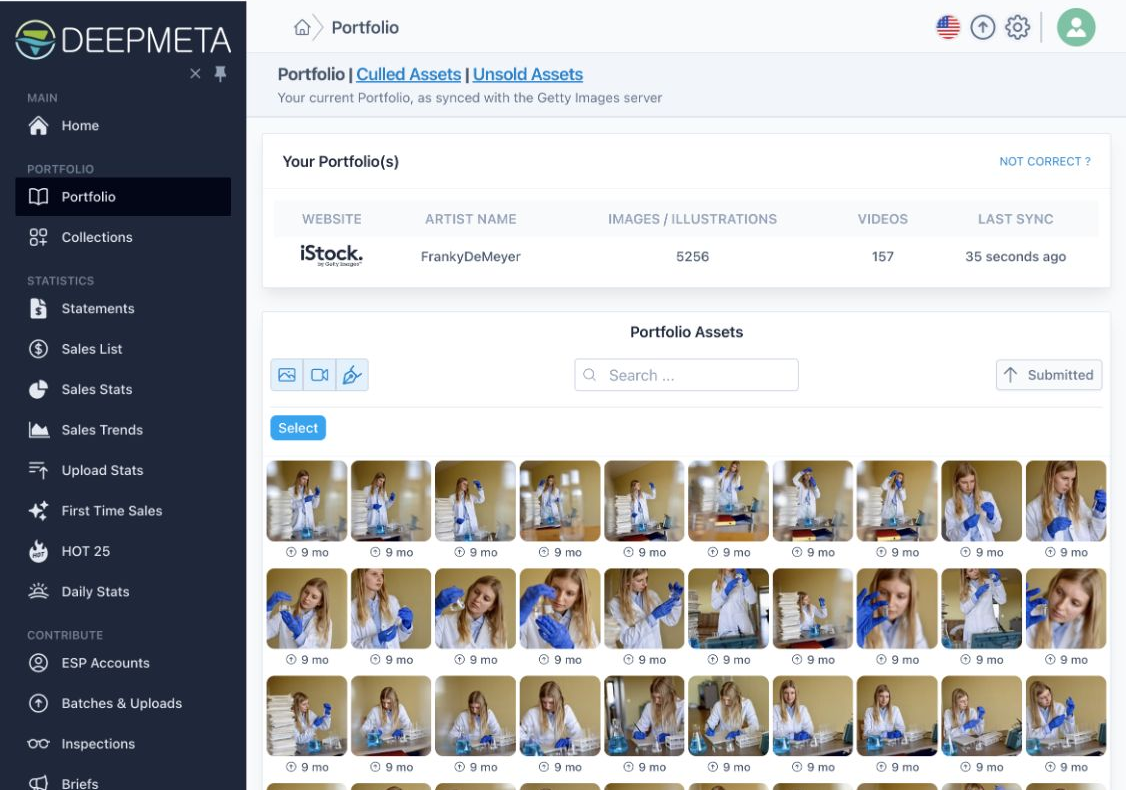
Import more months of Regular and Connect statements to build your sales history. One statement is enough to find your portfolio, but it cannot supply sales from months you have not imported. New statements are published monthly, so make importing them part of your monthly routine.
Keep copies of your statement files: they are your official sales records from Getty. Linking ESP does not download or import them for you.
3. Link your ESP account for uploads and batches
Open ESP Accounts. On a new account, DeepMeta explains that no ESP accounts are linked yet:
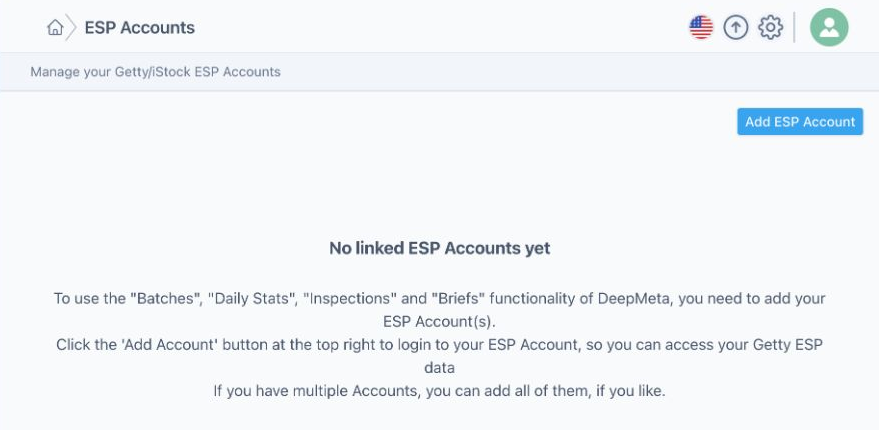
Click Add ESP Account, then Log in to your ESP Account.
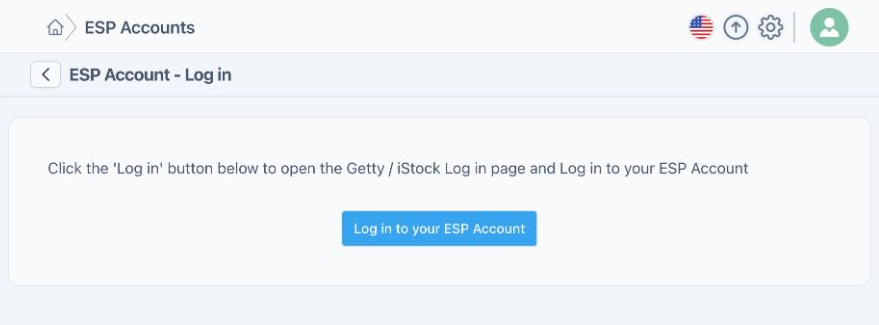
Now use your ESP credentials on Getty's login page: the same username and password you use at esp.gettyimages.com. Not your DeepMeta login, and not a gettyimages.com customer login. If your browser offers to autofill, make sure it fills in the right account, or type the credentials yourself. Complete Getty's login flow and you return to DeepMeta.
Your linked account appears in ESP Accounts. If you contribute through more than one ESP account, add each one you want to use in DeepMeta.
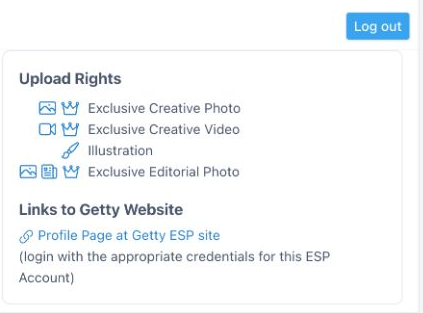
The linked account's Upload Rights show which types of content you can contribute through that account.
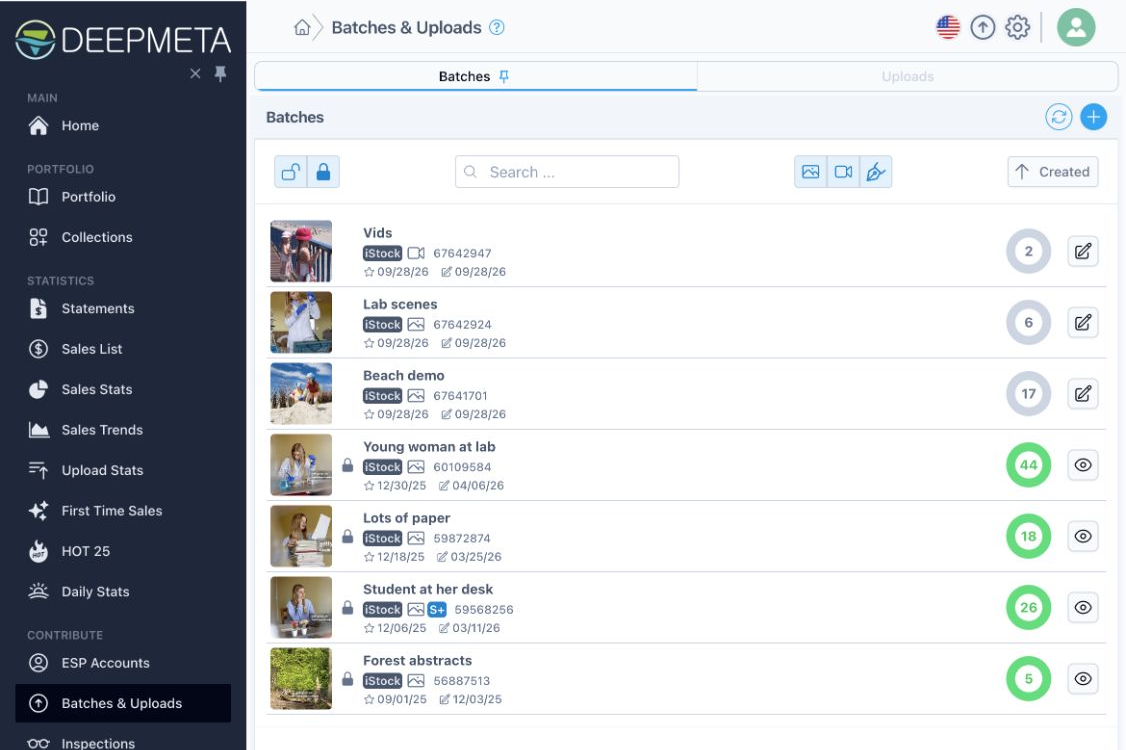
Open Batches & Uploads to see your batches. DeepMeta fetches them from ESP in the background and keeps them up to date, so there's nothing you need to click. Want the very latest right now, e.g. before you continue a batch at the Getty ESP site? Use the Sync button at the top right.
Why are older batches missing?
The first time you open Batches & Uploads after linking an ESP account, DeepMeta fetches your most recently updated batches in the background. This can take a few minutes, and the list fills in by itself. DeepMeta then adds the rest of your batch history in the background. Seeing only some of your batches at first is normal: check back later before assuming a batch is missing.
DeepMeta 4 can only fetch batches that Getty still keeps on ESP. In practice, this is roughly the last two years: Getty treats batches as temporary groupings for inspection, not as permanent collections, and removes older ones from its system. Once DeepMeta has synced a batch, it keeps its own copy, even after Getty removes the batch.
Your portfolio and sales history are separate from this batch history. Accepted assets stay in your portfolio after their original batch has disappeared, and imported statements still report their sales. Use Portfolio and Sales Stats to explore that older work.
4. Your first upload
Ready to upload your first files? Follow Uploading with DeepMeta for the full walkthrough: create a batch, add your files, prepare their metadata, and submit them for inspection.
DeepMeta 4 uploads your files to Getty ESP first; you add the metadata in DeepMeta afterwards. You can already start adding metadata whilst the files are uploading.
Keep your browser open whilst uploading
Because DeepMeta 4 runs in your browser, it can only read your files whilst their upload is in progress. Keep the DeepMeta tab open until all files have finished uploading. If you close it earlier, the browser cannot resume the transfer later, and you need to select the remaining files again.
Uploading a file and submitting it for inspection are separate steps. You can finish and check the metadata before submitting.
Coming from DeepMeta 3?
- You need a new account: DeepMeta 3 had no online account, so sign up for DeepMeta 4 as described in step 1.
- There is no data import: DeepMeta 3 stored its data on your computer, where DeepMeta 4 cannot read it. You don't need it though: your portfolio and sales come back through your royalty statements (step 2), and your batches through your linked ESP account (step 3).
- Work that only exists in DeepMeta 3: files you prepared in DeepMeta 3 but haven't uploaded yet are not on Getty's servers, so DeepMeta 4 cannot see them. Upload them from DeepMeta 3 first. If you aren't ready to submit them, turn off 'Submit after upload' in the DeepMeta 3 settings. These batches then show up in Batches & Uploads in DeepMeta 4, where you can continue editing and submit them. Use the Sync button if you want to see them right away. See Time to move to DeepMeta 4 for the background.
- Older batches: DeepMeta 3 may still show batches older than two years, because it kept copies in its local database. DeepMeta 4 can only fetch the batches Getty still has (see above).
- A different order of work: in DeepMeta 3, you first prepared the metadata on your computer and uploaded later. In DeepMeta 4, you upload first and add the metadata while or after the files upload. Keep your browser open until the uploads finish.
What depends on which data?
| Section | What it needs | Where the information comes from |
|---|---|---|
| Portfolio | A Regular statement with sales, to find your artist names | The iStock catalogue (istockphoto.com) and the Getty Images catalogue (gettyimages.com) |
| Sales List, Sales Stats, Sales Trends, First Time Sales, HOT 25 | Imported Regular statements for the months you want to analyse | Your royalty statement files, combined with asset details from your portfolio |
| Connect statistics | Imported Connect statements | Your Connect royalty statement files |
| Upload Stats | Portfolio assets and imported Regular statements | Accepted assets grouped by upload date, combined with statement sales |
| Batches & Uploads, Inspections, Briefs, Calendar | A linked ESP account | Getty ESP (esp.gettyimages.com) |
| Daily Stats | A linked ESP account | Getty ESP daily download statistics |
In short, DeepMeta uses three kinds of Getty data:
- The iStock and Getty Images catalogues: the public sites where your assets are for sale. DeepMeta reads your portfolio from there, which is why it needs your artist names from your statements.
- Getty ESP: the contributor system for batches, uploads, inspections, briefs, and daily statistics. DeepMeta accesses it through your linked ESP account.
- Royalty statements: files you download from ESP and import yourself. DeepMeta does not fetch them automatically.
Upload Stats covers accepted portfolio assets only; it does not count rejected submissions. First Time Sales needs at least three months of statements. Daily Stats shows downloads before they appear in your royalty statements, but only the statements report the actual royalties.
Common questions
My Getty password works on ESP but not on DeepMeta
That's expected: DeepMeta 4 has its own login. Use the email and password you registered with DeepMeta. If you have never registered, start with Sign up. If DeepMeta says the account already exists, log in or reset its password.
I can't link my ESP account
- Test your credentials at esp.gettyimages.com first: log out, then log in again by typing your username and password yourself. Then add the ESP account in DeepMeta using exactly the same credentials.
- If you have several ESP accounts, make sure you log in with one that has upload rights. A browser autofill with another account is a common cause of failure.
- A gettyimages.com customer account is not an ESP account. DeepMeta then reports that Getty accepted your login but could not find a contributor account.
- Did Getty only just create your contributor account? DeepMeta may report that it is not fully ready for sign-in yet. Wait a few days and try again.
I linked ESP, but my portfolio is empty
Linking ESP doesn't find your portfolio: import a Regular royalty statement with sales, then allow a few hours for processing. If you imported only Connect files, add a Regular statement.
My portfolio shows an artist that isn't me
Occasionally, a Getty statement contains a sale credited to another artist, and DeepMeta then adds that artist's portfolio as well. Contact us with the artist name, and we'll remove it.
My statement file is rejected
Make sure it is a monthly TXT statement downloaded from the Export tab, as shown in the statement download guide. Multi-month statements, the historical earnings file, and PDF or other formats cannot be imported.
Batches & Uploads shows no batches
Check that both Open and Closed are selected, all the type filter buttons at the top (images, videos, illustrations) are enabled, and the search box is empty. Right after linking ESP, give the background sync some time. Remember that batches older than about two years are no longer available from Getty.
My sales totals look incomplete
Check the selected date range and your imported months. Include both Regular and Connect statements where available. Missing statement months mean missing sales history, even if your portfolio is complete.
DeepMeta keeps sending me to ESP Accounts
Daily Stats, Inspections, Briefs, and Calendar need all your linked ESP accounts to be logged in. Getty sessions expire from time to time: in ESP Accounts, log in again to each account marked Logged out or Session expired. You don't need to create another DeepMeta account.
I still need help
Visit the Help Center or contact us. Tell us which setup step you reached and what you see on screen. Once your data is in, Uploading with DeepMeta and the Upload Stats guide are good next reads.